

Automatic Action Items and Progress Reports from Project Meetings | Optiverse
How project managers use the Optiverse AI assistant to extract action items automatically, generate progress reports from meeting discussions, identify recurring blockers, and keep stakeholders aligned without extra status meetings.
Project managers live in meetings. Standups, sprint reviews, steering committees, 1:1s. Optiverse captures everything and lets you pull structured outputs from those conversations instantly. No more manual note-taking, no more chasing people for updates, no more writing status reports from memory.
Automatic Action Item Extraction with Owners and Deadlines
After any project meeting, open the recording page and ask OptiAgent:
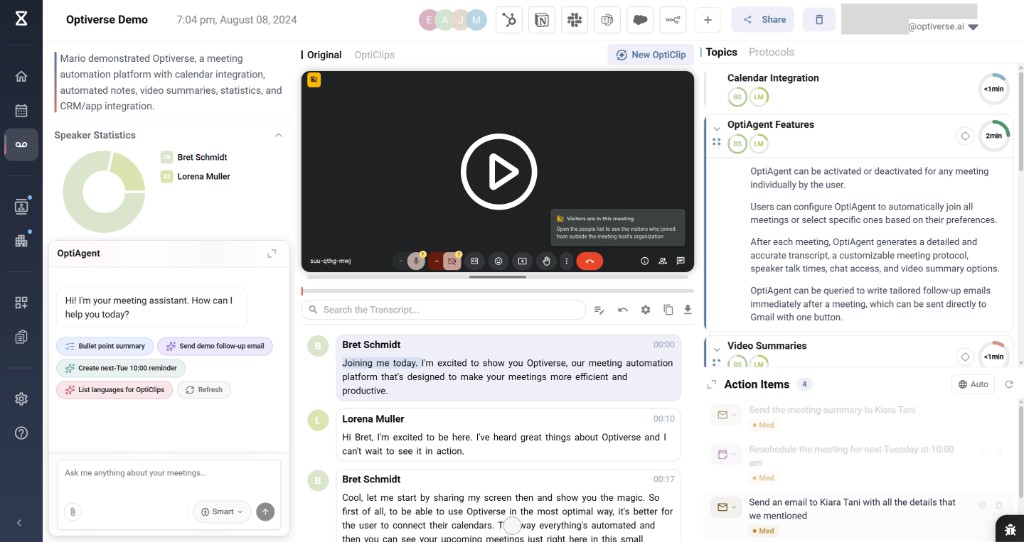
"Extract all action items with owners and deadlines from this meeting"
The AI pulls action items directly from the conversation. This includes items that were mentioned casually ("I'll have that ready by Friday") but never formally recorded on a whiteboard or in a shared doc.
You can refine further:
- "What did Sarah commit to delivering?"
- "List all action items assigned to the engineering team"
- "Which action items from this meeting don't have a deadline?"
This gives you an accountability trail grounded in what people actually said. If someone later claims they never agreed to a deliverable, you have the source.
For cross-meeting tracking, use Multi-Meeting Search on the homepage:
"What action items from the last 3 sprint planning meetings are still unresolved?"
The assistant compares what was promised against what was discussed in follow-up meetings and flags items that were never mentioned again.
Generate Progress Reports from Project Meetings
Instead of spending 30 minutes writing a weekly status update, go to the homepage and ask:
"Summarize everything discussed about Project Atlas this week"
Or be more specific:
"Generate a progress report on the mobile app redesign from the last 3 meetings"
The AI produces a structured report that includes:
- Decisions made (with who made them and when)
- Current blockers and who owns them
- Next steps and committed timelines
- Open questions that still need resolution
You can ask for the output in different formats:
- "Format this as a bullet-point executive summary"
- "Make it a one-page PDF report"
- "Export as a Word document I can attach to an email"
The report is grounded in what was actually discussed. Every claim can be traced back to a specific conversation.
Identify Recurring Blockers
Some issues surface in every meeting but never get resolved. They're easy to miss in individual notes but obvious when you look across multiple conversations.
Ask the assistant on the homepage:
"What issues have been raised more than once in Project Atlas meetings this month?"
Or try:
"What keeps coming up as a blocker in our weekly engineering syncs?"
The AI identifies patterns across your meetings:
- A dependency that's been "almost ready" for three sprints
- A vendor integration that blocks multiple teams
- A resource constraint mentioned repeatedly but never escalated
This turns your meeting history into an early warning system. You can escalate persistent blockers with data showing exactly how many times the issue has surfaced and which people raised it.
Timeline Visualization of Project Decisions
When a project has been running for months, it's hard to remember when key decisions were made and what led to them.
Ask:
"Create a timeline of all major decisions for Project Atlas over the last quarter"
The assistant generates a structured timeline showing:
- What was decided
- When it was decided
- Who was in the meeting
- What alternatives were discussed before the decision
This is valuable for:
- Retrospectives: Understanding the sequence of decisions that led to current outcomes
- Onboarding: Bringing new team members up to speed on project history
- Stakeholder alignment: Showing leadership exactly when and why directions changed
You can also ask for visual outputs:
"Generate a Mermaid diagram showing the key milestones and decision points for this project"
Draft Stakeholder Updates Instantly
Stakeholder emails take time because you need to balance detail with brevity and make sure nothing important is missing. Let the AI draft it for you.
On the homepage, ask:
"Draft a status update email to the steering committee based on this week's project meetings"
The generated email includes:
- A brief executive summary
- Key decisions and their rationale
- Current risks and mitigation plans
- Upcoming milestones and deadlines
You can customize the tone and audience:
- "Make it suitable for C-level stakeholders. Keep it under 200 words."
- "Include more technical detail. This is for the engineering leadership team."
- "Add a section about budget implications based on what was discussed"
Every statement in the email traces back to an actual conversation. No generic filler, no assumptions.
Example Prompts for Project Managers
| What you need | What to ask the assistant |
|---|---|
| Action items from a meeting | "Extract all action items with owners and deadlines from this meeting" |
| Accountability check | "What did [person] commit to delivering in the last 2 weeks?" |
| Weekly progress report | "Generate a progress report on [project] from this week's meetings" |
| Recurring blockers | "What issues have come up more than once in [project] meetings this month?" |
| Decision history | "Create a timeline of all major decisions for [project] this quarter" |
| Stakeholder email | "Draft a status update email for the steering committee based on this week's meetings" |
| Retrospective prep | "What went wrong in [project] based on discussions from the last month?" |
| Resource tracking | "Which teams or people have been flagged as overloaded in our recent planning meetings?" |
| Risk identification | "What risks or concerns have been raised about [project] in the last 4 weeks?" |
| Meeting prep | "Summarize all open items and unresolved questions from the last [project] meeting" |
Workflow Tips
- Run extraction right after each meeting. Ask OptiAgent on the recording page for action items while context is fresh. The AI works from the transcript, so it never forgets or misattributes.
- Use Multi-Meeting Search for cross-meeting analysis. Anything that spans multiple conversations (trends, recurring issues, progress over time) works best from the homepage.
- Set a weekly routine. Every Friday, ask for a progress report covering that week's project meetings. Copy it into your project management tool or send it directly to stakeholders.
- Combine with protocols. Set up a custom protocol for your project meetings that auto-generates action items, decisions, and blockers after every call. This gives you structured output without having to ask each time.
Get Started
Optiverse takes under 5 minutes to set up. Connect your calendar, let the assistant join your next project meeting, and you'll have a searchable record with automatic action items waiting for you afterward.
- Create your free account (Google or Microsoft sign-in)
- Connect your calendar and set the assistant to join your project meetings
- After the first meeting, open the recording page and ask for action items
- Try a cross-meeting progress report after you have a few meetings recorded
Every meeting you record adds to the searchable project history. Within a week, you can run progress reports and blocker analyses across all your project conversations.
Want to see how Optiverse fits project management workflows? Book a short call and we'll walk you through it.
Stay Informed Without Attending Every Meeting
How executives use the Optiverse AI assistant to get instant briefings on any meeting, generate cross-team visibility reports, track strategic decisions over time, and prepare board updates from real conversation data.
How HR Teams Aggregate Interview Feedback and Track 1:1s with the Optiverse Assistant
How HR and People Operations teams use the Optiverse AI assistant to compare interview feedback across panelists, track themes from 1:1 meetings over time, prepare for performance reviews with full context, and identify training needs from team discussions.