

How the Assistant Works
Understand how the Optiverse meeting assistant joins calls, how to admit it, and its timing and silence behavior.
The Optiverse assistant (also called the "bot" or "note-taker") is an external participant that joins your online meetings to record and transcribe them. This page explains exactly how it behaves, when it joins, and what causes it to leave.
The Assistant is a Guest
Meeting platforms (Microsoft Teams, Zoom, Google Meet) treat the Optiverse assistant as a guest participant. This means:
- It appears in the participant list like any external attendee
- It is displayed with the name "[YourName]'s assistant by Optiverse" (customizable)
- In most organizations, it must be admitted from the lobby before it can join
The only exception is if your Microsoft Workplace settings allow guests to enter meetings directly without lobby approval. This is uncommon in enterprise environments.
If the assistant joins some Microsoft Teams meetings but not others, the issue is often caused by Teams admin policy settings rather than meeting-level options. See Troubleshoot Microsoft Teams Join Issues.
Platform Connections
The assistant knows about your meetings because Optiverse reads your connected calendar and extracts the meeting links from your events. This is how it determines which meetings to join and where to find them.
Microsoft Teams and Google Meet
These platforms work out of the box. Once you connect your calendar during sign-up (Google Calendar or Outlook), Optiverse can read your meeting links and join your Teams or Google Meet calls directly. No additional setup is needed.
Zoom (One-Time Integration Required)
Due to a recent Zoom SDK update, Zoom meetings require a one-time authentication step. You need to connect your Zoom account from within Optiverse so the assistant can join your Zoom calls.
To set this up:
- Go to Settings → Integrations → Zoom
- Click Connect
- Sign in with your Zoom account and authorize Optiverse
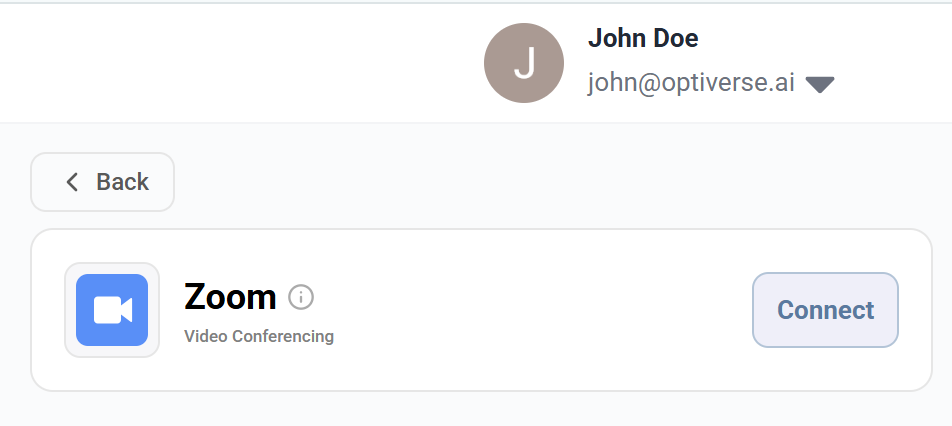
This is a one-time step. Once connected, the assistant will be able to join your Zoom meetings just like it joins Teams and Google Meet calls.
If you skip the Zoom integration, the assistant will not be able to join your Zoom meetings even if they appear on your calendar. Teams and Google Meet will still work normally.
Joining Timing
The assistant arrives 3 minutes before the scheduled meeting start time. It will then wait in the lobby for a total of 10 minutes to be admitted.
| Event | Timing |
|---|---|
| Assistant requests entry | 3 minutes before meeting start |
| Maximum wait in lobby | 10 minutes total |
| If not admitted within 10 minutes | Assistant gives up and leaves |
This means if your meeting starts at 10:00, the assistant will appear in the lobby at 9:57 and will stop waiting at 10:07 if nobody lets it in.
What if you missed the window?
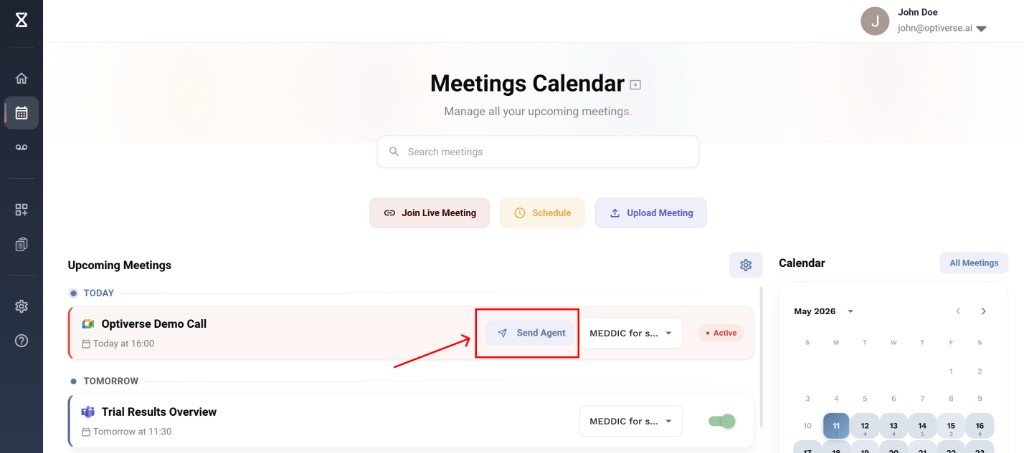
If the assistant left because it wasn't admitted in time, you can resend it:
- Go to the Calendar page in Optiverse
- Find the meeting and click "Send Agent"
- The assistant will re-request entry within approximately 30 seconds
You can also send the assistant late on purpose. For example, if you want to have informal small talk first and only start recording when the agenda begins.
Silence Detection
The assistant has a 10-minute silence threshold. If it detects no audio activity for 10 consecutive minutes, it automatically leaves the meeting.
This behavior exists to prevent the assistant from recording empty or inactive calls. However, it means you should be aware of the following scenarios:
Scenarios where the assistant will leave
| Scenario | What happens |
|---|---|
| Microphones not turned on | Assistant hears no audio. After 10 minutes of silence, it leaves. |
| Extended break during a meeting | If the group takes a break longer than 10 minutes without pausing or ending the call, the assistant leaves. |
| In-person meeting on Teams with muted mics | If you opened a Teams call for recording but forgot to unmute, the assistant hears nothing and leaves after 10 minutes. |
If you are running a hybrid meeting (in-person with a Teams/Zoom link open for recording), make sure at least one microphone is active so the assistant picks up audio. Otherwise it will interpret the silence as an empty meeting and leave.
How to prevent unintended departures
- Ensure at least one participant's microphone is on and picking up room audio
- If you need a break longer than 10 minutes, consider ending the recording and starting a new one after the break
- For in-person meetings recorded via a virtual meeting link, use a conference room microphone or place a laptop with an active mic near the speakers
Admitting the Assistant
When the assistant joins the lobby, the meeting organizer (or host) receives a notification to admit it. Below is how this looks on each platform.
Microsoft Teams
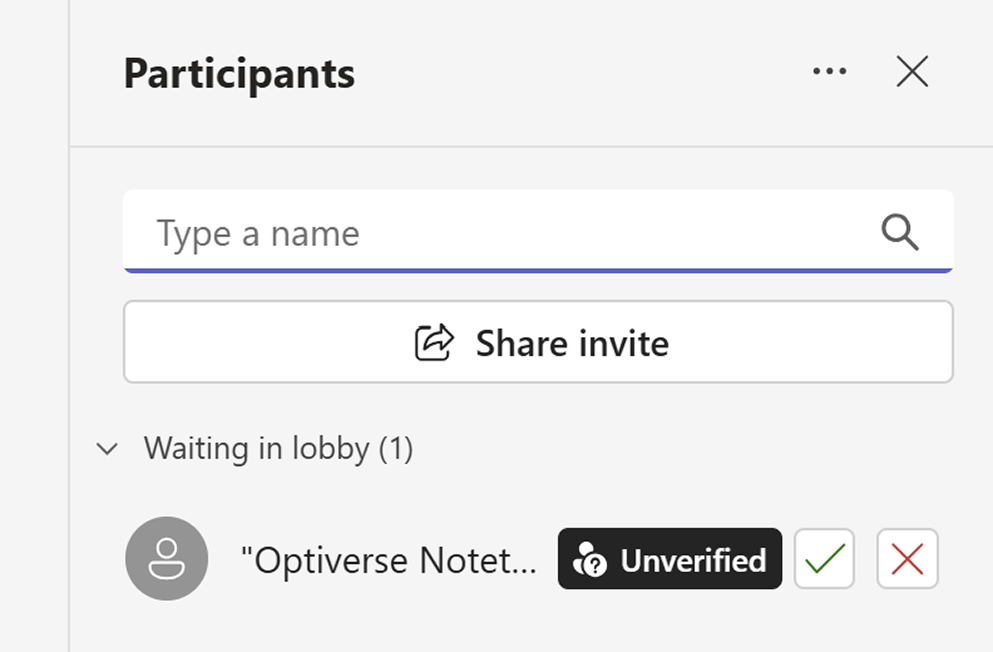
The organizer sees the assistant listed under "Waiting in lobby" in the Participants panel. Click the green checkmark to admit it.
If the assistant never reaches the lobby for certain organizers, check Troubleshoot Microsoft Teams Join Issues for the admin policy checklist.
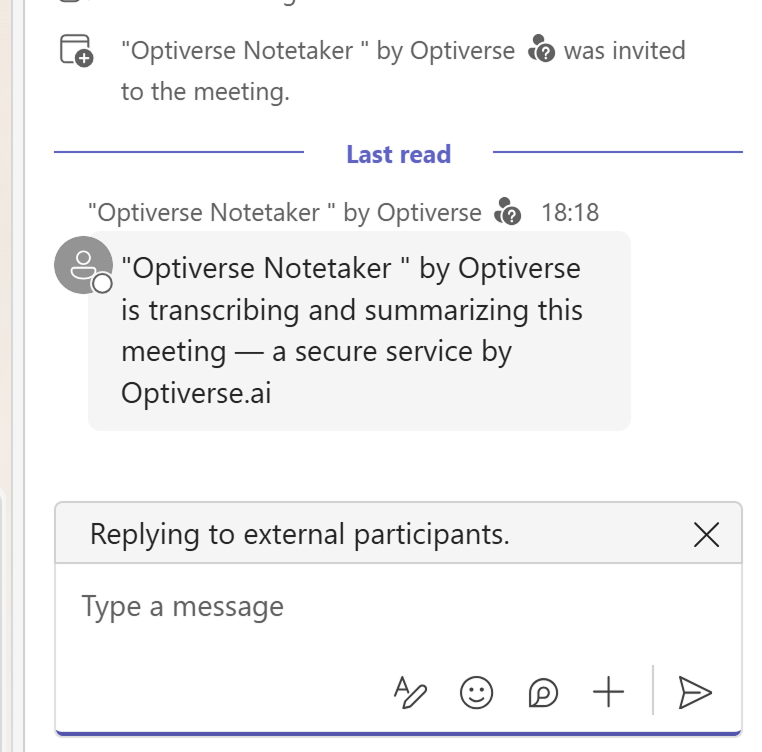
Once admitted, the assistant posts a message in the meeting chat announcing that it is transcribing and summarizing the meeting. This serves as a transparency notice for all participants.
Google Meet
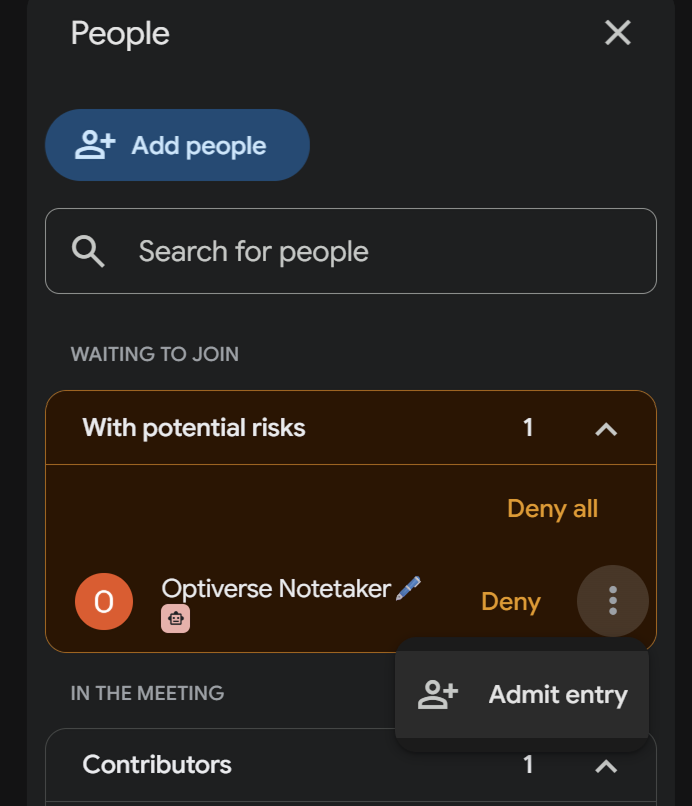
In Google Meet, the organizer sees the assistant under "Waiting to join" with an Admit entry option.
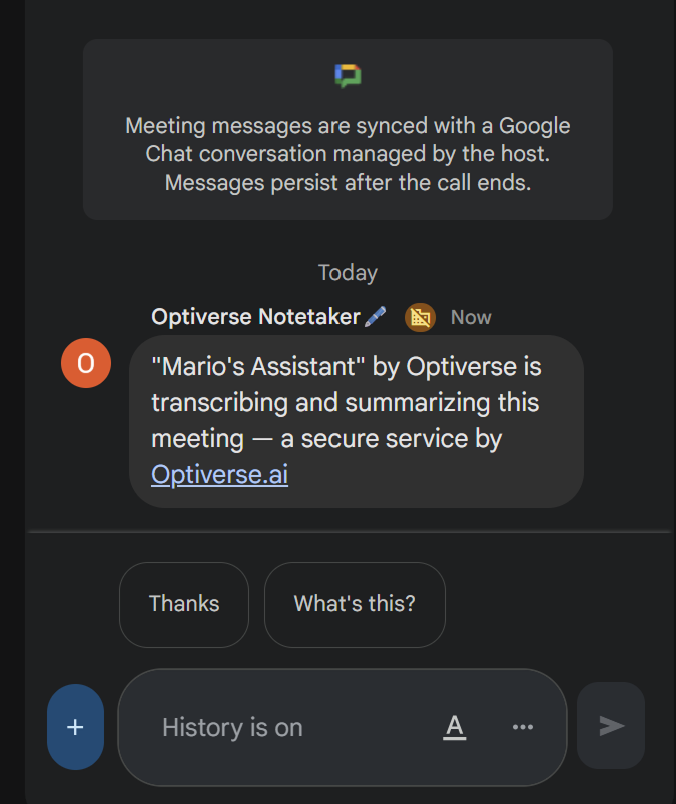
Once admitted, the assistant sends a chat message announcing that it is transcribing and summarizing the meeting.
Zoom
The behavior on Zoom is identical. The assistant appears in the Waiting Room and the host receives a notification to admit it. Once admitted, it announces itself in the meeting chat with the same transparency message. The experience mirrors what you see above for Teams and Google Meet.
Removing the Assistant (Stopping the Recording)
Participants with organizer rights are always in control. As long as the assistant is present in the meeting, it is recording. The moment you remove it, recording stops and Optiverse begins processing the meeting.
To stop recording, simply kick the assistant from the participant list like any other attendee.
Microsoft Teams
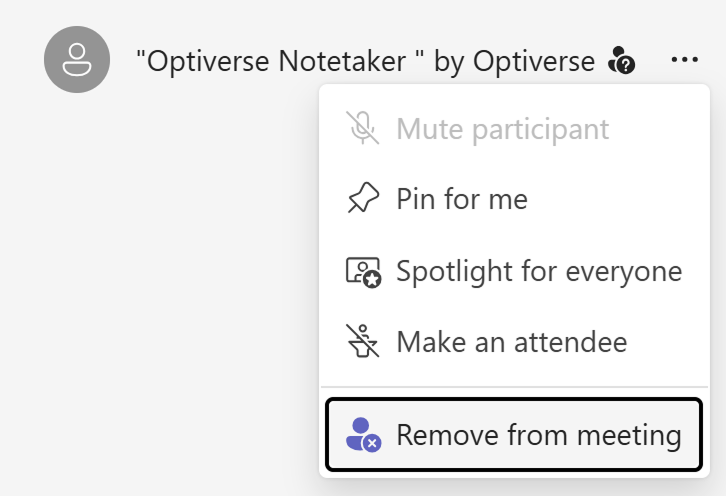
Click the three dots (...) next to the assistant's name in the participant list and select "Remove from meeting".
Google Meet
Click on the assistant in the participant list and select the remove option.
Zoom
Click on the assistant's name in the participant list, then select Remove. The same behavior applies: recording stops immediately and processing begins.
Removing the assistant is not an error or a problem. It simply ends the recording at that point. Optiverse will process whatever was recorded up to the moment of removal and deliver a summary as usual.
Agent Join Settings
Configure when Optiverse should automatically send the assistant to your meetings. You can manage these from Meeting Preferences.
| Setting | Behavior |
|---|---|
| All meetings | Joins every calendar event with a meeting link |
| Only meetings you organize | Joins only meetings where you are the organizer |
| Only internal meetings | Skips meetings that include external participants |
| On invitation only | Only joins when you manually toggle it on per meeting or when invited by email |
These settings can be configured per user, or set organization-wide by an admin.
Admins can see and override any user's join setting from the Team page. If someone reports unexpected bot behavior, the admin can immediately check their setting and correct it.
Inviting the assistant by email
When using the "On invitation only" setting, you can also invite the assistant directly from your calendar by adding optiagent@optiverse.ai as a participant to your meeting event. The assistant will then automatically join that meeting without needing to toggle it on in the Optiverse Calendar page.
This is useful if you want to stay in your normal calendar workflow (Outlook, Google Calendar) without needing to open Optiverse.

Per-meeting overrides
Regardless of your default setting, you have full control over individual meetings from the Calendar page:
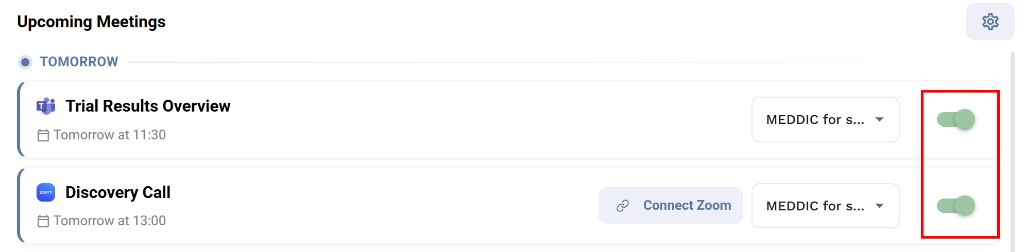
- Turn off the assistant for a specific meeting by clicking the toggle on the Calendar page
- Turn on the assistant for a meeting that wouldn't normally be covered by your settings
The green indicator next to each meeting confirms whether the assistant will join.
Sending the Assistant Manually
If a meeting isn't in your calendar (e.g., an ad-hoc call, or you're using a personal account without a calendar connection), you can send the assistant on demand using Join Live Meeting:
- Go to the Calendar page
- Click Join Live Meeting
- Paste the Teams, Zoom, or Google Meet meeting link
- Click Send Agent
- The assistant will request entry to the meeting within approximately 30 seconds, then appear in the lobby to be admitted
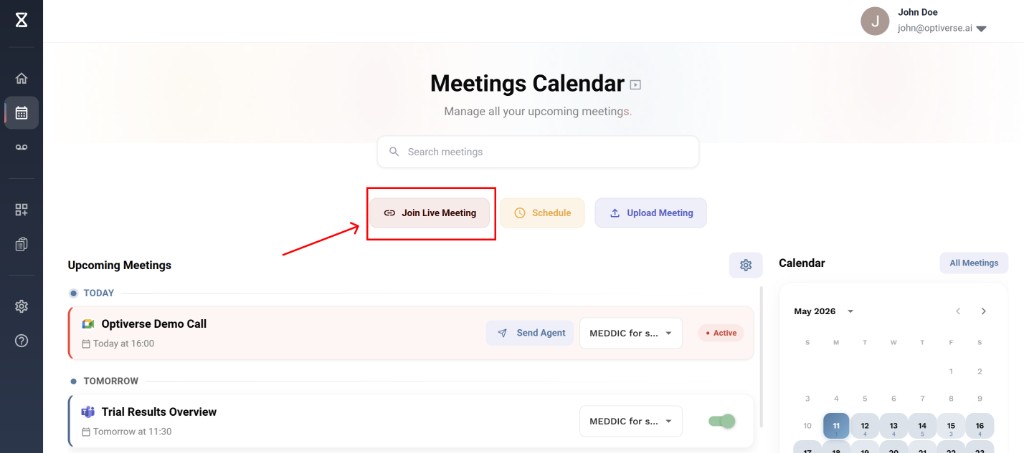
Even when sent manually, the assistant still enters the lobby and needs to be admitted. It will never auto-join without approval.
What Gets Recorded
- Audio + Video by default. The assistant captures both audio and the video feed.
- Audio only if your admin has set the meeting recording output to Audio from Organization Profile.
When video is disabled, the meeting page in Optiverse shows the audio waveform and transcript without a video player.
Recording Awareness and Consent
The assistant takes transparency seriously:
- It announces itself in the meeting chat when it joins, informing participants that the meeting is being recorded
- Participants can see the assistant listed in the attendees panel
Framing consent with external participants
When meeting with people outside your organization, ask for consent by framing value rather than just requesting permission:
"Is it okay if I let this AI meeting assistant record and take notes for us so we can fully focus on this conversation? I can share the summary with you afterwards."
This approach offers clear value (shared notes, full focus) rather than just asking for permission, and achieves a near-universal acceptance rate.
Always get verbal consent before the assistant starts recording in external meetings. Even though the assistant announces itself in the meeting chat, a verbal heads-up is professional courtesy and may be legally required depending on your jurisdiction.
Customizing the Assistant Name
To change how the assistant appears in meetings:
- Go to Settings → Meeting Preferences
- Edit the My Agent Name field
- Save. The new name applies to all future meetings.

Email Summary Settings
Configure who receives the post-meeting email recap:
- All invitees, summary sent to everyone in the meeting, including external participants
- My organization members, summary sent only to organization members who were in the meeting
- Only participants with an Optiverse account, summary sent only to attendees with an Optiverse account

Adjust these settings from Settings → Meeting Preferences. Admins can also set and lock this at the organization level. See Team & Workspace and Access & Sharing for more details.