

Mobile App
Record in-person conversations, transcribe on the go, and get instant AI summaries from your phone.
The Optiverse mobile app brings all the power of Optiverse's transcription and summarization capabilities to your pocket. Capture in-person meetings, record voice memos, and upload existing audio files, all processed with the same AI as your online meetings.
Installation
Download the app
- iOS: Download from the App Store
- Android: Download from Google Play
Or scan the QR codes below:

Log in
Sign in with the same email you use on the Optiverse website (Google or Microsoft). Your recordings will sync to your Optiverse workspace.
The mobile app is available only to users who are already registered on the Optiverse platform. If you haven't signed up yet, create your account at app.optiverse.ai first.
Recording In-Person Meetings
Start a recording
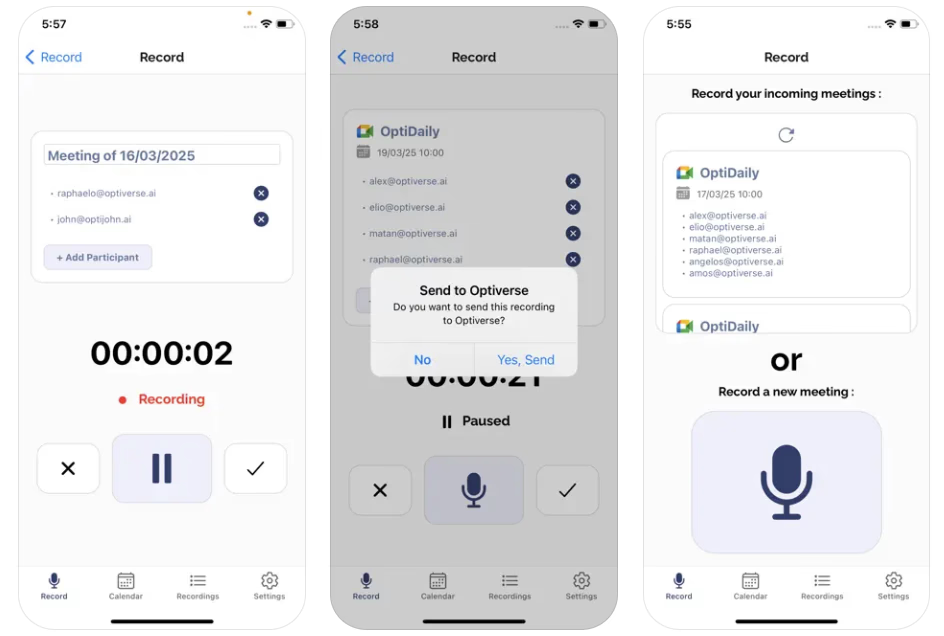
Tap the Record button, place your phone nearby, and let Optiverse do the heavy lifting. The app captures the conversation clearly, even while running in the background, so you can stay focused on the discussion.
Link to a calendar event (optional)
Before recording, you can select an existing calendar event from the list. This attaches metadata like the meeting title and participant list to your recording.
You can also skip this and just start recording without selecting an event.
Pause and resume
Unlike the Optiverse meeting assistant that joins virtual calls, the mobile app lets you pause and resume recordings anytime. This gives you more control and flexibility during live interactions.
If you receive a phone call during recording, the app automatically pauses and resumes after the call ends.
End and upload
When the meeting is done:
- Tap the checkmark to stop recording
- A confirmation dialog asks "Do you want to send this recording to Optiverse?" — tap Yes, Send
- The file uploads and you'll see a green success confirmation
Within minutes, you'll receive a detailed email summary along with a link to the processed audio and meeting notes, just like you do for your virtual meetings.
Processing takes approximately 10 to 15 minutes after upload, just like online meetings. You'll receive a notification when your summary is ready.
Use Cases
The mobile app expands what Optiverse can do beyond virtual meetings:
- Voice dictation after meetings: Just had an important on-site visit or client meeting? Pull out the app on your drive back and dictate the most important points while they're still fresh. This is far better than trying to recall details hours later.
- In-person interviews: Capture for later analysis and action item generation
- Spontaneous discussions: Document conversations that happen outside scheduled calls
- Team syncs and huddles: Record quick standups without needing a laptop
- Field conversations: Capture customer visits, on-site meetings, or partner discussions
- Brainstorming sessions: Record informal ideation in any setting
Studies show that 80% of information from an in-person discussion or meeting is lost within 24 hours. Right after a conversation, the details are still fresh. Even if you couldn't record the entire meeting, a quick voice dictation of the key points gives Optiverse enough to generate a structured summary with action items.
Offline Recording
The app works offline for recording. Files are stored locally within the app (not in your phone's general file system).
- If you have no internet when finishing a recording, the file is saved locally
- You can upload it later when you're back online
- Previously saved recordings can be re-uploaded from the app at any time
Local Recordings
All recordings are stored in the Recordings tab. You can see a list of all locally stored recordings with their dates.
- If you have no internet when finishing a recording, the file is saved locally
- You can upload it later when you're back online
- Previously saved recordings can be re-uploaded from the app at any time
Resending a recording
To resend a recording to Optiverse (for example, if the initial upload failed or you want to reprocess it), tap on any recording and select "Resend to Optiverse".
This is useful when:
- The initial upload failed due to connectivity
- You want to reprocess a recording with updated settings
- You need to share the recording to a different workspace
Uploading Existing Audio Files
You can upload audio or video files already on your phone:
- Open the app
- Select the upload option
- Choose an MP3, video, or other audio file from your phone's library
- The file is sent to Optiverse for processing
Speaker Identification
Recordings from the mobile app won't have speaker names automatically assigned. You'll need to label speakers in the web interface before generating summaries for accurate attribution.
Go to the recording in the web app, open the transcript, and assign names to each detected speaker voice.
Tips for Better Audio Quality
- Small groups (2 to 5 people): Place your phone on the table near the center
- Larger groups (10+ people): Elevate the phone slightly, place it on top of a cup, book, or similar object for better pickup
- Minimize background noise: Close windows and doors when possible
- Keep the phone stationary: Avoid moving it during the recording
Tasks: AI-Powered Kanban for Meeting Action Items
Never lose an action item again. Optiverse Tasks is a built-in Kanban board that captures commitments during meetings in real time — powered by AI that suggests tasks as they're discussed.
OptiAgent & Meeting Search
One AI brain, two surfaces. Search across all your meetings from the homepage, or get contextual help on any recording page.