

Access & Sharing
Understand how recording access works, public vs private meetings, sharing controls, email recaps, and auto-sharing.
Optiverse gives you full control over who can access your meeting recordings, transcripts, and summaries. The most important concept to understand is the distinction between public and private meetings.
Who Gets Access by Default
When the Optiverse assistant records a meeting, the following people automatically receive access to the recording:
- All calendar attendees: everyone whose email appears on the calendar invite, regardless of whether they accepted, declined, or didn't respond
- The meeting owner: the person whose Optiverse account triggered the recording
This is the baseline. From here, access can be extended through manual sharing, auto-sharing rules, or public links.
The original attendee list also determines recording ownership, which controls who can permanently delete a recording for all users. See Deleting Recordings for details.
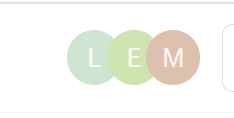
At the top of any recording page, you can see profile icons representing everyone who currently has access. Click the Share button to view the full list of emails with access.
Public vs Private Meetings
This is the core distinction that determines how access works for people outside the default attendee list.
Public meetings (default)
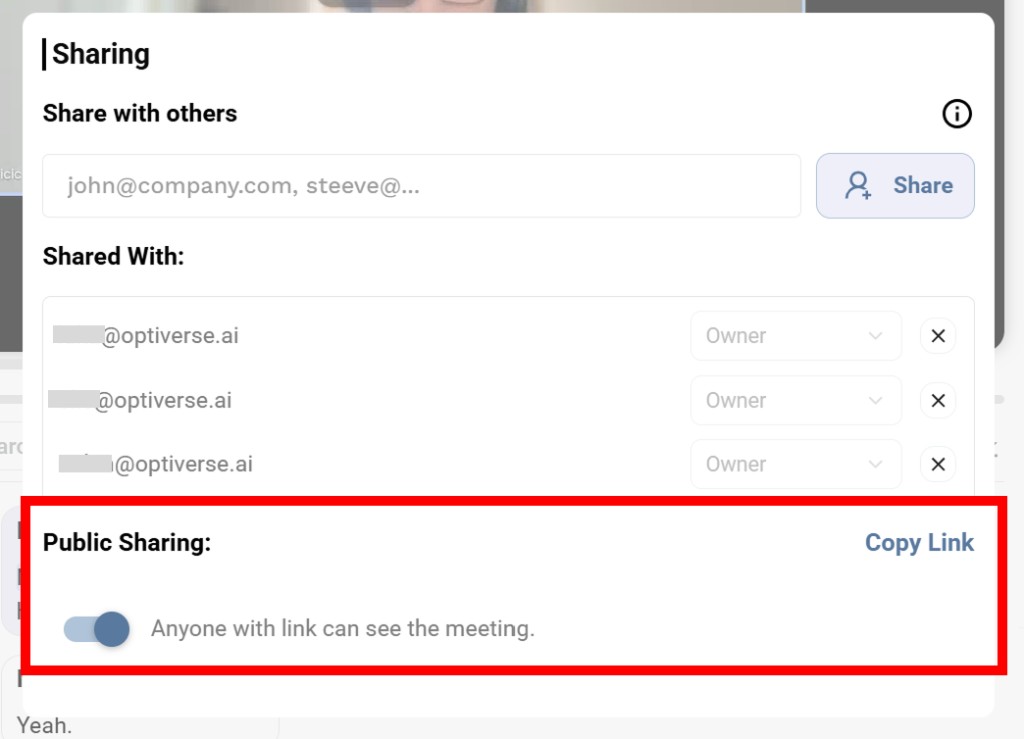
By default, Optiverse enables public sharing links. When a meeting has a public link enabled:
- Anyone with the link can view the recording as a guest — no Optiverse account required
- Guests can see the video and the AI-generated summary
- Guests cannot access AI features (OptiAgent), download the full transcript, or use advanced tools
- The public link can be copied from the Share dialog on the recording page
This is the most common setup and makes it easy to share meeting content with external participants or stakeholders who don't use Optiverse.
Private meetings
A meeting is private when its public sharing link is disabled. In this case, two conditions must be met for someone to access the recording:
- They must have an Optiverse account
- They must be on the sharing list (either as an original attendee or manually added)
If either condition is not met, the person cannot view the recording — even if they have the link.
Toggling between public and private
You can toggle the public sharing link on or off for any individual meeting from the Share dialog on the recording page.
Organization-Level Default
Organization admins can change the default sharing behavior for all meetings in the workspace:
| Setting | Effect |
|---|---|
| Public sharing enabled (default) | All new recordings have a public link by default |
| Public sharing disabled | All new recordings are private by default |
Even when the organization disables public sharing by default, individual meeting owners can still override this and enable a public link for specific meetings.
Configure this from Settings → Organization → Profile.

Manually Sharing a Recording
Beyond the default attendee list, the meeting owner can share a recording with additional people:
- Open the recording page
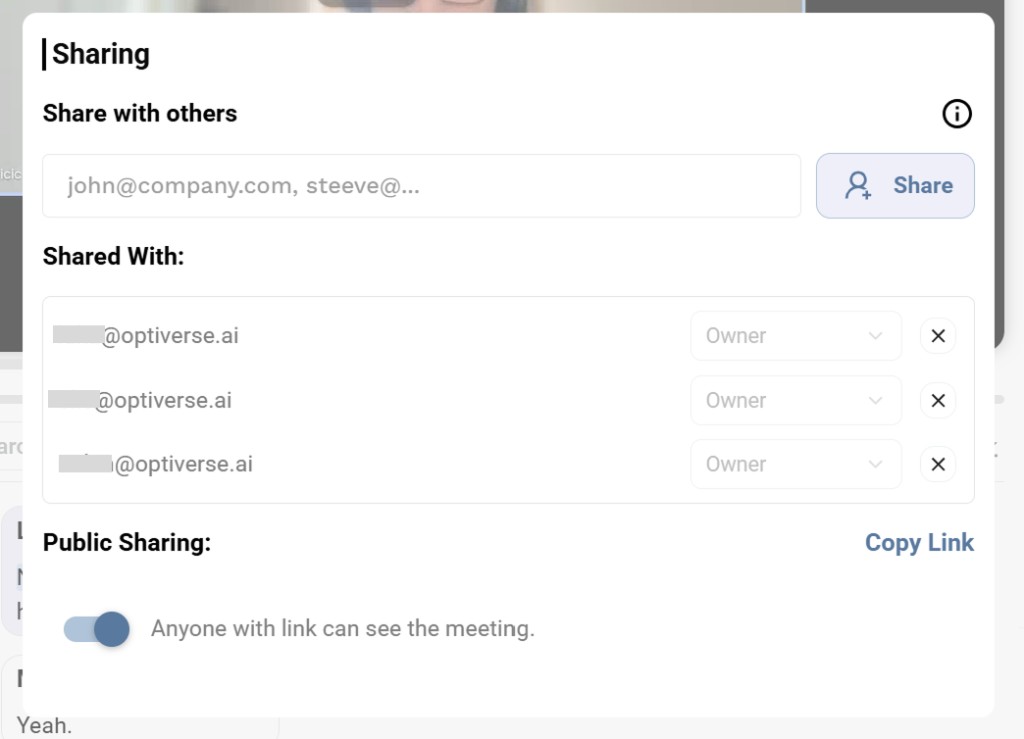
- Click the Share button
- Enter the email address of the person you want to add
- Click Share
The added person will appear in the "Shared With" list and gain access to the recording based on the public/private rules described above.
Auto-Sharing
Auto-sharing lets you automatically extend access to recordings for specific people within your organization, without needing to manually share each time.
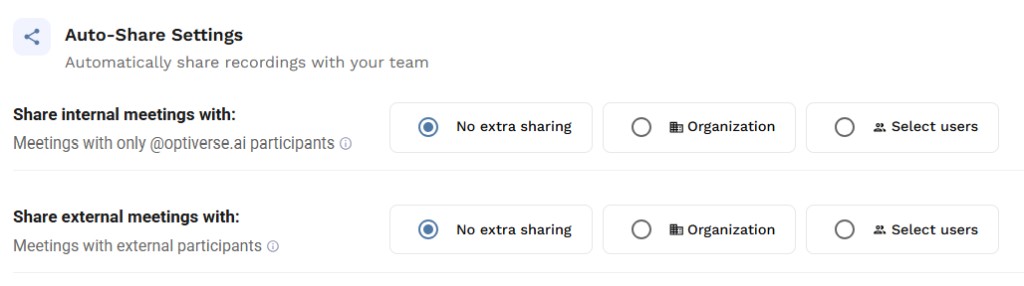
You can configure separate rules for:
- Internal meetings: meetings where all attendees are from your company's domain
- External meetings: meetings where at least two different email domains are present
For each type, choose one of:
| Option | Effect |
|---|---|
| No extra sharing | No automatic sharing beyond the default attendees |
| Organization | Automatically share with everyone in your organization |
| Select users | Automatically share with specific team members you choose |
For example, you might auto-share all external meetings with your sales manager, or all internal meetings with your entire organization.
Auto-sharing only works for members of your own organization. You cannot auto-share with external contacts.
Email Recaps
After every meeting, Optiverse sends an email recap — a notification containing an AI summary and a link to the full recording.
Who receives the email
The email recipient list is controlled by a separate setting:
| Option | Recipients |
|---|---|
| All invitees | Everyone on the calendar invite, including external participants |
| Me + my team | Only members from your organization who were on the invite |
| Only me | Only you (the meeting owner) receive the email recap |
Configure this from Settings → Meeting Preferences.

Admins can set a default email recap rule for the entire organization and lock it so individual users cannot change it. See Team & Workspace for details.
Email does not equal access
Receiving the email recap does not automatically grant access to the recording. The link in the email only works if the recipient has proper access based on the public/private rules:
- If the meeting is public: the link works for anyone (guest view)
- If the meeting is private: the link only works if the recipient has an Optiverse account and is on the sharing list
Edge Case: Future Users
There is one additional setting that matters in a specific scenario: a meeting is private, and an attendee did not have an Optiverse account at the time of recording.
The Future Users setting controls what happens when that person later creates an Optiverse account:
| Setting | Behavior |
|---|---|
| Enabled (default) | The new user gains access to past recordings where their email was on the invite |
| Disabled | The new user does not gain retroactive access, even if they were an original attendee |
This only applies when all of the following are true:
- The meeting is private (no public link)
- The person did not have an Optiverse account at the time of recording
- They later sign up with the same email that was on the invite
In most setups (where public sharing is enabled), this setting has no practical effect since the public link already allows guest access.
Configure this from Settings → Organization → Profile.
Summary Templates and Access
Having access to a meeting does not mean you see the same summary as the meeting owner. Summaries are generated per-user based on their own protocol templates.
- You can only view summaries generated with your own templates
- If you and the owner both have the same template applied, you'll see the same summary output
- Otherwise, you'll see the meeting content through whichever template you select from your own library
For more on creating and managing templates, see Protocols & Summaries.
Quick Reference
| Scenario | Can they access? |
|---|---|
| Meeting is public, person has the link | Yes (guest view: video + summary only) |
| Meeting is public, person has Optiverse account + is on invite list | Yes (full access) |
| Meeting is private, person has Optiverse account + is on sharing list | Yes (full access) |
| Meeting is private, person has Optiverse account but is NOT on sharing list | No |
| Meeting is private, person does NOT have an Optiverse account | No |
The Meeting Recording Page
Understand everything you can do on a meeting recording page, from video playback and transcript editing to OptiAgent and speaker analytics.
Deleting Recordings
Learn how to delete recordings for yourself or for everyone, understand recording ownership, and use bulk deletion.