

What Are Protocols?
Understand what protocol templates are, why they exist, and how they transform your meetings into structured, integration ready data.
Why Protocols Exist
Every meeting produces information. Decisions, action items, metrics, next steps. But without structure, that information stays buried in recordings and transcripts, requiring manual effort to extract and distribute.
Protocols solve this by letting you define what you want to extract and how it should be formatted, once. From that point on, every meeting of that type is automatically summarized into a consistent, structured output that can be shared, exported, or pushed to external systems.
When Protocols Are the Right Tool
Protocols are designed for teams and individuals who:
- Run repeatable meeting types where the same kind of information needs to be captured each time
- Need to track specific data points at scale (qualification criteria across sales calls, action items across project meetings)
- Push meeting data into external systems (CRM fields, project boards, task managers) where consistency matters
- Follow documentation or compliance processes that require templated outputs
When You Can Skip Protocols Entirely
If your workflow is generalist, meaning you don't follow rigid meeting structures, you don't need to track specific metrics at scale, and you're not feeding data into external systems, you may not need protocols at all.
In that case, the OptiAgent on the home page is likely all you need. It lets you search across all your meetings, ask questions, and get answers on demand without any template setup.
What Is a Protocol Template?
A protocol template is the skeleton, or recipe, behind what you want to extract from a given meeting. You define the structure once, and the AI fills it in after every meeting that uses that protocol.
Each template consists of one or more sections (sometimes called paragraphs or blocks). For each section, you define:
- Title. The heading that appears in the output.
- Instructions. A prompt telling the AI what to extract or analyze for this section.
- Output data type. How the result should be formatted (text, list, number, options, table).
The combination of sections, instructions, and output types creates a reusable recipe that produces consistent, predictable output regardless of which meeting it's applied to.
Two Types of Protocols
Optiverse offers two types of protocol templates, each suited to different use cases and complexity levels:
Simple (Normal) Protocols
Fast, surface level extraction equivalent to OptiAgent's short/fast mode. Processes in seconds. Best for quick overviews and high level meeting summaries where you want an easy to read output without deep complexity.
Learn more about Creating Protocols →
Deep Analysis Protocols
Multi agent processing that produces detailed, formatted analysis with tables, extensive text, and granular data extraction. Takes 1–2 minutes. Recommended for complex use cases and experienced prompt engineers.
Learn more about Deep Analysis Protocols →
Protocols as the Foundation for Integrations
Protocol output isn't just for reading. It's the structured data layer that powers your integrations. When a protocol generates a summary, that structured output (with its defined data types per section) can be:
- Pushed to a CRM system (e.g., HubSpot, Salesforce) to update deal fields, log activities, or create contacts
- Sent to task management software (e.g., Jira, Asana) to create tasks with owners and deadlines
- Delivered to communication tools (e.g., Microsoft Teams, Slack) as formatted messages
- Exported as PDF or Word documents for archival or external sharing
The data types you define in your protocol sections (text, number, list, predefined options) ensure the output maps cleanly to the input fields expected by your external systems.
How this works in practice:
- Meeting is recorded and transcribed
- Your protocol processes the transcript
- Each section produces output in its defined data type
- That structured output is available to push to integrations
Your output data types map directly to the field types in your external systems. A "Deal Stage" section with predefined options maps to a dropdown in your CRM. A "Budget" section with number output maps to a numeric field. A "Next Steps" section with bullet points maps to a task list. This is how protocols bridge the gap between unstructured meeting conversations and structured business systems.
Key Capabilities
- Source linking. Every data point in the output links back to its source in the transcript and video. Click any reference to jump to the exact moment.
- Editable output. Correct anything in the generated summary before sharing or exporting.
- Language control. Set a protocol to always output in a specific language, or let it follow the meeting language.
- Multiple protocols per meeting. Apply several protocols to the same recording (e.g., one for CRM logging, another for internal debrief).
- Personal or shared. Keep protocols private or share them across your organization.
- Reprocessing. Apply any protocol to any past recording at any time. See Switching Between Protocols below.
Common Use Cases
| Meeting Type | Protocol Approach |
|---|---|
| Sales calls (MEDDIC, BANT) | Simple or Deep Analysis with CRM integration |
| Team standups | Simple protocol with bullet point output |
| Client meetings | Deep Analysis with table of topics, owners, deadlines |
| Interviews & scorecards | Deep Analysis with predefined scoring options |
| Management reviews | Deep Analysis with department level summaries |
| Quick daily syncs | Simple protocol with short text output |
You can apply any protocol to any past recording at any time, not just new meetings.
Setting Your Default Protocol
Set a default protocol so Optiverse automatically generates a summary after every meeting, no manual action needed.
- Go to the Protocols page
- Find the protocol you want as your default
- Click the star/default icon on that protocol
The Default badge indicates which protocol currently runs automatically after each meeting.
Overriding the Default Per Meeting
You can override the default for specific upcoming meetings:
- Go to the Calendar page
- Each upcoming meeting shows which protocol will be used
- Click the protocol name to change it for that specific meeting
Example: Your default is "Daily Brief Summary" for most meetings, but for client calls you switch to "Salesforce Contact Report" before the meeting starts. Per meeting overrides only apply to that single meeting. All other meetings continue using the default.
Organization Wide Defaults
Admins can set an organization wide default protocol that applies to all users in the workspace. Individual users can still override this on their own level unless the admin locks the setting.
| Setting Level | Who Controls It | Can Be Overridden? |
|---|---|---|
| Organization default | Admin | Yes (unless locked) |
| User default | Individual user | Yes, per meeting |
| Per meeting override | Individual user | N/A |
Switching Between Protocols on a Recording
The default protocol generates automatically, but any user can load different protocols on the same meeting at any time:
- Open the protocol dropdown (top of the summary area)
- Browse all available protocols in your workspace
- Select a different protocol
- Click Generate to produce a new summary using that protocol
Multiple protocol summaries can coexist on the same recording without affecting anyone else's view. This also means you can apply any protocol to any past recording, not just new meetings. Common reasons to reprocess:
- You created a better template and want to re summarize older meetings with it
- A colleague shares a meeting and you want your preferred summary format applied
- You need both a brief overview and a detailed analysis of the same meeting
The protocol currently displayed on the recording page is the one that can be pushed to integrations (Teams, task management, CRM) and the one available for export. If you want to send or download a different protocol's output, switch to it first.
Fix speaker labels before regenerating. If speaker attribution is wrong in the transcript, correct the labels first. Otherwise the protocol will attribute actions and decisions to the wrong people. Don't just edit the summary, fix the source and regenerate.
Each protocol generation counts toward your AI credit usage quota, whether it's a first generation or a reprocess.
Exporting and Sharing Protocol Summaries
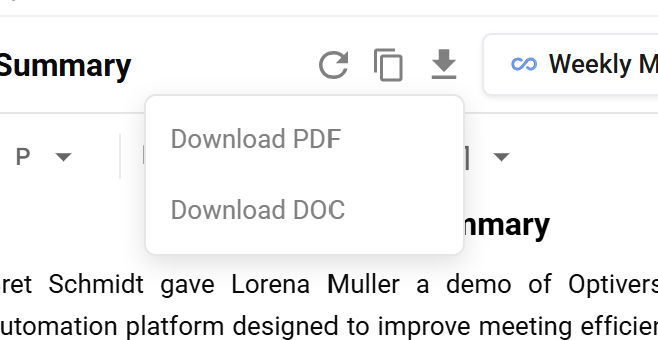
The generated protocol summary on any recording page can be exported:
- PDF. Download a formatted PDF of the full protocol output for sharing or archival.
- Word (.docx). Download as an editable Word document.
Protocol output can also be pushed directly to connected tools:
- Microsoft Teams. Send the summary to a Teams channel.
- Task management. Push action items to Jira, Asana, or other connected tools.
- CRM. Log structured data to HubSpot, Salesforce, or other CRM systems.
See the Integrations section for setup instructions.