

Quick Start Guide
Get your first AI-powered meeting summary in under 5 minutes.
Get from sign-up to your first AI meeting summary in under 5 minutes. Optiverse works across Microsoft Teams, Zoom, and Google Meet.
Prerequisites
- A Google or Microsoft account
- An upcoming meeting on Teams, Zoom, or Google Meet
- For Zoom meetings: a one-time Zoom integration is required
Three Ways to Capture Meetings
Before you start, it helps to know that Optiverse offers three capture modes:
- Online meeting bot, an AI assistant joins your virtual meetings as a participant and records automatically. You can also send it to any meeting manually via Join Live Meeting.
- Desktop app, live transcription without recording the call (GDPR compliant)
- Mobile app, record in-person meetings, voice memos, or upload audio/video files
You can also upload any audio or video file directly from the Calendar page for transcription and summarization.
Setup
Create your account and connect your calendar
Go to app.optiverse.ai and sign up with your Google or Microsoft account. During sign-up, you will be asked to connect your calendar (Outlook or Google Calendar). This is a required step that allows Optiverse to see your upcoming meetings.
If you see a permission error or are asked for admin approval, your organization may need to authorize Optiverse first. See Admin Approval & Troubleshooting for step-by-step instructions on resolving this.
Configure agent join settings
Choose when Optiverse should automatically join your meetings:
- All meetings, joins every event on your calendar
- Only meetings you organize, only meetings where you're the organizer
- Only internal meetings, skips meetings with external participants
- On invitation only, only joins when you explicitly enable it per meeting, or when you invite optiagent@optiverse.ai to the event
You can change this setting at any time from Meeting Preferences. See How the Assistant Works for detailed options including per-meeting overrides and email invitations.
Admit the assistant into your meeting
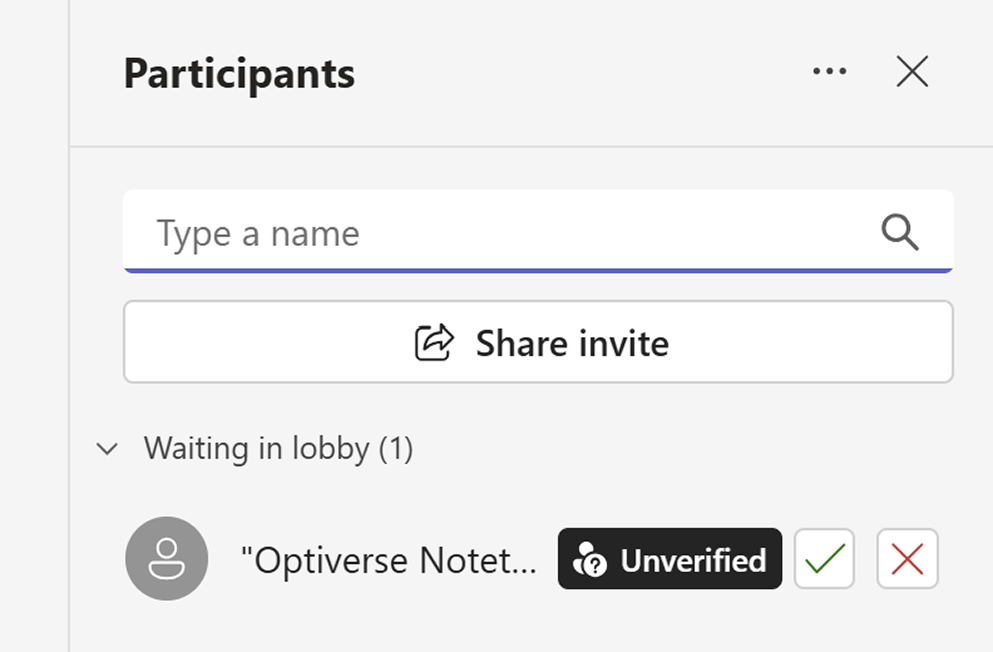
The assistant arrives 3 minutes before your meeting starts and waits in the lobby. You (or the meeting host) must admit it. It appears as an external guest named "[YourName]'s assistant by Optiverse".
If the assistant is not admitted within 10 minutes, it will leave. You can always resend it from the Calendar page.
For a full explanation of joining behavior, timing, and silence detection, see How the Assistant Works.
Get your summary
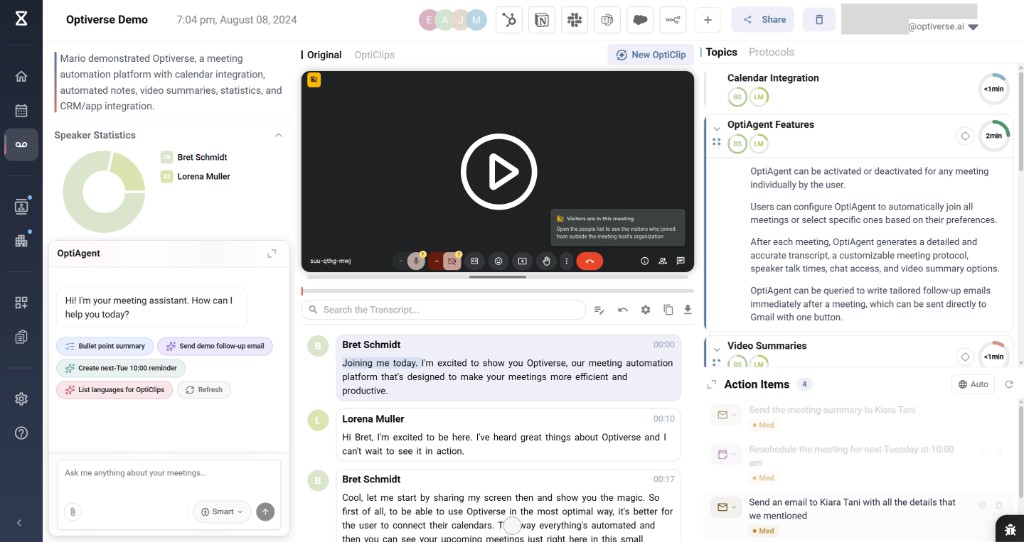
Within ~15 minutes after the meeting ends, you'll receive:
- A full transcript of the conversation
- An AI-generated summary with key points and action items
- An email recap delivered to your inbox
What's Next
- How the Assistant Works for detailed behavior, timing, and troubleshooting
- Join Live Meeting to send the assistant to any meeting on demand
- Set up the mobile app to capture in-person meetings
- Upload a recording to transcribe and summarize existing audio/video files
- Team & Workspace setup to invite colleagues and configure organization settings