

Microsoft Integration Approval
Generate the admin consent link your Microsoft admin needs so Dynamics 365, Teams, and Planner can connect.
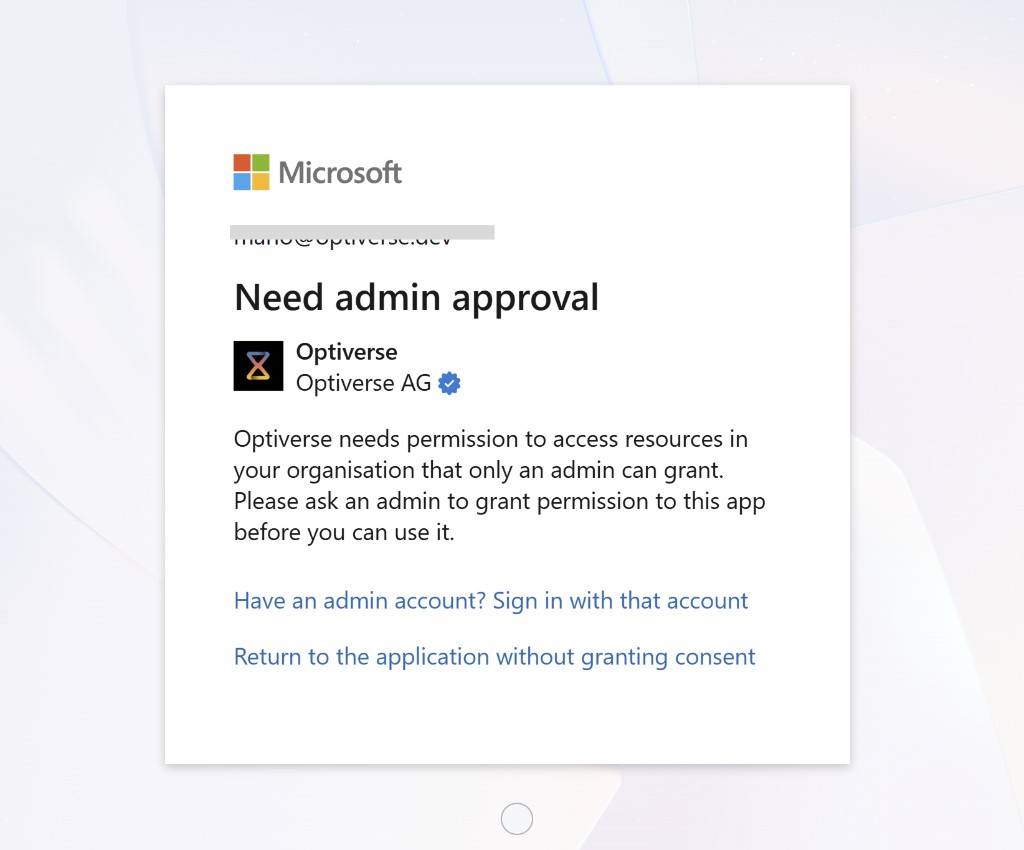
Some companies do not let employees approve external apps. Connecting a Microsoft integration then fails until an admin approves Optiverse once for the whole organization. This page builds the link you send to your admin.
Each Microsoft app is approved separately. The generator below covers both: the Optiverse platform app, used for signing in and reading your calendar, and one app per integration. For the full sign-up walkthrough your admin can follow, see Admin Approval & Sign-Up Troubleshooting.
When You Need This
While signing in to Optiverse, or while connecting Dynamics 365, Microsoft Teams, or Microsoft Planner:
- Microsoft shows Need admin approval
- An error mentions
AADSTS65001or "has not consented" - You sign in with Microsoft and land back on Optiverse still disconnected
The approval is granted once per organization, not once per person.
Get Your Approval Link
Enter the domain from your work email address. If your email is you@yourcompany.com, the domain is yourcompany.com.
The first link is the Optiverse platform app itself. It asks only for calendar read access and basic profile information, and it is what unblocks signing in. The other links each cover a single integration.
The links hold no private data, only your domain and the public ID of the Optiverse app, so they are safe to send by email or chat.
What Your Admin Does
Your admin opens the link, signs in, and accepts the permissions. Only a Global Administrator, Privileged Role Administrator, or Cloud Application Administrator can do this — anyone else is told they do not have permission.
After accepting, your admin lands back on Optiverse. If that page shows an error, the approval still went through. Confirm it in Microsoft Entra ID > Enterprise applications, where Optiverse now appears with its permissions granted.
After The Approval
- Go to Settings > Integrations
- Click Connect, or Reconnect if it was connected before
- Pick your Microsoft account
Reconnect even if the integration already looks connected. An older connection keeps the permissions it was granted before the approval, so only a fresh connect picks up the new ones.
For the platform approval there is nothing to reconnect. Sign in to app.optiverse.ai again and the block is gone.
If It Still Fails
| What you see | What it usually means |
|---|---|
| Still Need admin approval | The approval was granted in a different Microsoft organization. Check that the domain matches the account you sign in with. |
| Approval granted, connect still fails | You signed in with a personal Microsoft account instead of your work account. |
| Connected, but lists come back empty | The approval worked. This is a permissions issue inside the tool itself, for example a missing Dynamics security role. |
| Admin sees "you do not have permission" | Whoever opened the link cannot grant consent for the organization. |
A Conditional Access policy can also block Optiverse after the approval, for example a rule that only allows managed devices. Your admin can confirm this in the Entra sign-in logs.
Still stuck? Email support@optiverse.ai or book a call.