

Dynamics 365 Integration
Connect Optiverse to Microsoft Dynamics 365, set your environment URL, and push meeting summaries to contacts, leads, opportunities, and accounts.
Optiverse pushes structured meeting data into Microsoft Dynamics 365 after every call. This page covers how to connect, how to set your environment URL, and what to do when records fail to load.
Connecting Dynamics 365
- Go to Settings > Integrations
- Find Dynamics 365 under the CRM category
- Click Connect
- Pick the Microsoft account you use for Dynamics
- Once connected, the status changes to Connected and ready
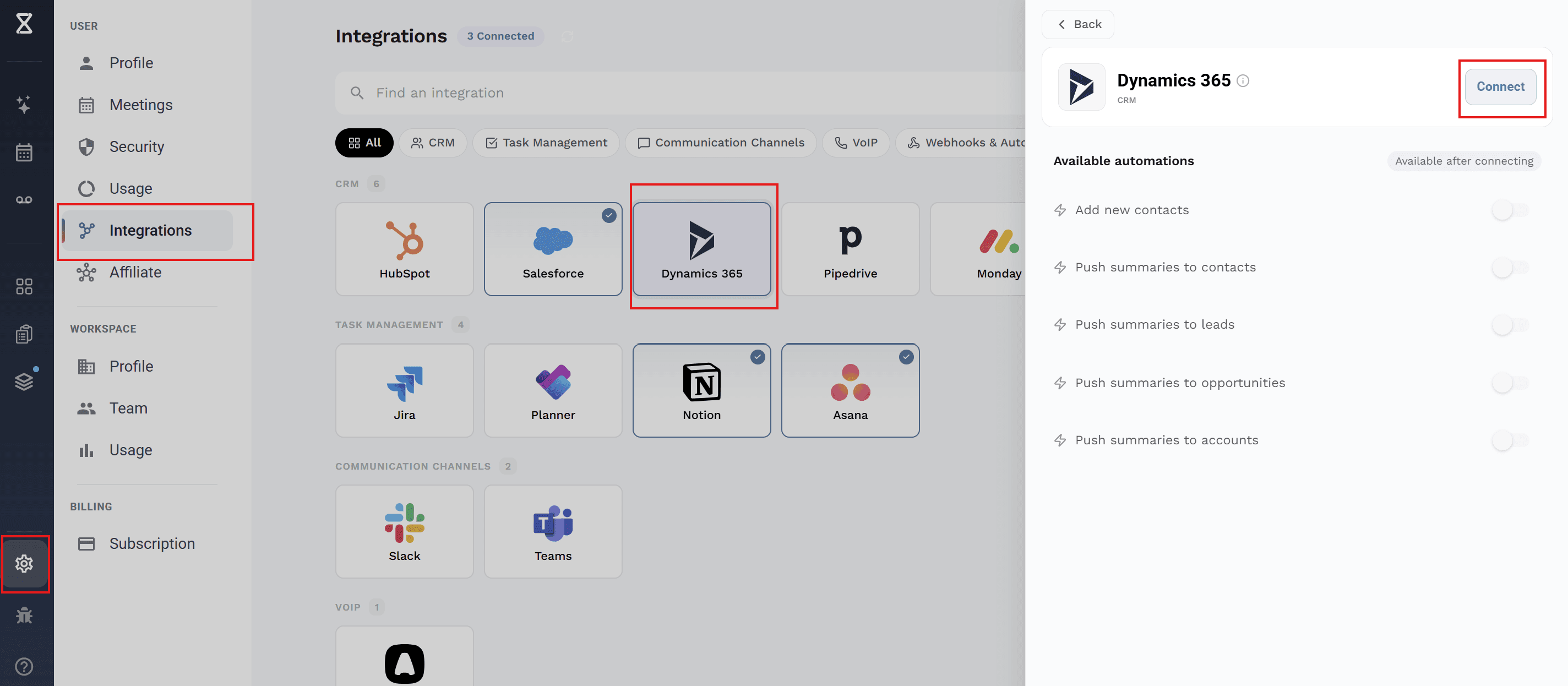
Each user connects their own Microsoft account. Optiverse only reads and writes records that account is allowed to access in Dynamics.
Your environment URL
Dynamics stores your data in an environment, sometimes called a Dataverse environment. Each one has its own web address. Optiverse needs that address to know where to read and write.
It looks like this:
https://yourorg.crm.dynamics.comKeep the https:// at the front. Optiverse will not accept the address without it. Stop at .dynamics.com and drop anything after it.
Optiverse detects it automatically when you connect. You will see it in the integration panel once you are connected.
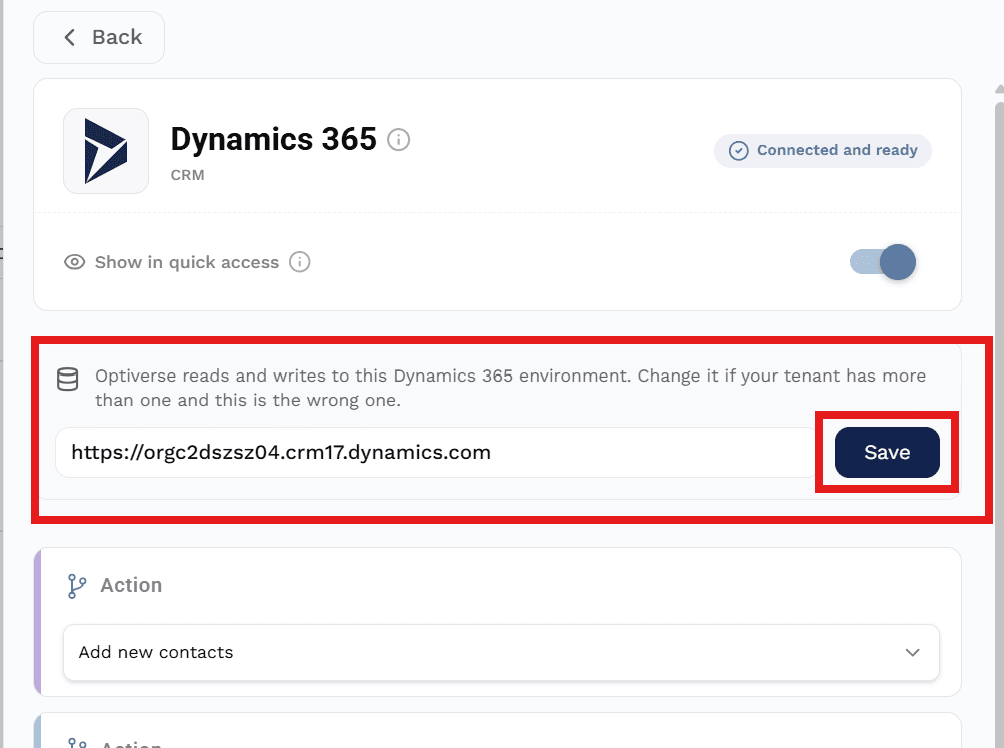
Where to find your environment URL
If you need to check or change it:
- Go to the Power Platform admin center
- Click Environments
- Click the environment holding your CRM data
- Copy the value shown under Environment URL
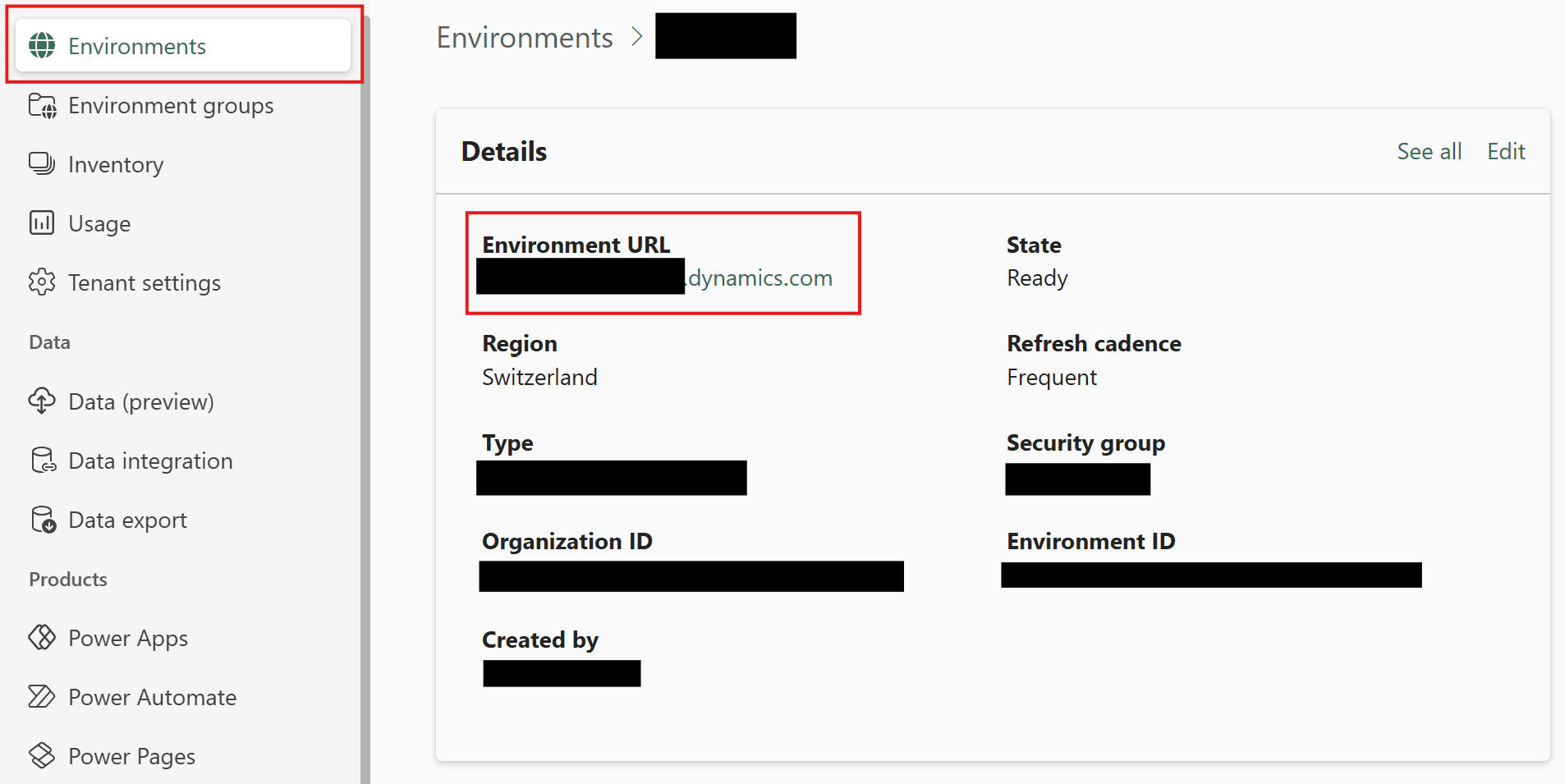
You can also read it from your browser. Open Dynamics as you normally would and look at the address bar. Keep everything from https:// up to .dynamics.com, and drop the rest.
If your company has more than one environment
Many companies run several environments, for example one for production and one for testing. Optiverse picks one automatically, and it cannot know which one you want.
If the wrong one was picked, paste the correct URL into the field and click Save.
A wrong environment usually looks like a permissions problem. You get errors saying your user has no roles, because your account exists in the environment Optiverse picked but has never been used there. Check the URL before asking an admin to change your permissions.
Defining actions
Actions decide what happens automatically after every meeting. Click Add New Action to add one. You can add as many as you need.
| Action Type | What it does |
|---|---|
| Add New Contacts | Creates a contact when a meeting attendee is not already in Dynamics |
| Push to Contacts | Pushes the meeting summary to matched contact records |
| Push to Leads | Pushes the meeting summary to matched lead records |
| Push to Opportunities | Pushes the meeting summary to matched opportunity records |
| Push to Accounts | Pushes the meeting summary to matched account records |
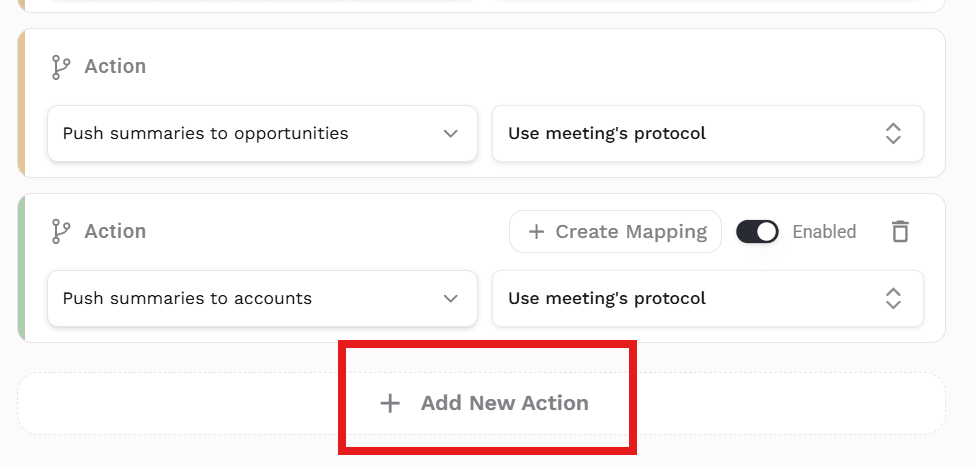
For each push action you choose which protocol's output gets pushed. Different actions can use different protocols, and they all run after every qualifying meeting.
Field mapping
By default the summary lands as a note on the record. If you want the data in specific Dynamics fields instead, click Create Mapping on any push action.

You then pick a protocol and choose which Dynamics field each of its sections writes to. Mapping works on contacts, leads, accounts, and opportunities.
This turns each meeting into data you can report on, rather than a block of text nobody can filter.
Map sections to text fields. Optiverse writes the section text as it is, so a field expecting a number, a date, or a set of options will reject the value and that field stays empty.
Troubleshooting
| What you see | What it usually means |
|---|---|
| "User has not been assigned any roles" | No security role, or the wrong environment URL. Check the URL first, then the role. |
| Empty contact and account lists | The account has Basic User instead of Salesperson, so it only sees its own records. |
| "Need admin approval" when you sign in | Your company does not let users approve apps themselves. An admin approves Optiverse once for everyone. See Microsoft Admin Approval to get the link to send them. |
| Records load but pushes do nothing | The role allows reading but not writing. Ask your admin to add write permissions. |
Assigning a security role
Do this when Dynamics says the user has no roles, or when your lists come back empty. Check the environment URL first. A wrong URL causes the same error, and no role will fix it.
- Go to the Power Platform admin center
- Click Environments, then your environment
- Click Settings, then Users + permissions, then Users
- Find the user and click Manage security roles
- Tick Salesperson, then click Save
Pick Salesperson rather than Basic User. Basic User only shows records the user created themselves, so your lists come back empty and it still looks broken.
You need Dynamics admin rights to do this. If you do not have them, send these steps to whoever manages your Dynamics.
Still stuck? Email support@optiverse.ai or book a call.
Salesforce Integration
Connect Optiverse to Salesforce for automatic CRM updates with field-level mapping, multi-action workflows, and bilateral MCP access.
Pipedrive Integration
Connect Optiverse to Pipedrive to automatically log meeting notes to deals and contacts, create new contacts, and manage your pipeline with natural language.