

Salesforce Integration
Connect Optiverse to Salesforce for automatic CRM updates with field-level mapping, multi-action workflows, and bilateral MCP access.
Optiverse integrates with Salesforce at a depth that goes far beyond logging a text note after a meeting. You get full control over what data gets pushed, where it goes, and how it maps to your Salesforce fields. Combined with the MCP integration for bilateral access, Optiverse becomes the missing link between your customer conversations and your Salesforce data.
Part 1: Native Salesforce Integration
The native integration handles the automatic flow of structured meeting data from Optiverse into Salesforce. Unlike basic notetakers that dump unformatted text into activity logs, Optiverse lets you define exactly which protocol outputs push to which Salesforce objects, with field-by-field precision.
Connecting Salesforce
- Go to Settings > Integrations
- Find Salesforce under the CRM category
- Click Connect
- Authenticate with your Salesforce credentials in the popup window
- Once connected, the status changes to Connected and ready
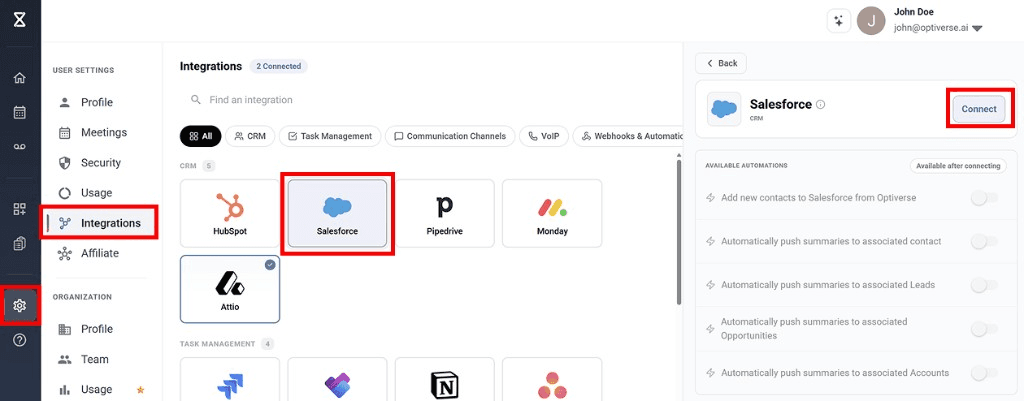
Each user connects their own Salesforce account. The integration respects Salesforce permissions, so it only accesses records the authenticated user can view and edit.
Defining Actions
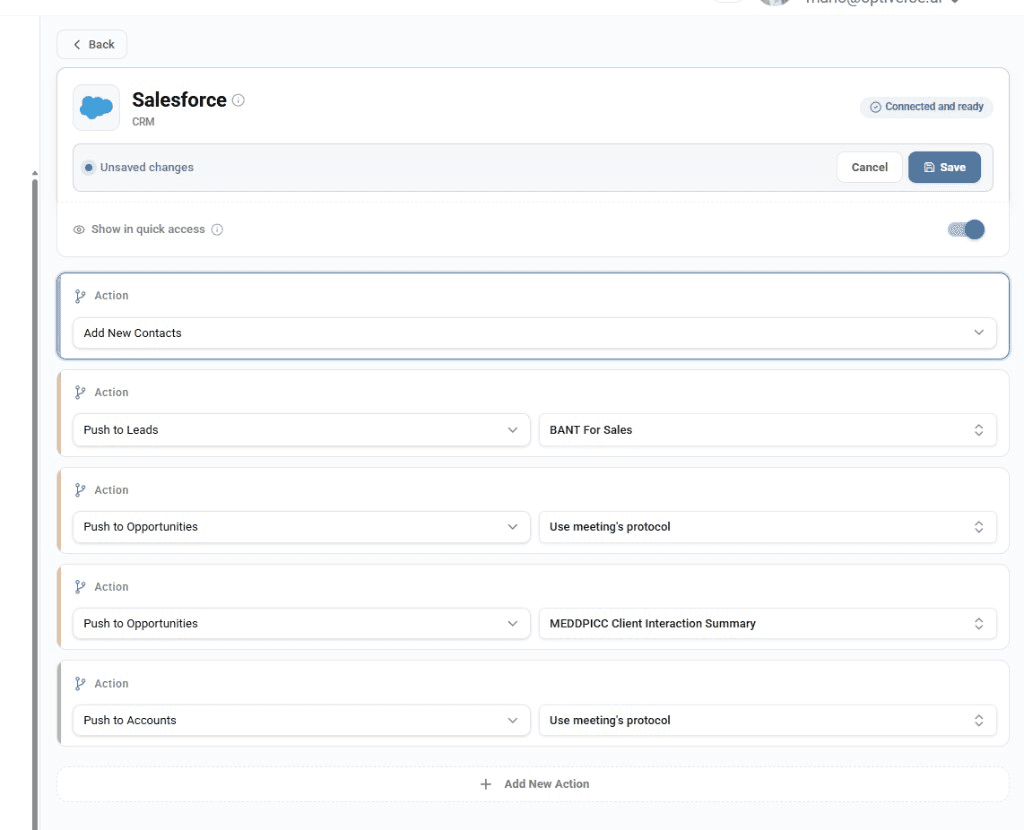
After connecting, you configure actions that define what happens automatically after every meeting. There is no limit on how many actions you can define. Each action specifies a destination and which protocol template to use.
Available Action Types
Click Add New Action to see the full list of available action types:
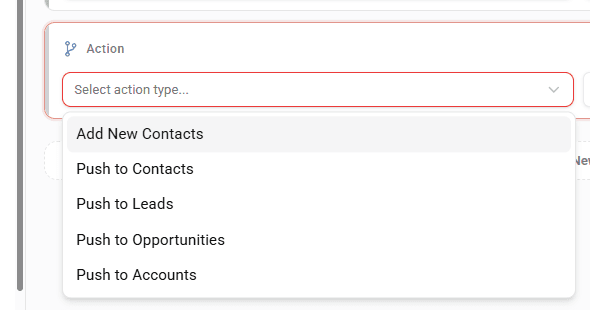
| Action Type | What it does |
|---|---|
| Add New Contacts | Creates a new contact in Salesforce if the meeting attendee doesn't already exist |
| Push to Contacts | Pushes the meeting summary to matched contact records |
| Push to Leads | Pushes the meeting summary to matched lead records |
| Push to Opportunities | Pushes the meeting summary to matched opportunity records |
| Push to Accounts | Pushes the meeting summary to matched account records |
Choosing a Protocol Per Action
For every push action, you select which protocol template's output will be pushed. This is configured directly on the action row.
You can have multiple actions pushing different protocols to different destinations simultaneously. For example:
- Action 1: Push your "BANT for Sales" protocol to Leads
- Action 2: Push your "MEDDPICC Client Interaction Summary" to Opportunities
- Action 3: Push a general meeting summary to Accounts using the meeting's default protocol
All of these execute automatically after every qualifying meeting.
You can also select "Use meeting's protocol" to push whatever protocol was active for that specific meeting, rather than a fixed template.
Field-by-Field Mapping
This is where the Salesforce integration delivers something most meeting notetakers cannot: granular, structured data flowing into specific Salesforce fields, not just a blob of text in an activity note.
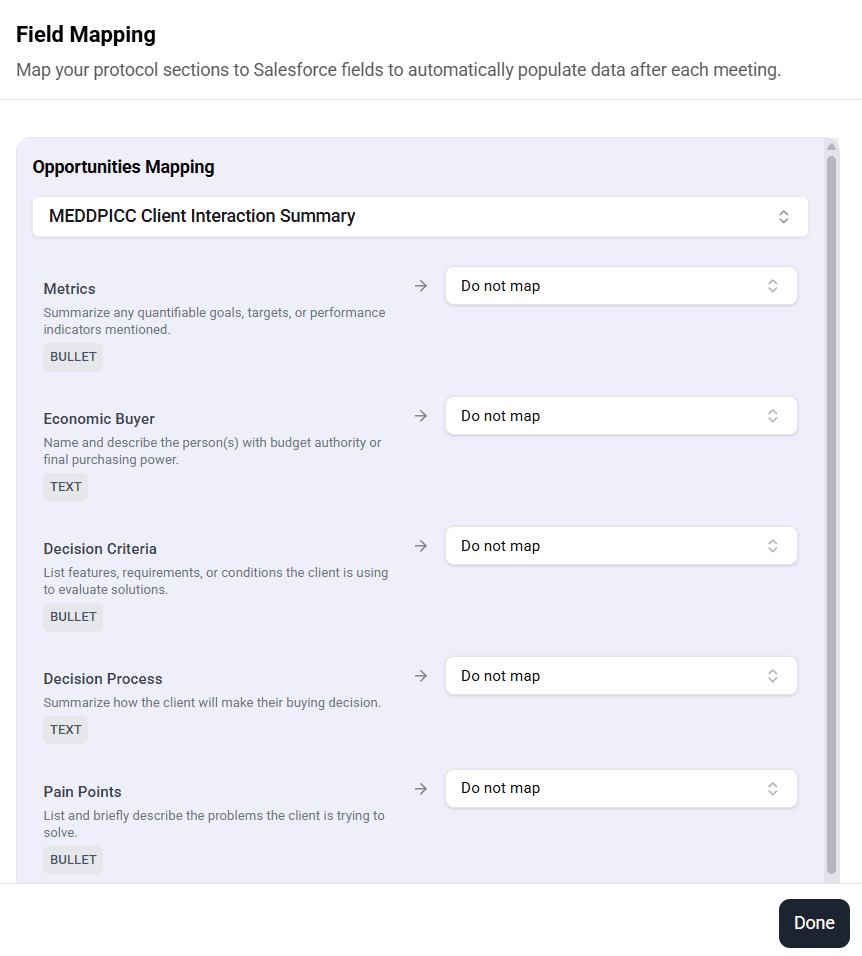
For any push action, click Create Mapping to define how each section of your protocol maps to Salesforce fields.

Clicking Create Mapping opens a configuration panel where you map each protocol section to a specific Salesforce field:
How It Works
Each section of your protocol template has a defined data type (text, bullet list, number, predefined options, table). These data types map directly to Salesforce field types:
| Protocol Section Type | Maps to Salesforce Field Type |
|---|---|
| Text | Text, Long Text Area |
| Bullet/List | Long Text Area, Multi-Select Picklist |
| Number | Number, Currency |
| Predefined Options | Picklist, Dropdown |
| Table | Long Text Area (formatted) |
Why This Matters for RevOps
Most meeting recording tools push an unformatted text note or HTML blob into Salesforce. This creates a data problem: the information exists in Salesforce, but it's unstructured and cannot be used for reporting, pipeline analysis, or automation rules.
With Optiverse's field-by-field mapping:
- Deal stages extracted from conversation flow into the Stage picklist
- Budget figures mentioned in calls populate the Amount field
- Decision criteria captured by the protocol map to custom fields you've built for your sales process
- Next steps push directly into activity fields that trigger workflow rules
This turns every meeting into structured, reportable, automatable Salesforce data.
Mapping Across Object Types
Field mapping is not limited to Opportunities. You can create mappings for:
- Opportunities (deal data, qualification criteria, next steps)
- Accounts (company-level insights, relationship notes)
- Contacts (individual preferences, communication notes)
- Leads (qualification scores, discovery insights)
Each object type can use a different protocol template with its own mapping. Everything runs simultaneously after every meeting.
Show in Quick Access
Enable this toggle to display Salesforce icons on every Meeting Recording page, next to the Share button. Two icons appear:
- Sync status icon (shows auto-push feedback)
- Manual push icon (lets you push on demand)
Auto-Sync Status and Feedback
The sync status icon gives you direct, per-meeting feedback on what happened with the Salesforce integration after each recording.
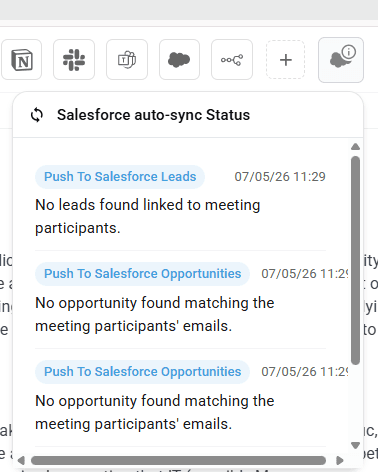
For every meeting, you can see:
- Which actions were executed successfully
- Which actions were skipped and why
- Timestamps for each push attempt
Common reasons for a skipped push:
- No matching contact found (attendee email doesn't exist in Salesforce)
- No associated lead or opportunity for the matched contact
- The "Add New Contacts" action is disabled, so unrecognized attendees are ignored
- Multiple ambiguous matches (e.g., contact is linked to several open opportunities)
This transparency makes troubleshooting straightforward. You never have to wonder if your meeting data made it to Salesforce.
Manual Push
When auto-push cannot work, or when you want to send notes to a specific record manually, click the Salesforce cloud icon on the recording page.
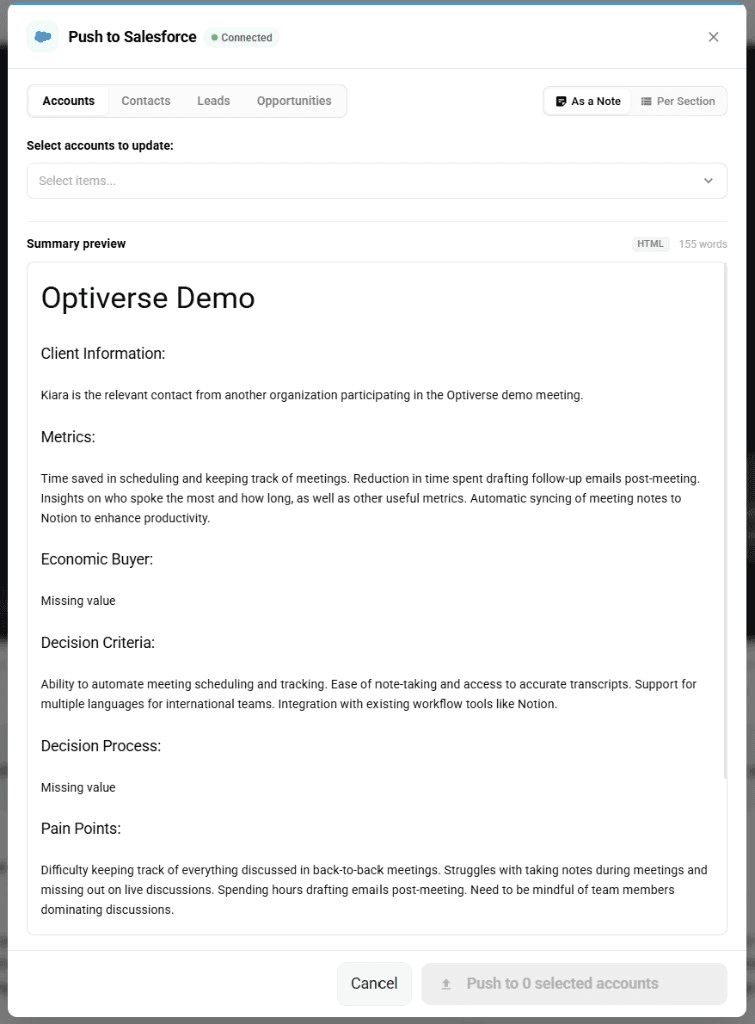
The manual push dialog gives you full control:
- Destination tabs: Choose between Accounts, Contacts, Leads, or Opportunities
- Record selector: Search and pick the exact record to push to
- Push mode: Send the summary As a Note (full text) or Per Section (field-by-field mapping)
This means even with the manual push, you still get structured field mapping, not just a text dump.
When Manual Push Is Essential
The automatic matching relies on attendee email addresses from calendar invites. Manual push fills the gap for situations where that matching cannot happen:
- On-site visits where you dictate notes through the Optiverse mobile app afterward
- In-person meetings without a calendar event containing attendee emails
- Voice memos recorded on the go to document a client conversation
- Meetings with external participants whose emails aren't in Salesforce yet
- Internal debriefs that should be logged against a specific opportunity
In all these cases, you can still push with one click, selecting the right destination and getting the full benefit of protocol-based structured output.
For quick voice memos captured on the go, the Optiverse mobile app records and transcribes immediately. Then you can push the resulting notes to the right Salesforce record either manually from the recording page or by asking the AI assistant on the homepage.
Part 2: MCP Integration (Bilateral Access)
The native integration moves data in one direction: from meetings to Salesforce. The MCP integration opens the reverse channel, giving the Optiverse AI assistant the ability to query, search, and update Salesforce records directly through conversation.
Connecting the MCP Integration
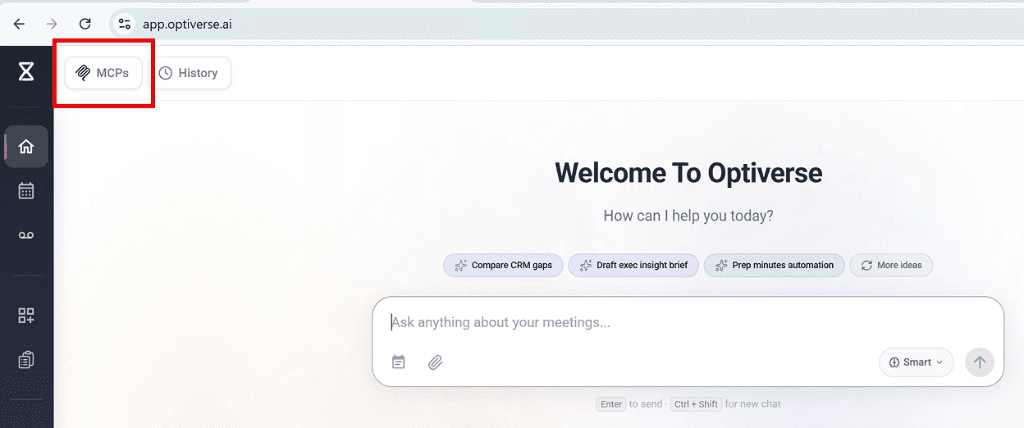
- On the Optiverse homepage, click the MCPs tab in the top left
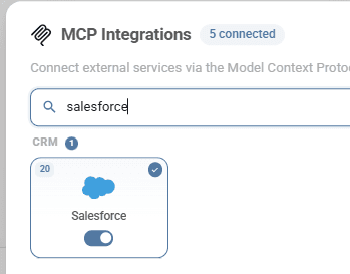
- In the MCP Integrations popup, search for Salesforce and click Connect
- The connection re-uses your OAuth tokens from the native integration (no separate authentication required)
- Once linked, you'll see all 20 available tools and permission controls
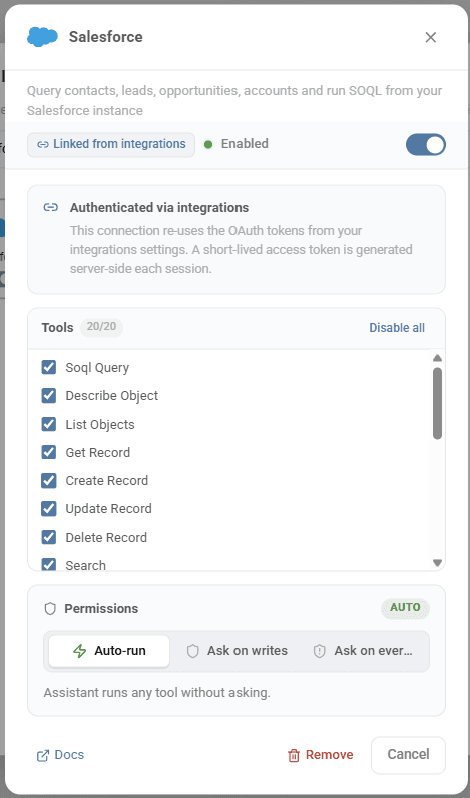
The MCP connection is authenticated via your existing integration settings. A short-lived access token is generated server-side each session for security.
Available Tools (20 Total)
The Salesforce MCP integration gives the AI assistant comprehensive access to your Salesforce data:
| Tool | What it does |
|---|---|
| SOQL Query | Run any SOQL query against your Salesforce data |
| Describe Object | Understand the schema of any Salesforce object |
| List Objects | Browse available Salesforce objects |
| Get Record | Retrieve a specific record by ID |
| Create Record | Create new contacts, leads, opportunities, accounts |
| Update Record | Modify fields on existing records |
| Delete Record | Remove records (with permission controls) |
| Search | Full-text search across all Salesforce data |
Permission Modes
You control how much autonomy the AI assistant has:
| Mode | Behavior |
|---|---|
| Auto-run | The assistant executes any tool without asking. Best for experienced users who trust the workflow. |
| Ask on writes | The assistant reads freely but asks permission before creating, updating, or deleting records. Recommended for most users. |
| Ask on every action | The assistant requests consent at every step, including read operations. Most conservative. |
Use Cases for Sales and Revenue Teams
The combination of meeting intelligence and live Salesforce access opens up workflows that were previously impossible without hours of manual CRM work.
Validate Opportunity Data Against Recent Conversations
The most common gap in any sales org: what's in Salesforce doesn't reflect what was actually discussed with the customer. Optiverse bridges this by cross-referencing meeting content with Salesforce records.
Example prompt:
"Can you please browse the last five opportunities that we created on Salesforce and then validate the conclusion of each one of the last meetings we had with these clients?"
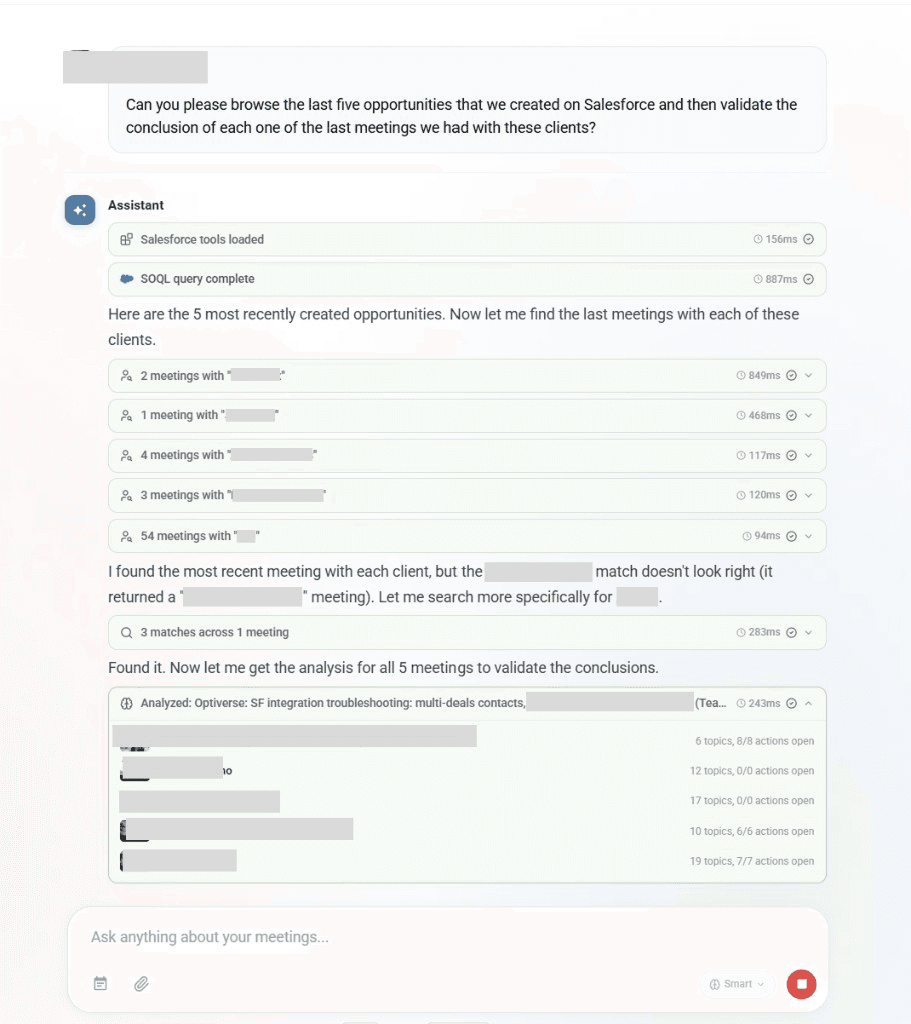
The assistant pulls your recent opportunities via SOQL, finds the corresponding meetings for each client, analyzes the discussion outcomes, and reports back with a clear comparison. Any mismatches between what was discussed and what's recorded in Salesforce get flagged immediately.
Keep Pipeline Stages Accurate
Sales managers often find that deal stages in Salesforce lag behind reality. A deal might have moved to "Negotiation" in conversation three weeks ago, but the stage field still shows "Discovery."
Example prompts:
- "Check my pipeline. Based on recent meeting discussions, are all opportunity stages accurate?"
- "Which deals should have moved forward based on what was discussed in the last two weeks?"
- "Flag any opportunities where the Salesforce stage doesn't match the most recent conversation outcome."
Build Pre-Call Briefings with Live CRM Data
Drag and drop an upcoming meeting into the Optiverse homepage chat. With the Salesforce MCP connected, the briefing automatically includes live CRM data alongside meeting history.
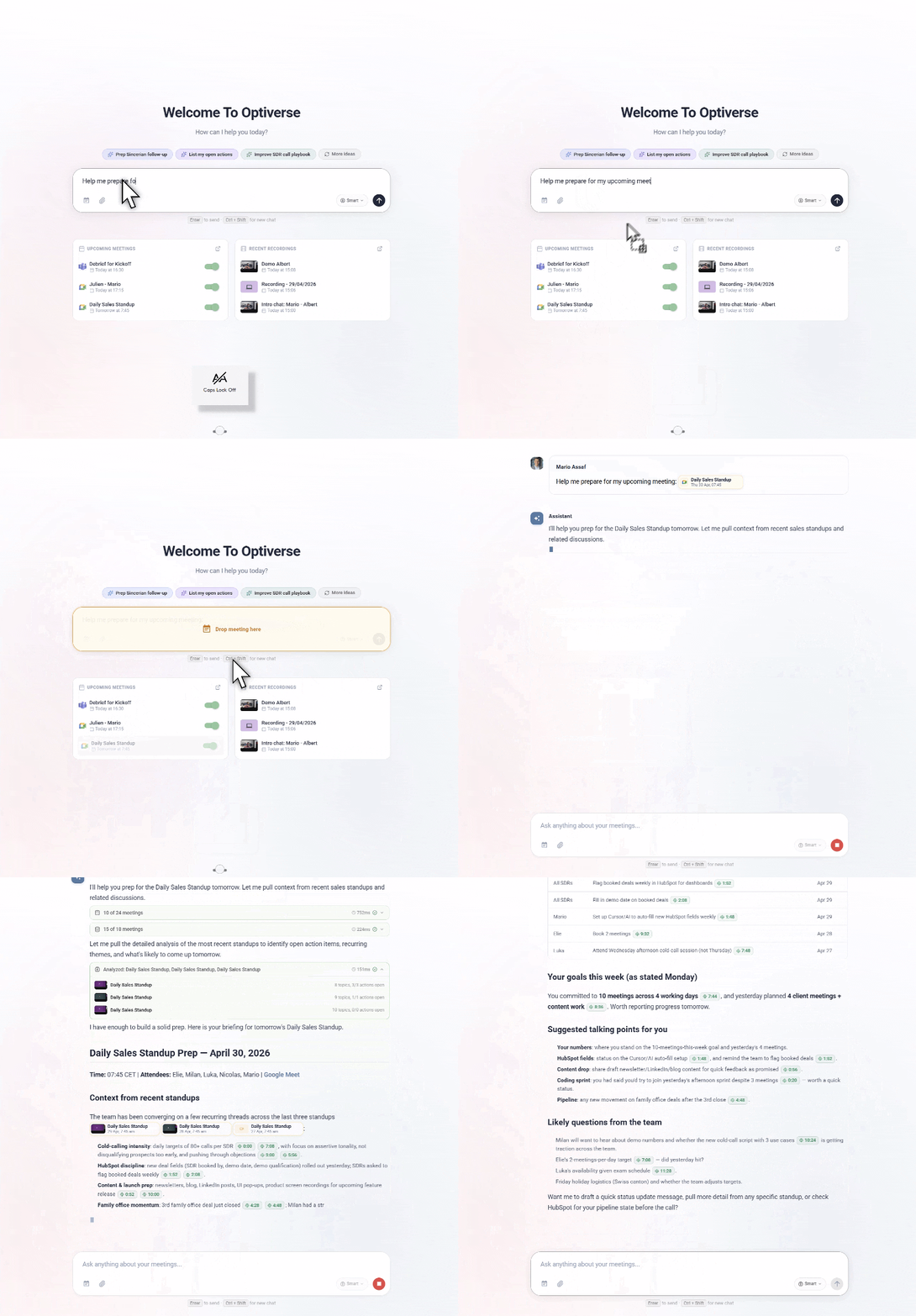
Example prompts:
- "I have a call with [company] in 10 minutes. Pull their opportunity details, last meeting notes, and any open action items."
- "What's the current stage, amount, and close date for the [company] opportunity? What did we last discuss?"
- "Show me all contacts under the [company] account and our most recent interactions with each."
Qualify Deals Faster with Structured Data
When your protocols capture qualification frameworks (MEDDPICC, BANT, SPIN) and field mapping pushes each criterion to dedicated Salesforce fields, you build a qualification engine that runs automatically after every call.
Example prompts:
- "For my deals in the 'Discovery' stage, which ones have all MEDDPICC fields filled and which are missing data?"
- "Summarize the economic buyers identified across my top five opportunities."
- "Which opportunities are missing a decision process or timeline in Salesforce?"
Audit CRM Hygiene at Scale
Revenue operations teams spend significant time ensuring data quality in Salesforce. Optiverse can audit across meetings and CRM records simultaneously.
Example prompts:
- "Look at all opportunities closed this quarter. Did each one have at least one meeting logged in the last 30 days before closing?"
- "Which contacts in my Salesforce instance have had meetings with us but have incomplete profiles (missing title, phone, or company)?"
- "List all accounts with more than three meetings in the last quarter but no associated open opportunity."
Generate Forecasting Insights from Conversations
Forecasting based purely on Salesforce fields misses the nuance of what's actually happening in customer conversations. Optiverse combines both sources for more accurate predictions.
Example prompts:
- "Based on my recent meetings, which opportunities are likely to close this quarter and which are at risk?"
- "Summarize all pricing discussions from this month's sales calls. Are any deals showing price resistance?"
- "For each deal in 'Proposal Sent' stage, what was the customer's reaction in our last meeting?"
Create Records from Meeting Context
After a discovery call or networking event, use the MCP to create Salesforce records pre-filled with information from the conversation.
Example prompts:
- "Create a new opportunity for [company] based on today's discovery call. Use the budget, timeline, and next steps we discussed."
- "Add [person] as a new lead in Salesforce. Fill in their title, company, and the pain points they mentioned on our call."
- "Create a new account for [company] and log today's meeting notes as the first activity."
Track Competitive Mentions Across Deals
When competitors come up in sales conversations, that intelligence should be captured and connected to the right opportunity.
Example prompts:
- "In all my sales meetings this month, which competitors were mentioned? Show me which opportunities they're associated with."
- "Has [competitor name] come up in any conversations with my top ten accounts?"
- "Create a summary of competitive objections raised this quarter and which opportunities are affected."
Example Prompt Library
| Category | Prompt |
|---|---|
| Pipeline Validation | "Browse my last five Salesforce opportunities and validate them against the conclusions from recent meetings with those clients." |
| Stage Accuracy | "Which opportunities should have changed stage based on what was discussed in meetings this month?" |
| Meeting Prep | "Pull the Salesforce opportunity details and my last three meeting summaries for [company]. What should I focus on in tomorrow's call?" |
| Data Gaps | "Which opportunities in my pipeline are missing key fields like Amount, Close Date, or Decision Maker?" |
| Qualification | "For deals in 'Negotiation' stage, summarize the MEDDPICC data captured from meetings. What's still missing?" |
| Contact Enrichment | "Which meeting attendees from this month don't exist as contacts in Salesforce? List them with their role and company." |
| Competitive Intelligence | "Across all meetings this quarter, which competitors were discussed? Map them to the relevant Salesforce opportunities." |
| Forecasting | "Based on meeting sentiment and Salesforce data, which deals closing this month are genuinely on track?" |
| Account Reviews | "Summarize everything discussed with [company] over the last six months and compare it to what's currently in their Salesforce account record." |
| Activity Compliance | "Which of my open opportunities haven't had a meeting logged in the last three weeks?" |
Troubleshooting
| Issue | Solution |
|---|---|
| Integration not syncing | Click Reconnect in Settings > Integrations > Salesforce to refresh authentication |
| Contacts not matching | Verify that attendee emails in calendar invites match the Email field on Salesforce contacts |
| Push skipped with "no opportunity found" | The matched contact isn't associated with an open opportunity. Push manually or create the opportunity first. |
| Multiple matches causing skips | When a contact is linked to several open opportunities, auto-push skips to avoid ambiguity. Push manually to the correct one. |
| Field mapping errors | Ensure data types match between protocol sections and Salesforce fields (text to text, number to number, etc.) |
| MCP not finding records | Check that your Salesforce user has read access to the objects you're querying |
Deleting the Salesforce integration removes all configured actions and field mappings. This cannot be undone. You will need to reconfigure everything if you reconnect.
HubSpot Integration
Connect Optiverse to HubSpot to automatically sync meeting notes, create contacts, update deals, and query your CRM with natural language.
Dynamics 365 Integration
Connect Optiverse to Microsoft Dynamics 365, set your environment URL, and push meeting summaries to contacts, leads, opportunities, and accounts.