

Pipedrive Integration
Connect Optiverse to Pipedrive to automatically log meeting notes to deals and contacts, create new contacts, and manage your pipeline with natural language.
Optiverse connects to Pipedrive to keep your sales pipeline up to date after every customer conversation. Meeting summaries flow directly into your deals and contacts, new contacts are created automatically from meeting attendees, and the MCP integration lets you manage your entire Pipedrive instance through natural language on the Optiverse homepage.
Part 1: Native Pipedrive Integration
The native integration handles automatic data flow from Optiverse into Pipedrive. Every meeting that involves a Pipedrive contact gets its summary logged to the right records without any manual work.
Connecting Pipedrive
- Go to Settings > Integrations
- Find Pipedrive under the CRM category
- Click Connect
- Authenticate with your Pipedrive account in the popup window
- Once connected, the status changes to Connected and ready
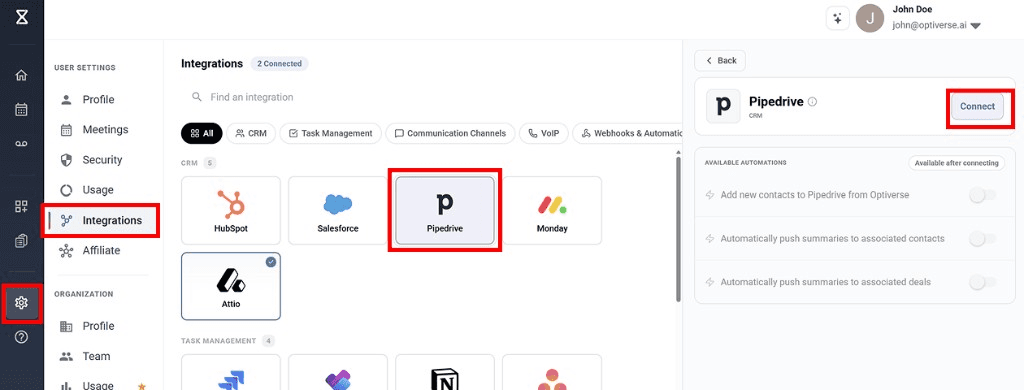
Each user connects their own Pipedrive account. The integration respects Pipedrive permissions, so it only accesses deals and contacts the authenticated user can view and edit.
Automation Settings
After connecting, you configure three automation preferences that control what happens after every meeting.
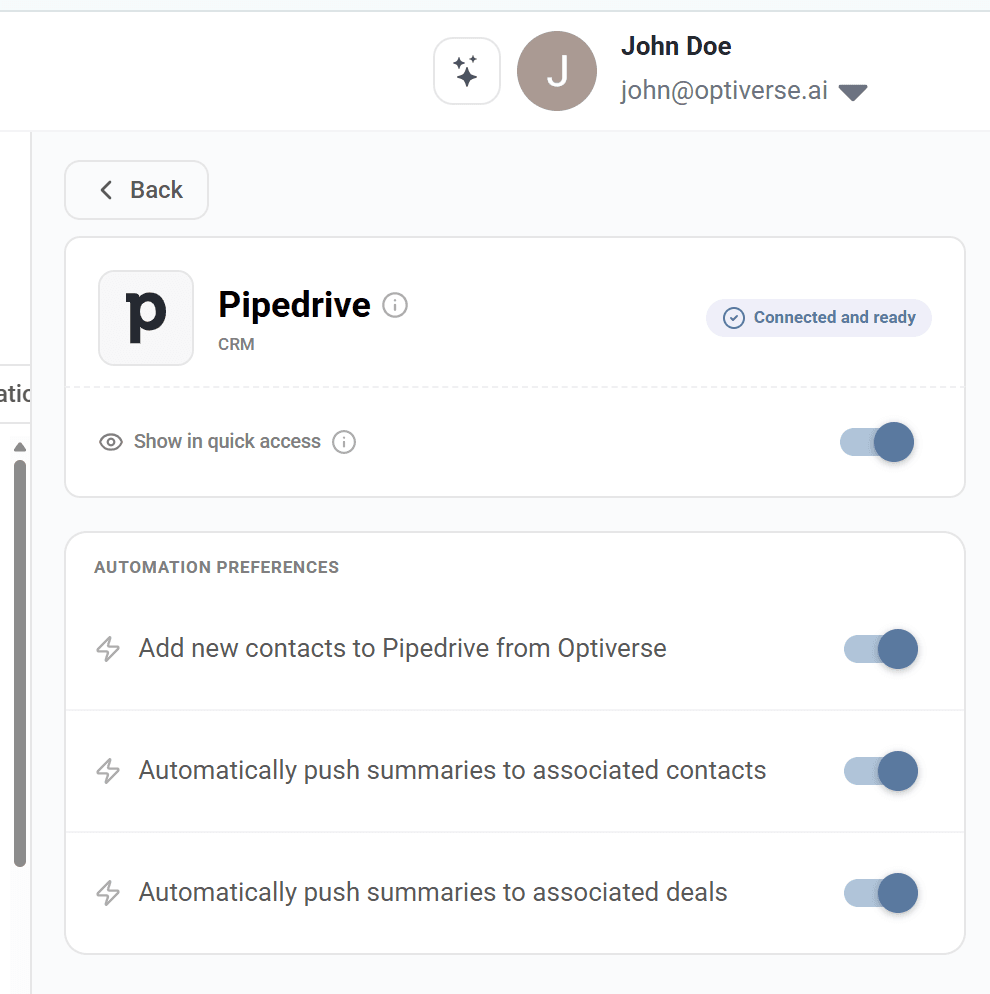
Show in Quick Access
Enables the Pipedrive icon on every Meeting Recording page, next to the Share button. This lets you manually push the currently displayed meeting notes to Pipedrive deals at any time.
Add New Contacts to Pipedrive from Optiverse
Optiverse reads attendee email addresses from your calendar invites. When this setting is enabled, if a meeting attendee does not already exist as a contact (person) in Pipedrive, Optiverse automatically creates a new contact record for them.
This ensures you never lose a prospect because someone forgot to add them to the CRM after a call.
Automatically Push Summaries to Associated Contacts
After every meeting, Optiverse pushes the meeting summary as a note under the matched contact records in Pipedrive. Matching is based on attendee email addresses from the calendar invite.
Automatically Push Summaries to Associated Deals
The meeting summary is also pushed to any open deals associated with the matched contacts. This keeps your deal timeline current with every customer interaction, building a complete activity history without manual logging.
Which Summary Gets Pushed?
The note that is automatically pushed to Pipedrive is the output of your default protocol. Each user selects one protocol as their default on the Protocols page, and that protocol generates the meeting summary that flows into Pipedrive after every call.
If you want a different protocol's output pushed to a specific deal, use the manual push via the Pipedrive Quick Access icon after switching to the desired protocol on the recording page.
How Auto-Matching Works
The integration uses a straightforward matching process:
- Optiverse reads attendee emails from your calendar invite
- Emails are matched against existing Pipedrive contact (person) records
- Associations are followed from contacts to their linked deals and organizations
- Summaries are pushed as notes to all matched records (contacts and deals)
This means every qualifying meeting is logged in Pipedrive under the right records automatically.
For the best matching accuracy, ensure your Pipedrive contacts have email addresses that match what attendees use in their calendar invitations.
Manual Push from the Recording Page
When Show in Quick Access is enabled, the Pipedrive icon appears at the top of every Meeting Recording page.

Click the icon to open the push dialog:
- A deal selector lets you choose which deal to push the notes to
- A summary preview shows the protocol output that will be pushed (in HTML format, with word count)
- Click Push to Pipedrive to send the notes
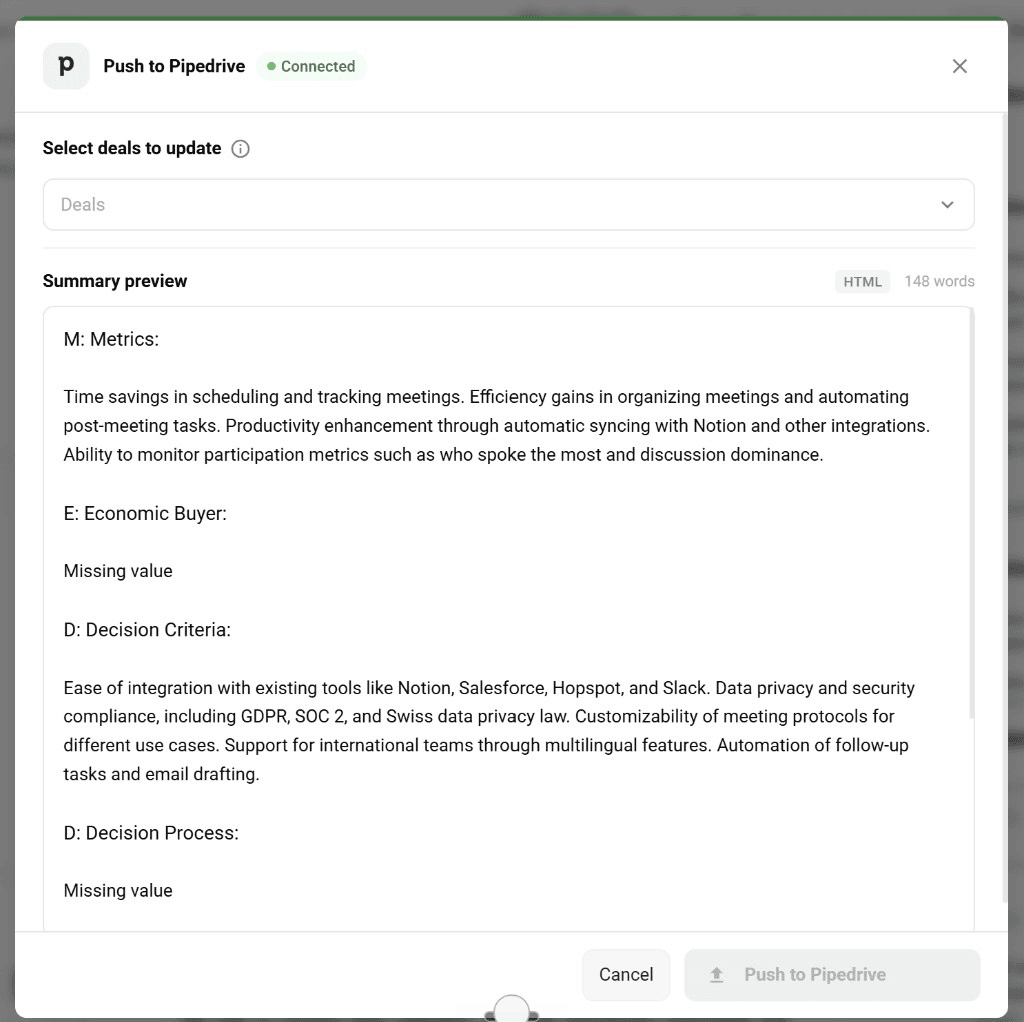
When Manual Push Is Essential
Automatic matching relies on attendee email addresses from calendar invites. Manual push fills the gap for situations where that matching cannot happen:
- On-site visits documented afterward using the Optiverse mobile app
- Voice memos recorded on the go to capture client conversations
- In-person meetings without a calendar event containing attendee emails
- Meetings with attendees whose emails aren't yet in Pipedrive
In all these cases, you can still push with one click by selecting the right deal manually. You can also ask the AI assistant on the homepage to push it for you via the MCP integration.
For quick voice memos and dictations captured on the go with the mobile app, just record your thoughts after the meeting. Then push the resulting notes to the right Pipedrive deal either manually or by asking the AI assistant.
Part 2: MCP Integration (Bilateral Access)
The native integration pushes data from meetings to Pipedrive. The MCP integration opens the reverse direction: the Optiverse AI assistant can read, search, create, and update Pipedrive records directly through conversation.
This turns Optiverse into a hands-free Pipedrive manager. Ask questions about your pipeline, create records from meeting context, or validate deal data, all without opening Pipedrive.
Connecting the MCP Integration
- On the Optiverse homepage, click the MCPs tab in the top left
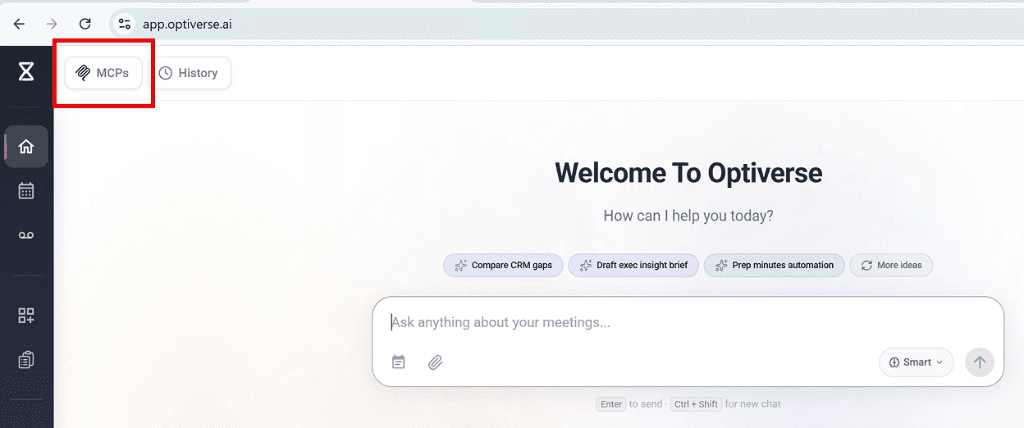
- In the MCP Integrations popup, search for Pipedrive and click Connect
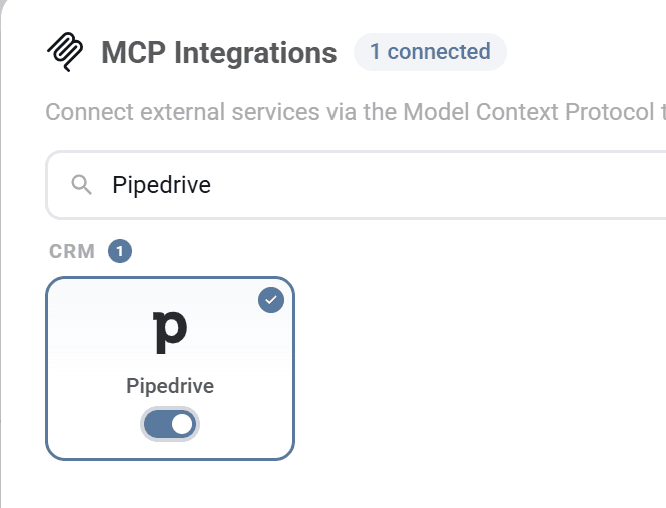
- The connection re-uses your OAuth tokens from the native integration (no separate authentication required)
- Once linked, you'll see all 22 available tools and permission controls
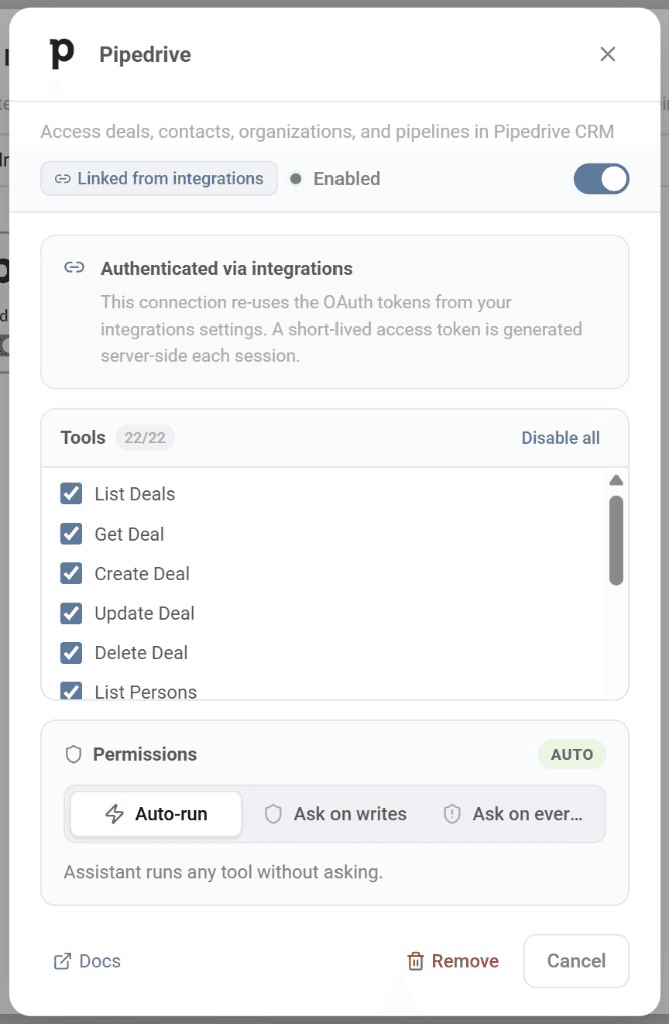
The MCP connection is authenticated via your existing integration settings. A short-lived access token is generated server-side each session for security.
Available Tools (22 Total)
The Pipedrive MCP integration gives the AI assistant comprehensive access to your pipeline:
| Tool | What it does |
|---|---|
| List Deals | Browse deals in your pipeline |
| Get Deal | Retrieve details on a specific deal |
| Create Deal | Create a new deal with custom fields |
| Update Deal | Modify deal stage, value, or any field |
| Delete Deal | Remove a deal (with permission controls) |
| List Persons | Browse contacts in Pipedrive |
| Get Person | Retrieve contact details |
| Create Person | Create a new contact |
| Update Person | Modify contact fields |
| List Organizations | Browse organizations |
| Create Organization | Create a new organization |
| Update Organization | Modify organization fields |
| List Activities | View activities and tasks |
| Create Activity | Schedule new activities |
| List Pipelines | View all pipeline configurations |
| List Stages | See stages within pipelines |
Permission Modes
You control how much autonomy the AI assistant has when interacting with Pipedrive:
| Mode | Behavior |
|---|---|
| Auto-run | The assistant executes any tool without asking. Best for power users who trust the workflow. |
| Ask on writes | The assistant reads freely but asks permission before creating, updating, or deleting records. Recommended for most users. |
| Ask on every action | The assistant requests consent at every step, including read operations. Most conservative. |
Use Cases for Sales Teams
The combination of automatic meeting logging and MCP access creates workflows that eliminate the manual CRM data entry that drains sales productivity.
Bulk-Create Records from Recent Meetings
After a busy week of client calls, use the MCP to create all the necessary Pipedrive records at once, including organizations, contacts, and deals, based on what was discussed.
Example prompt:
"I need you to create a deal, contact, and account on Pipedrive for the last 3 clients I met with."
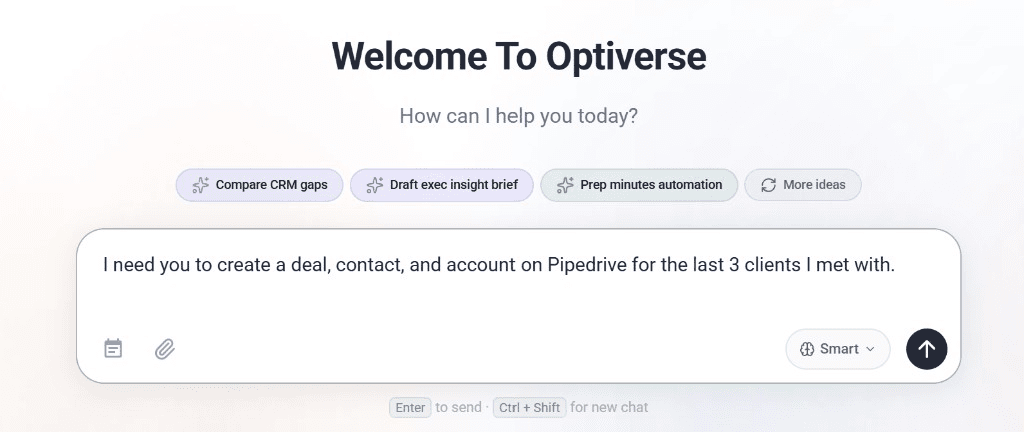
The assistant identifies your recent client meetings, extracts the relevant information (company names, contact details, deal context), and creates all records in Pipedrive with proper associations between them.
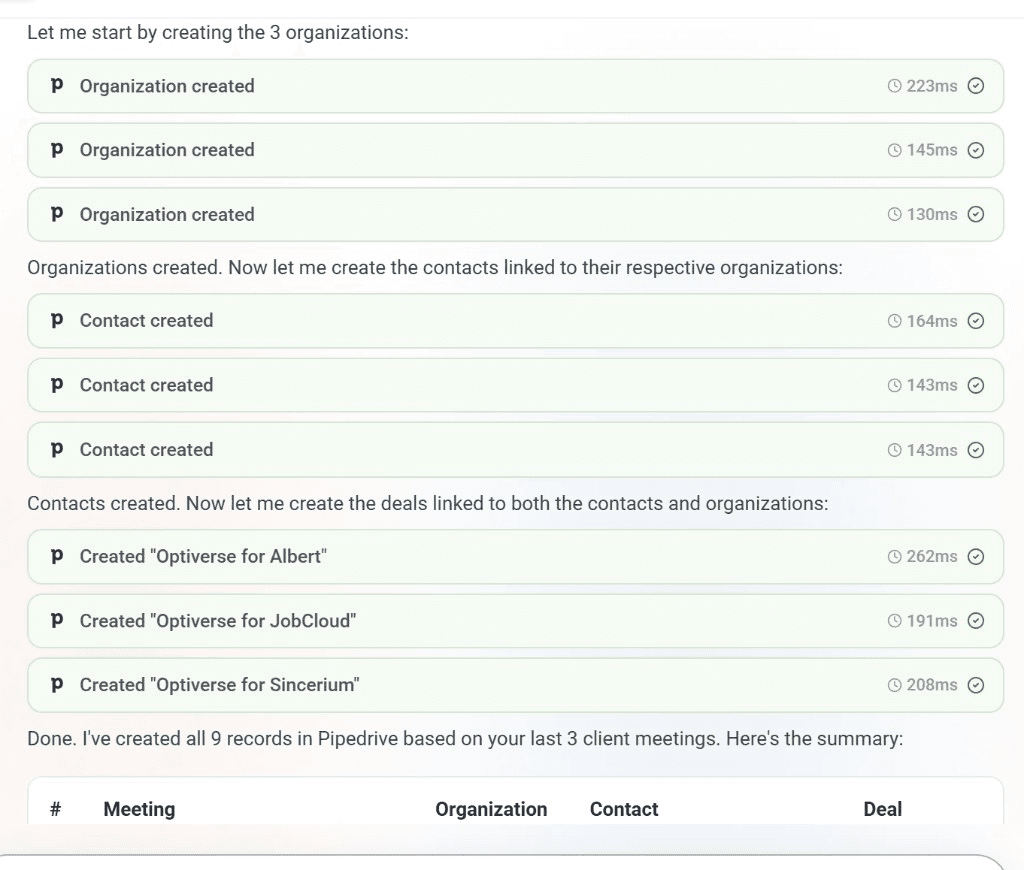
In this example, the assistant created 9 records total: 3 organizations, 3 contacts linked to those organizations, and 3 deals linked to both, all in under 2 seconds.
Keep Your Pipeline Current Without Opening Pipedrive
The most common complaint from sales managers: reps don't update their CRM. With Optiverse, deal data stays current because meeting summaries are automatically pushed after every call. But the MCP takes it further by letting you validate and update pipeline data through conversation.
Example prompts:
- "Which deals in my pipeline haven't had a meeting logged in the last two weeks?"
- "Move the [company] deal to the 'Proposal Sent' stage based on today's call."
- "Update the deal value for [company] to the budget they mentioned in our meeting."
Prepare for Calls with Full Pipeline Context
Drag and drop an upcoming meeting into the Optiverse homepage chat. With the Pipedrive MCP connected, the briefing includes live deal data alongside your meeting history.
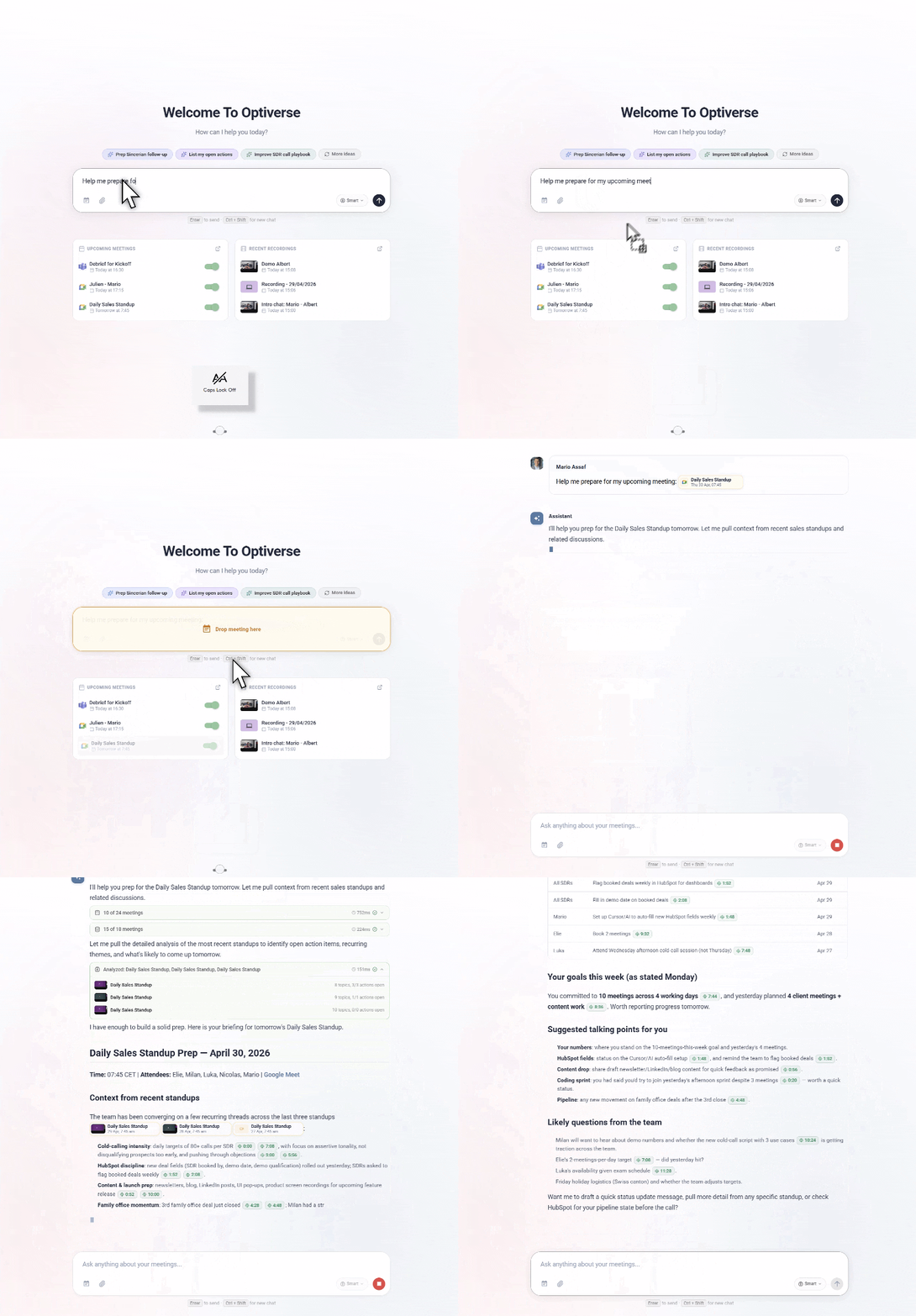
Example prompts:
- "I have a call with [company] in 10 minutes. Show me the Pipedrive deal status, last meeting notes, and any open action items."
- "What stage is the [company] deal in? What did we last discuss and what should I bring up?"
- "Pull up all contacts at [organization] and summarize our recent interactions."
Auto-Create Contacts After Every New Meeting
When you meet someone for the first time, Optiverse checks if they exist in Pipedrive. If they don't, a new contact is created automatically with their name and email. No more forgetting to log new prospects after intro calls.
Validate Deal Stages Against Meeting Reality
Pipeline data should reflect what's actually happening in customer conversations. Optiverse can cross-reference both sources and flag inconsistencies.
Example prompts:
- "Based on my recent meetings, are all deal stages in Pipedrive accurate?"
- "Which deals should have progressed based on what was discussed this month?"
- "Flag any deals where the last meeting outcome suggests the stage should be different."
Generate Pipeline Reports from Meeting Data
Combine meeting intelligence with Pipedrive data to produce reports that capture what's really happening in your pipeline.
Example prompts:
- "Give me a pipeline review: for each deal in the 'Qualified' stage, show the last meeting date and key discussion points."
- "Summarize all client meetings from this week and which Pipedrive deals they relate to."
- "Which deals closing this month actually had positive last meetings? Which are at risk?"
Track Action Items and Follow-ups
Every meeting produces next steps. Optiverse captures them automatically, and the MCP lets you verify they're reflected in Pipedrive activities.
Example prompts:
- "What action items did I commit to in client meetings this week? Create activities in Pipedrive for each one."
- "Check if the next steps from yesterday's calls have been logged as activities."
- "Schedule follow-up activities in Pipedrive for all deals that had meetings today."
Competitive Intelligence from Conversations
When competitors come up in sales calls, that context gets captured by your meeting protocols. Use the MCP to connect those insights back to specific deals.
Example prompts:
- "In my sales calls this month, which competitors were mentioned? Which deals are they affecting?"
- "Summarize what prospects said about [competitor] across all my recent meetings."
- "For deals in the 'Negotiation' stage, has any competitor been discussed?"
Clean Up Stale Pipeline Data
Pipelines accumulate dead deals and outdated contacts over time. Use meeting data as the source of truth to identify what should be cleaned up.
Example prompts:
- "Which deals in my pipeline haven't had any meeting in over a month? Should any be moved to lost?"
- "List contacts I haven't spoken with in the last quarter who still have open deals."
- "Are there any deals where the associated contact hasn't responded to outreach based on our meetings?"
Example Prompt Library
| Category | Prompt |
|---|---|
| Bulk Record Creation | "Create a deal, contact, and organization in Pipedrive for the last 3 clients I met with." |
| Pipeline Review | "For each deal in 'Proposal Sent' stage, show the last meeting summary and next steps." |
| Stage Updates | "Based on today's meetings, which deals should move to a new stage? Update them." |
| Meeting Prep | "I'm meeting with [company] in 5 minutes. Pull their Pipedrive deal info and my last 3 meeting notes." |
| Activity Tracking | "Create follow-up activities in Pipedrive for all action items from today's client calls." |
| Contact Gaps | "Which meeting attendees from this month don't have a Pipedrive contact record yet?" |
| Forecasting | "Based on recent meetings, which deals closing this month are genuinely on track?" |
| Win/Loss Analysis | "Summarize the meeting discussions for deals I closed this quarter. What patterns led to wins?" |
| Pipeline Hygiene | "Which deals haven't had a logged meeting in over three weeks? List them with their current stage." |
| Competitive Intel | "Which competitors were mentioned in sales calls this month? Map them to the relevant deals." |
Troubleshooting
| Issue | Solution |
|---|---|
| Integration not syncing | Click Reconnect in Settings > Integrations > Pipedrive to refresh authentication |
| Contacts not matching | Verify that attendee emails in calendar invites match the email field on Pipedrive persons |
| Notes not appearing on deals | Ensure the contact is properly linked to the deal in Pipedrive |
| New contacts not being created | Check that "Add new contacts to Pipedrive from Optiverse" is enabled in automation settings |
| MCP not finding records | Check that your Pipedrive user has access to the deals and contacts you're querying |
If you disconnect and reconnect the integration, your automation preferences will reset to defaults. Reconfigure them after reconnecting.
Dynamics 365 Integration
Connect Optiverse to Microsoft Dynamics 365, set your environment URL, and push meeting summaries to contacts, leads, opportunities, and accounts.
Attio Integration
Connect Optiverse to Attio to automatically sync meeting notes, map protocol data to custom objects, and manage your CRM with natural language.