

Deleting Recordings
Learn how to delete recordings for yourself or for everyone, understand recording ownership, and use bulk deletion.
Optiverse provides two ways to delete a meeting recording: delete for me (removes it from your view only) and delete for everyone (permanently removes it for all users). The option available to you depends on whether you are an owner of the recording.
Recording Ownership
Ownership determines who has the right to permanently delete a recording for all users. The owners of a recording are the people who were on the original attendee list of the meeting invite.
This design is intentional: the original attendees are the people who consented to being recorded in the first place, so they are the ones who hold deletion rights over the recording.
If you were added to a recording via manual sharing after the meeting took place, you have access but you are not an owner. You can only delete the recording for yourself.
Delete for Me vs Delete for Everyone
When you delete a recording, a confirmation dialog presents one or both options depending on your ownership status:
| Option | Who can use it | What it does |
|---|---|---|
| Delete for me | Anyone with access | Removes the recording from your personal recordings list. Other users who have access will still see and access the recording normally. |
| Delete for everyone | Owners only (original attendees) | Permanently deletes the recording for all users. No one will be able to access it after this action. |
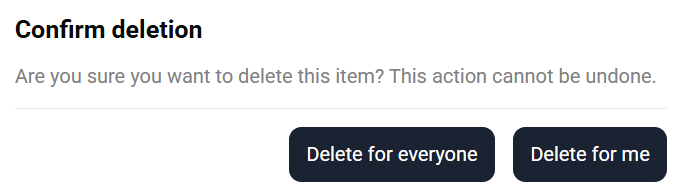
Deleting for everyone is irreversible. Once confirmed, textual data is deleted within 24 hours, video recordings may remain recoverable for up to 30 days, and then the data is permanently erased. For the latest security and compliance policy details, see the Optiverse Trust Center.
How to Delete a Single Recording
There are two ways to initiate deletion of an individual recording:
From the recording page (trash icon)
On the recording page itself, click the trash icon in the top bar, next to the Share button.

From the recordings list (three-dots menu)
On the recordings list page, click the three-dots menu on any recording card, then select Delete record.
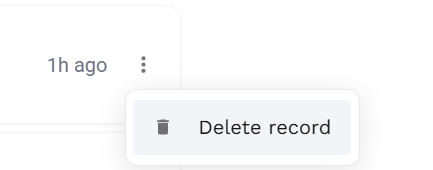
Both methods open the same confirmation dialog where you choose between Delete for everyone and Delete for me.
Bulk Deletion
If you need to delete multiple recordings at once, you can use the bulk selection feature on the recordings list page.
How to bulk delete
- Click the Select button in the toolbar to enter selection mode
- Check the boxes next to the recordings you want to delete (or use Deselect All / select all)
- Click the red Delete button that appears in the toolbar
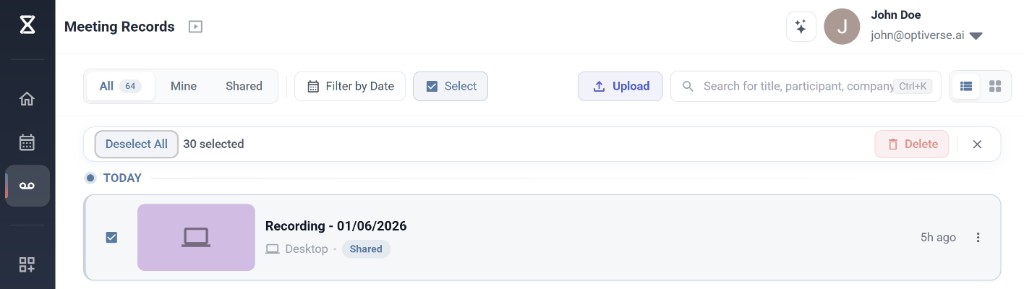
Bulk deletion is always "Delete for me"
When you bulk delete recordings, the action is always Delete for me only. You cannot delete for everyone in bulk. This is a safety measure to prevent accidental mass deletion that would affect other users.
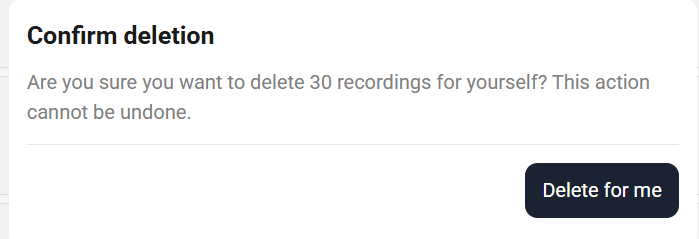
If you need to permanently delete specific recordings for everyone, you must do so one at a time using the individual deletion methods described above.
Quick Reference
| Scenario | Available options |
|---|---|
| Single recording, you are an owner | Delete for me, Delete for everyone |
| Single recording, you are NOT an owner | Delete for me only |
| Bulk deletion (multiple recordings) | Delete for me only |
Need Help with Deletion?
If you need assistance with custom deletion policies, bulk deletion across older meetings, or any other deletion-related request, the Optiverse team can help. This is available as a Business plan feature.
Reach out directly at contact@optiverse.ai.
Related
- Optiverse Trust Center for the latest security, privacy, and compliance documentation
- Access & Sharing for how access and ownership relate
- The Meeting Recording Page for an overview of all recording page features