

Multi-Meeting Search
The full-power AI on the Optiverse homepage. Search, analyze, and act across your entire meeting history.
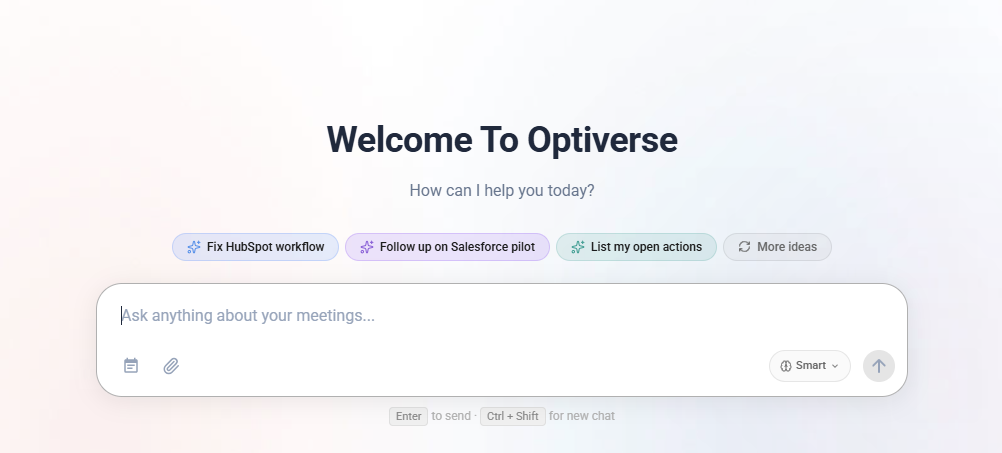
Multi-Meeting Search lives on the Optiverse homepage. It's the same deep thinking AI that powers OptiAgent on recording pages, but with access to a broader set of tools, including your full meeting history, CRM data, internet research, document generation, and MCP integrations.
Ask any question, and it will search across all your meetings to surface insights, draft content, and help you take action.
How It Works
When you ask a question on the homepage, the AI:
- Searches across all relevant meetings (even thousands)
- Identifies the most relevant passages and conversations
- Synthesizes information into a clear answer with source references
- Optionally pulls in data from connected integrations (CRM, email, project tools)
You can also manually select specific meetings to add as context, or let the agent search automatically.
What You Can Do
Ask About Optiverse Itself
Multi-Meeting Search is not limited to your meeting data. It also understands Optiverse as a product. You can ask it questions about how features work, where to find specific settings, or how to accomplish something on the platform. The assistant will guide you directly to the right page or explain the steps in natural language.
Examples:
- "How do I change my default protocol?"
- "Where can I manage my team members?"
- "How do I connect my CRM?"
- "What's the difference between Fast and Smart mode?"
This makes the assistant a live help system. Instead of searching documentation or navigating menus, just ask.
Prepare for Any Meeting
Drag and drop an upcoming meeting into the search, and Optiverse will automatically fetch all previous context with that person or team. You get a full briefing with open action items, past decisions, and talking points, so you walk in fully prepared.
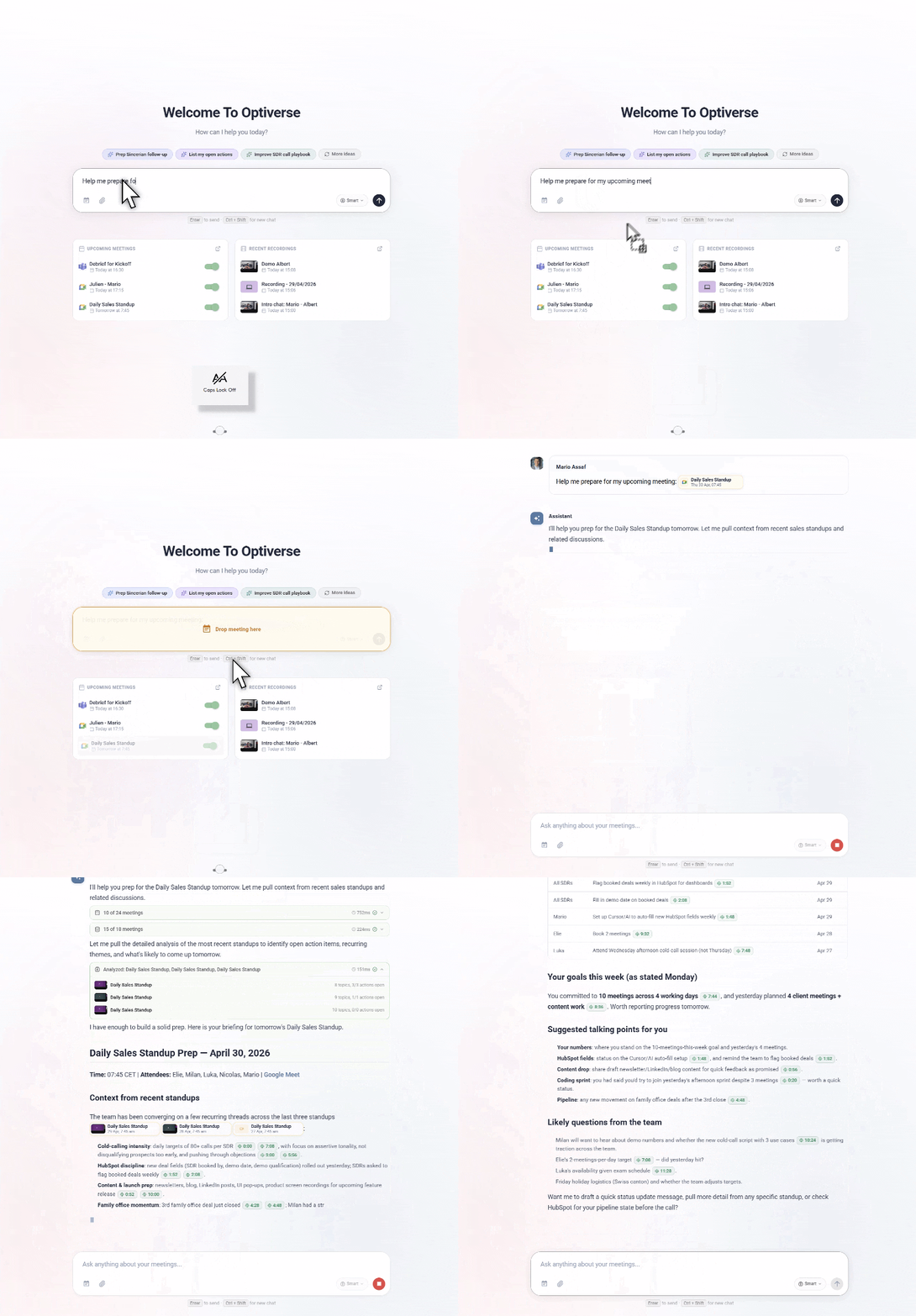
Drag an upcoming calendar event into the search to get an instant preparation briefing: previous interactions, CRM status, open items, and suggested talking points.
Run Reports and Analysis
Need a summary of everything discussed with a client over the past quarter? Want to know which topics keep coming up? Multi-Meeting Search turns your conversations into structured reports and actionable insights.
Generate Documents Instantly
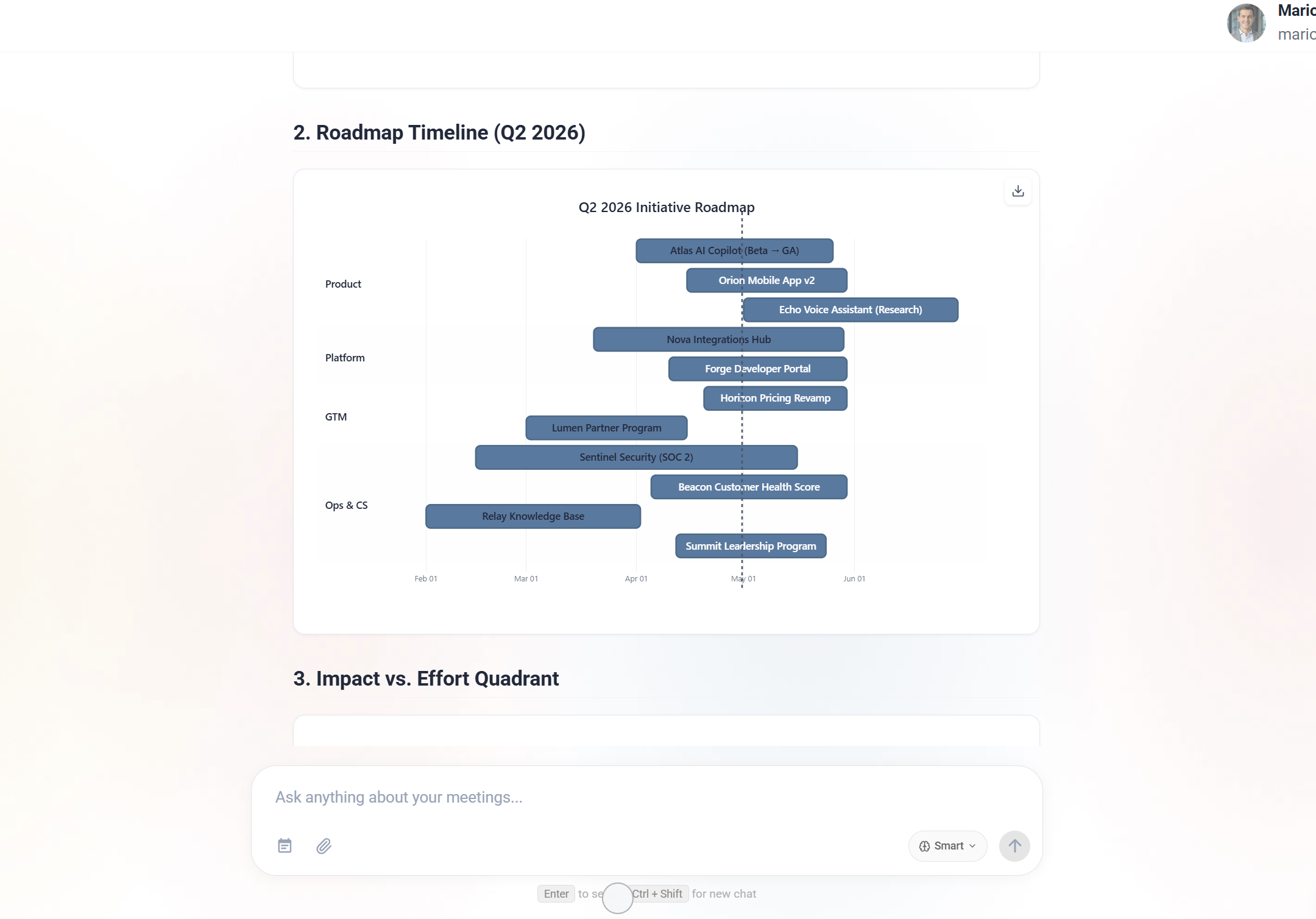
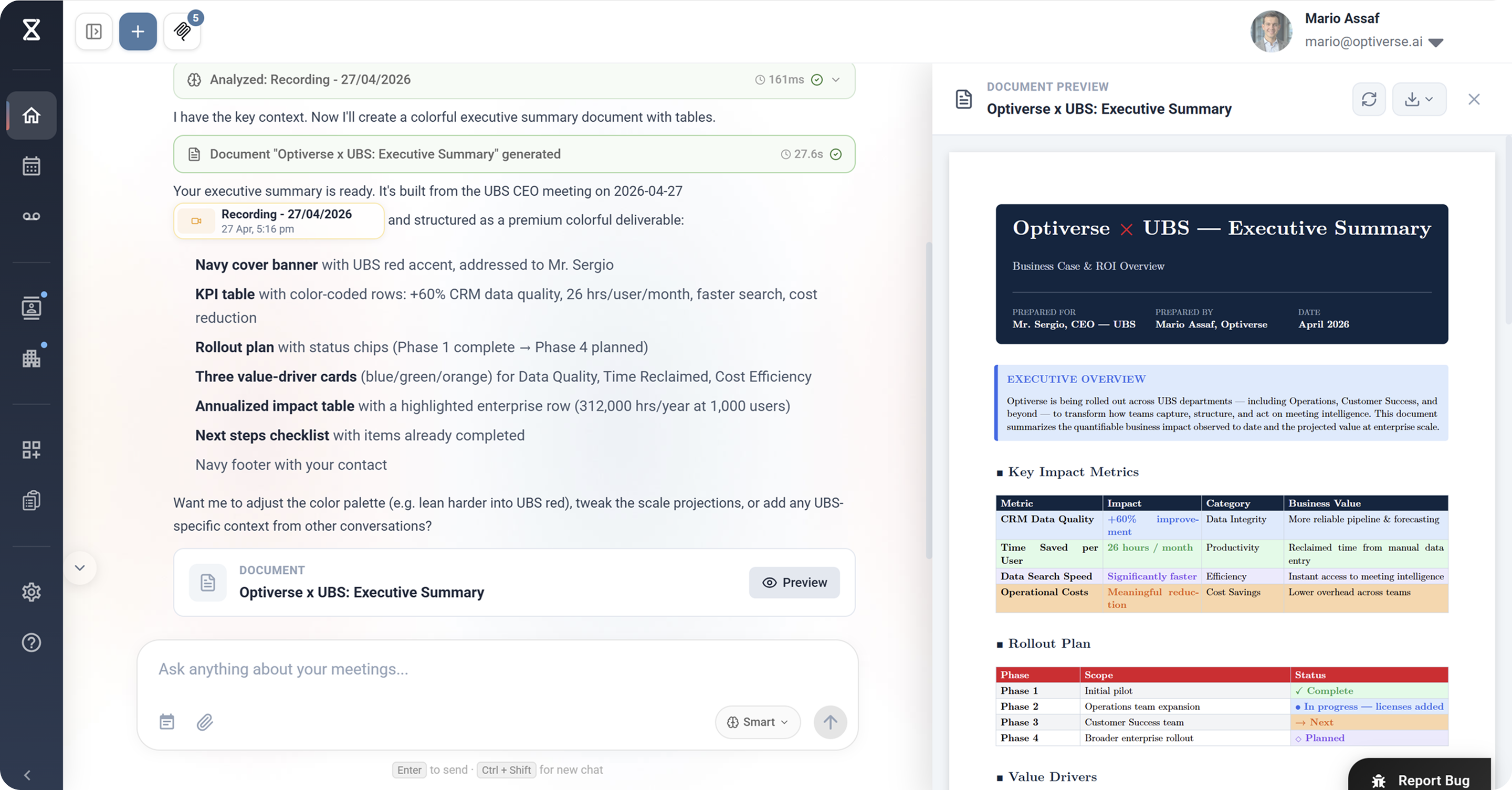
From meeting summaries to project briefs, Optiverse generates polished documents grounded in what was actually said. Outputs include PDF reports, Word documents, and structured overviews with timelines.
Draft Emails in Seconds
Ask Optiverse to write follow-up emails based on what was discussed. It pulls the right context from your meetings, so every email is accurate, professional, and ready to send.

Example Queries
| Category | Examples |
|---|---|
| Meeting Prep | "I have a meeting with [person] in 5 minutes, give me everything I need" / "What's open with [company] since our last call?" |
| Reports | "Make a progress report on Project X" / "Summarize all client meetings this month" |
| Client Intelligence | "What did we discuss with [company] over the last 6 months?" / "List all objections raised about [product] and how they were handled" |
| Sales & CRM | "Which deals discussed this quarter haven't been updated in the CRM?" / "Summarize all discovery calls from last month" |
| Follow-ups | "Draft a follow-up to today's call" / "Write an email to [person] confirming next steps" |
| Patterns | "Track how our pricing discussion evolved over the last 3 months" / "What decisions have we made about [topic] across all team meetings?" |
| Platform Help | "How do I connect my CRM?" / "Where can I change my default protocol?" / "How do I invite team members?" |
Tools Available on the Homepage
Multi-Meeting Search has access to a broader tool set than the recording page agent:
| Tool | What it does |
|---|---|
| Search All Meetings | Full-text and semantic search across your entire meeting library |
| CRM Lookup | Query Salesforce or HubSpot for deal stages, contacts, and pipeline data |
| Deep Research | Search the public internet for company info, contact backgrounds, and market context |
| Document Generation | Compile findings into downloadable PDF/Word reports |
| Visual Analysis | Create timelines, charts, and structured graphics |
| Draft Email | Generate follow-up emails grounded in multi-meeting context |
| MCP Integrations | Pull data from Slack, Notion, Jira, Linear, and other connected tools |
Connected Integrations (MCP)
When connected to external tools via MCP, Multi-Meeting Search doesn't just fetch data from those tools in isolation. It combines everything into a single, unified response. When you ask a question, the AI pulls from your meeting transcripts, your CRM records, your project boards, your Slack messages, and your documentation simultaneously. The result is one coherent answer that weaves together information from all sources.
For example, if you ask "What's the status of the Acme deal?", the AI might combine:
- What was discussed in your last three meetings with Acme
- The current deal stage and pipeline value from HubSpot or Salesforce
- Recent Slack messages mentioning the deal
- Open tickets in Jira or Linear related to their requests
All of this appears in a single response, with sources clearly attributed so you know where each piece of information came from.
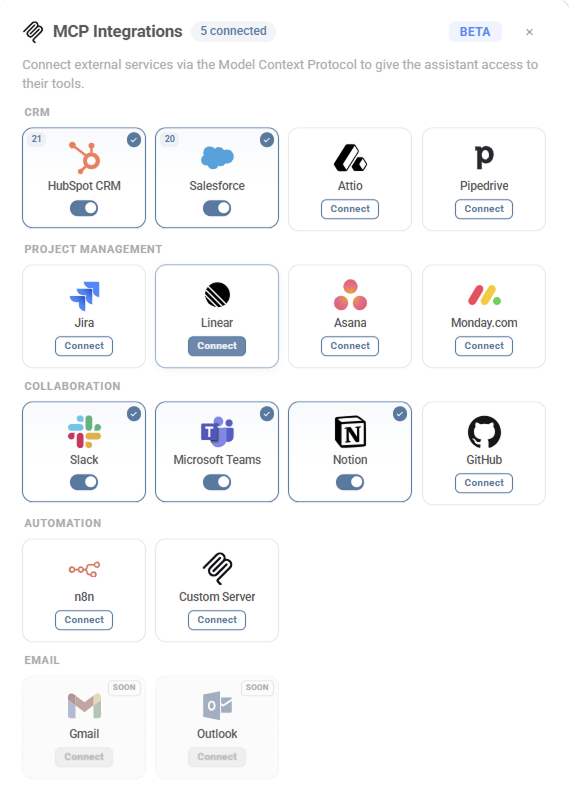
Supported integrations include:
- CRM: Salesforce, HubSpot. Deal stages, contact info, pipeline data.
- Communication: Slack, Microsoft Teams. Channel messages, threads.
- Documentation: Notion. Pages, databases, wikis.
- Project Management: Jira, Linear. Tickets, sprints, roadmaps.
- Automation: n8n. Custom workflow triggers.
See MCP Connections for setup instructions.
Performance
| Query Type | Expected Time |
|---|---|
| Simple factual question | A few seconds |
| Multi-meeting search | 30 seconds to 2 minutes |
| Deep analysis (many meetings + integrations) | 2 to 5 minutes |
For complex, multi-meeting analysis tasks, let the AI run to completion. These queries may take several minutes. The result will be comprehensive.
Chat History
All conversations are saved and searchable. You can return to previous research sessions, search past chats by topic, and continue where you left off.
OptiAgent & Meeting Search
One AI brain, two surfaces. Search across all your meetings from the homepage, or get contextual help on any recording page.
OptiAgent on the Recording Page
The same AI, focused on the meeting in front of you. Ask questions, edit summaries, draft emails, and reach into other meetings when needed.