

MCP Connections
Understand how the Model Context Protocol powers OptiAgent's tool access, and connect your own custom MCP servers.
The Model Context Protocol (MCP) is the layer that gives OptiAgent the ability to interact with external tools through natural conversation. Every integration that lets OptiAgent read, search, or write data in an external platform is powered by MCP under the hood.
This page explains how MCP works at a system level, how native and custom integrations differ, and how to connect your own MCP servers for tools that Optiverse doesn't natively support.
How MCP Works
MCP is an open protocol that standardizes how AI assistants communicate with external tools. When an MCP integration is active:
- The integration exposes a set of tools (read contacts, search deals, post a message, etc.)
- You ask OptiAgent a question or give a command in natural language
- OptiAgent selects the right tools to fulfill your request
- The tools execute against the external platform and return results
- OptiAgent combines the results into a single, coherent response
This means you never need to learn an API or memorize commands. You just ask for what you need and OptiAgent handles the tool orchestration.
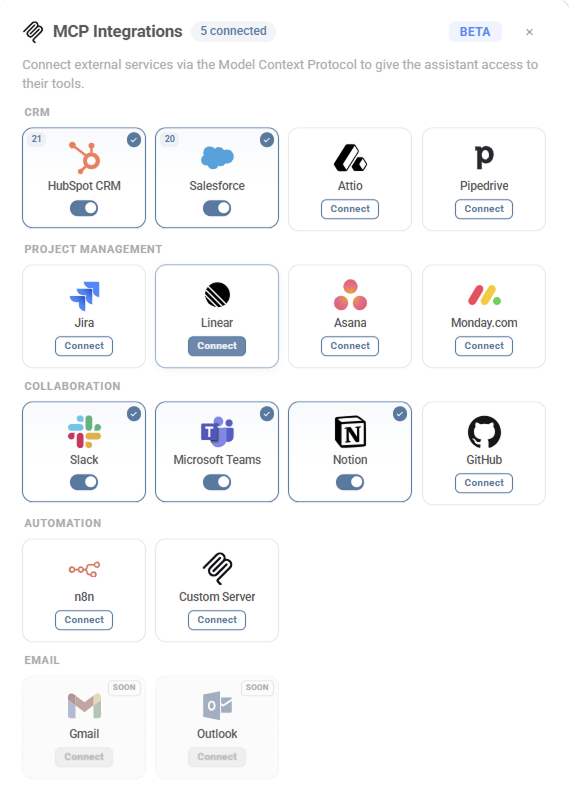
Native vs. Custom Integrations
Optiverse provides two ways to connect tools via MCP:
| Native Integrations | Custom MCP Servers | |
|---|---|---|
| Setup | One-click connect via OAuth or API key | Provide server URL and optional auth token |
| Maintained by | The Optiverse team | You or the tool vendor |
| Examples | HubSpot, Salesforce, Pipedrive, Attio, Microsoft Teams | Any platform that exposes an MCP server |
| Tool curation | Pre-configured tool set with tested permissions | You manage which tools are available |
| Updates | Automatic. New tools added as the integration evolves | You control the server version |
Native integrations cover the most common platforms and are optimized for reliability, token management, and permission controls. See the CRM, Communication, and Automation sections for setup guides.
Custom MCP servers fill the gaps. If a tool you rely on has an MCP server (published by the vendor or community), you can connect it directly to OptiAgent and gain the same conversational access.
Connecting a Custom MCP Server
Any platform that exposes an MCP-compatible HTTP endpoint can be connected to OptiAgent.
Setup Steps
- On the Optiverse homepage, click the MCPs tab in the top left
- Click Custom Server to open the connection dialog
- Fill in the required fields:
| Field | Description |
|---|---|
| Server Key | A unique identifier used as the tool name prefix (e.g., my-server) |
| Display Name | A human-readable label shown in the UI (e.g., "My MCP Server") |
| Server URL | The HTTP endpoint of the MCP server (e.g., https://your-mcp-server.com/mcp) |
| Authorization Header | Optional. A Bearer token or API key if the server requires authentication |
- Click Connect
- Once connected, review the tools the server exposes and enable/disable individual tools as needed
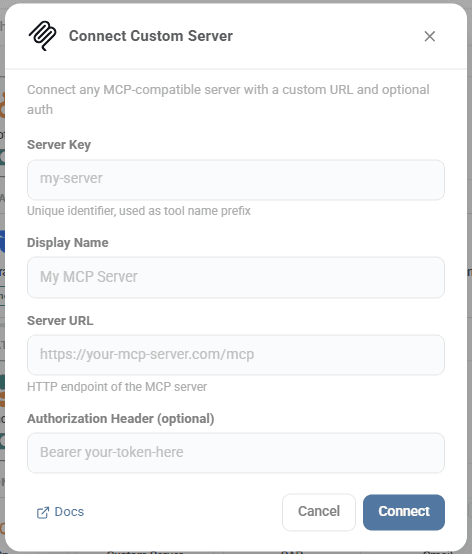
The Server Key becomes a prefix for all tools from that server. Choose something short and recognizable so you can identify the source when OptiAgent uses the tools.
Technical Requirements
Optiverse connects to custom MCP servers over Streamable HTTP, the standard remote transport for MCP. Your server must:
- Expose an HTTP endpoint that supports POST and GET requests
- Implement the MCP protocol (tool listing, tool execution, result responses)
- Optionally support Server-Sent Events (SSE) for streaming responses
Most MCP server frameworks (the official TypeScript SDK, Python SDK, and community implementations) handle the transport layer automatically. If you can run the server and access its URL, it will work with Optiverse.
What Can You Connect?
Any tool with an MCP server is a candidate. Common examples include:
- Project management: Jira, Linear, Asana, Monday.com
- Documentation: Notion, Confluence, Google Docs
- Communication: Slack, Discord
- Developer tools: GitHub, GitLab, Sentry
- Internal tools: Custom databases, proprietary platforms, internal APIs
The MCP ecosystem is growing rapidly. If a tool you use has published an MCP server (check their docs or the MCP server directory), you can connect it.
Managing Tools and Permissions
Each MCP integration (native or custom) exposes multiple tools. You have granular control over what OptiAgent can do.
Tool-Level Toggles
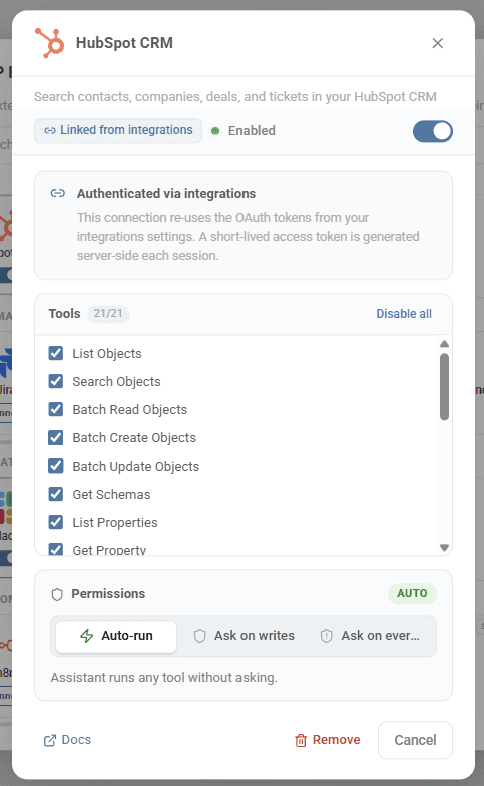
After connecting a server, you can enable or disable individual tools. This lets you:
- Allow read operations but block writes
- Expose search tools but hide bulk operations
- Limit access to only the capabilities your team actually needs
Safety by Design
MCP integrations include built-in safety measures:
- Delete operations are blocked by default. OptiAgent cannot delete records from any connected system.
- Granular tool control. Enable only the specific tools you need, nothing more.
- Audit visibility. Every tool call is visible in the conversation, so you can see exactly what OptiAgent accessed.
- Permission customization available. If your team needs specific permission modes (like requiring confirmation before write operations), contact support@optiverse.ai to enable them for your workspace.
Before enabling write-capable tools on any integration, align with your team on which data OptiAgent should be allowed to modify. Start with read-only access and expand once you've validated the workflows.
Verifying a Connection Works
After connecting a custom MCP server, verify that it's working correctly:
- Go to the Multi-Meeting Search (homepage) or open any meeting page with OptiAgent
- Ask a simple question that would require the connected tool, for example:
- "What tools do you have access to from [server name]?"
- "Search [tool] for [something you know exists]"
- OptiAgent should respond using the connected tool and show the tool name in the response
If the connection fails:
| Symptom | Likely Cause | Fix |
|---|---|---|
| "Tool not found" | Server connected but tools not enabled | Go to MCPs tab and enable the tools |
| Timeout or no response | Server URL unreachable | Verify the URL is publicly accessible and the server is running |
| Authentication error | Missing or invalid token | Check the Authorization Header field |
| Unexpected results | Server returns malformed data | Test the server independently to confirm it works |
Best Practices
- Start with native integrations. If Optiverse has a native integration for your tool, use it. Native integrations are maintained, updated, and optimized for reliability.
- Use custom servers for the gaps. Reserve custom connections for tools that aren't natively supported but are critical to your workflow.
- Keep Server Keys short and clear. They appear as tool prefixes in conversations.
hubspotis better thanmy-company-hubspot-production-v2. - Test before rolling out. After connecting, ask OptiAgent a few test questions to confirm the tools work as expected.
- Review tool permissions. Disable tools you don't need. Fewer enabled tools means faster, more focused AI responses.
- Monitor usage. Check conversation logs periodically to see which tools OptiAgent uses most. Disable unused integrations to keep things clean.