

OptiAgent on the Recording Page
The same AI, focused on the meeting in front of you. Ask questions, edit summaries, draft emails, and reach into other meetings when needed.
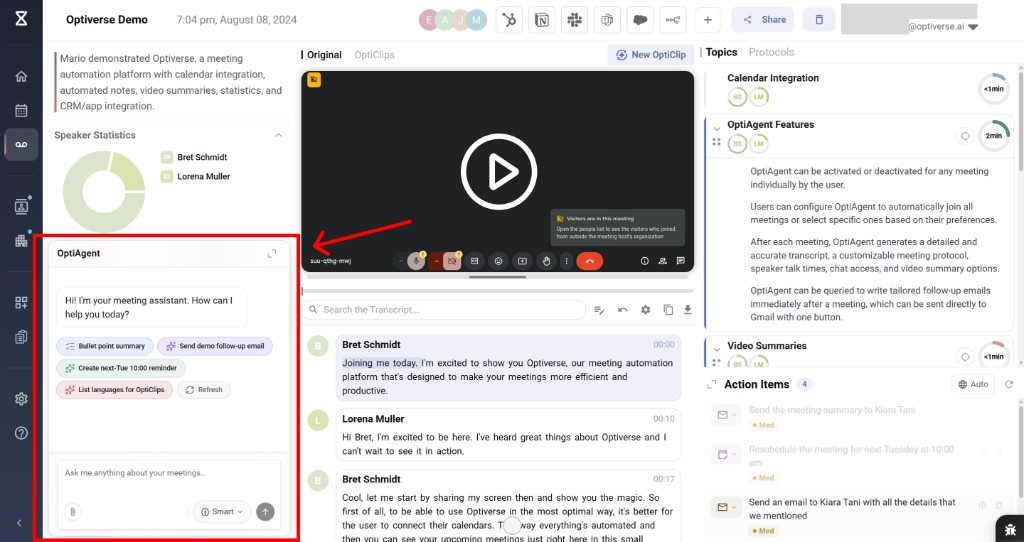
OptiAgent is the chat panel on every recording page. It's the same deep thinking AI as Multi-Meeting Search, but scoped to the meeting you're looking at. It prioritizes the current transcript while still being able to reach into other meetings, compare content, and pull context from your meeting library.
Think of it as a shortcut: Multi-Meeting Search starts broad; OptiAgent starts with the recording in front of you.
Fast and Smart Modes
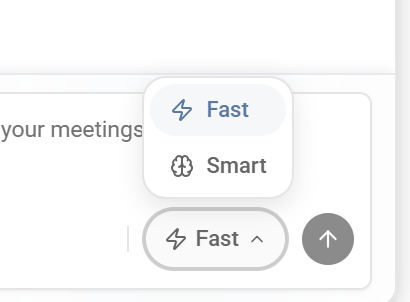
OptiAgent offers two thinking modes, toggled at the bottom of the chat input:
| Mode | Best for |
|---|---|
| Fast | Quick factual answers, simple lookups, single-meeting tasks |
| Smart | Complex analysis, cross-meeting research, multi-step tasks, attachments |
Use Fast mode for everyday questions. Switch to Smart mode when your request involves multiple meetings, requires deeper reasoning, or includes structured data (CSVs, tables).
Tools
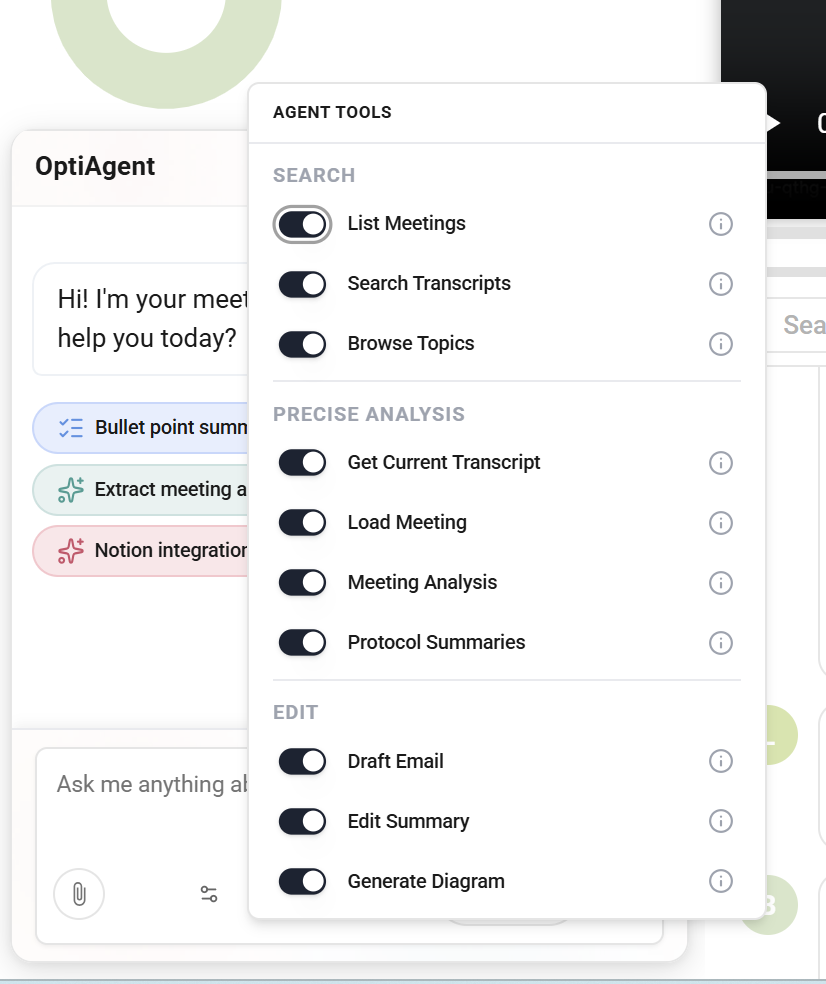
OptiAgent has a focused tool set designed for working with a specific recording:
Search
| Tool | What it does |
|---|---|
| List Meetings | Browse all your meetings to find specific topics or conversations |
| Search Transcripts | Search across transcripts of other recordings by keyword or concept |
| Browse Topics | Explore topics discussed across your entire meeting library |
Precise Analysis
| Tool | What it does |
|---|---|
| Get Current Transcript | Load the full transcript for detailed, line-by-line analysis |
| Load Meeting | Load another meeting's data to compare or combine |
| Meeting Analysis | Deep analysis on meeting content (sentiment, dynamics, key moments) |
| Protocol Summaries | Generate or reference protocol-based summaries |
Edit
| Tool | What it does |
|---|---|
| Draft Email | Generate follow-up emails that can be sent directly to Gmail |
| Edit Summary | Modify the meeting summary on the recording page directly |
| Generate Diagram | Create visual diagrams based on meeting content |
You can enable or disable individual tools from the tools panel. All tools are enabled by default.
What You Can Do
Ask questions about the meeting
Every answer includes a clickable source reference that jumps to the exact timestamp in the transcript or recording.
- "What did we agree on regarding pricing?"
- "What was the deadline mentioned for the proposal?"
- "Summarize the first 10 minutes"
- "What objections did the client raise?"
Draft follow-up emails
The generated email can be sent directly to Gmail with one button. Recipient, subject line, and body are pre-filled.
- "Draft a follow-up email to Sarah confirming next steps"
- "Write an email to the client summarizing what we agreed on"
- "Send a recap email to the team with action items"
Edit the summary
OptiAgent can modify the meeting summary live on the page. This is powerful with custom protocols. You can restructure a summary to match a specific template.
- "Update the action items to include the deadline we discussed"
- "Add the budget figure to the key decisions section"
- "Rewrite the summary to focus on technical decisions"
Create tasks and reminders
- "Create a reminder for next Tuesday at 10:00"
- "Extract all action items with owners and deadlines"
- "Generate a task list from the decisions made"
Generate visuals
- Decision trees discussed in the meeting
- Process flows that were described
- Timeline visualizations
Reach into other meetings
OptiAgent can use its search tools to pull context from your full meeting library without leaving the recording page:
- "What did we discuss with this client last time?"
- "Compare what they said today with their position last month"
- "Combine the action items from the last three project meetings"
When working cross-meeting, use Smart mode for best results.
Suggested Actions
OptiAgent proactively suggests actions based on the meeting content. You'll see quick-action buttons like "Bullet point summary," "Send demo follow-up email," or "Create next-Tue 10:00 reminder" that you can trigger with a single click.
Architecture: Tools, Not Prompts
OptiAgent is built on a tools-based architecture. Rather than predicting text from a prompt, it actively decides which tools to invoke based on your request. This means it can:
- Retrieve specific data from meetings (rather than guessing)
- Perform calculations and analysis on real numbers
- Take actions (send emails, edit summaries) with your confirmation
- Chain multiple tools together for complex workflows