

Admin Approval & Sign-Up Troubleshooting
What to do if you're blocked during sign-up and need organizational approval to use Optiverse.
If you see a block or permission error when trying to sign up with "Continue with Google" or "Continue with Microsoft", this usually means your organization's IT administrator has restricted third-party app access. This is common in enterprise environments and is easy to resolve.
Below is an example of the Microsoft "Need admin approval" screen you may encounter:

A similar screen may appear when using Google Workspace, depending on your organization's configuration.
Why Am I Blocked?
Many organizations require admin consent before employees can connect their work accounts to new applications. When you click Continue with Google or Continue with Microsoft, your identity provider (Google Workspace or Microsoft Entra ID) checks whether Optiverse is approved. If it isn't, you'll see a message saying you need admin approval or that the app is not authorized.
This is not an issue with your account. It simply means your IT team needs to approve Optiverse as a trusted application.
What You Can Do
Option 1: Request Approval from Your IT Admin
- Contact your IT administrator or helpdesk
- Let them know you need access to Optiverse (app.optiverse.ai)
- Share the Optiverse Trust Center to speed up the process
Sharing the Trust Center directly with your IT team often resolves concerns quickly. It contains the latest Optiverse security, privacy, and compliance information in one place.
Option 2: Let Us Help You Navigate Internal Approval
We understand that navigating internal IT processes can be challenging. Our team has experience helping organizations through the approval workflow, and we're happy to:
- Join a short call with you and your IT admin to answer technical questions
- Provide a security questionnaire or compliance documentation
- Walk your admin through the exact permissions Optiverse requests
- Explain the data flow and storage architecture in detail
Reach out to our team for help with admin approval:
Option 3: Pilot with a Personal Account
If internal approval will take time, you can start exploring Optiverse with a personal Google or Microsoft account. Keep in mind that this will give you a limited exposure to the product, as your work calendar will not be connected. The assistant cannot automatically join your work meetings in this case.
However, you can still use Optiverse in the following ways:
- Join Live Meeting: Manually send the assistant to any meeting by pasting the Teams, Zoom, or Google Meet link from the Calendar page
- Mobile app: Record in-person meetings or voice memos directly from your phone
- Upload recordings: Upload any existing audio or video file for transcription and summarization
If you don't mind the extra manual step of sending the assistant via a meeting link each time, this is already enough to grasp the value Optiverse delivers.
Once your organization grants approval, we are happy to help you migrate your account and data to your work identity so nothing is lost.
What IT Admins Need to Know
No configuration is needed on the Optiverse side. Optiverse uses Microsoft OAuth or Google OAuth for authentication, which means SSO is already built in through your existing Microsoft 365 or Google Workspace accounts. No separate SAML setup is required.
| Permission | Purpose |
|---|---|
| Calendar read access | To see upcoming meetings and join them automatically |
| User profile (email, name) | To create the account and identify participants |
That's it. Optiverse does not request access to your emails, files, drives, or any other data. The scope is intentionally minimal: only your calendar events and basic profile information.
Granting Access: Microsoft Entra ID
There are two ways to approve Optiverse for your Microsoft organization:
Option A: Admin Consent (Recommended)
This is the fastest approach. One admin action grants access to everyone in your tenant. It takes less than 2 minutes.
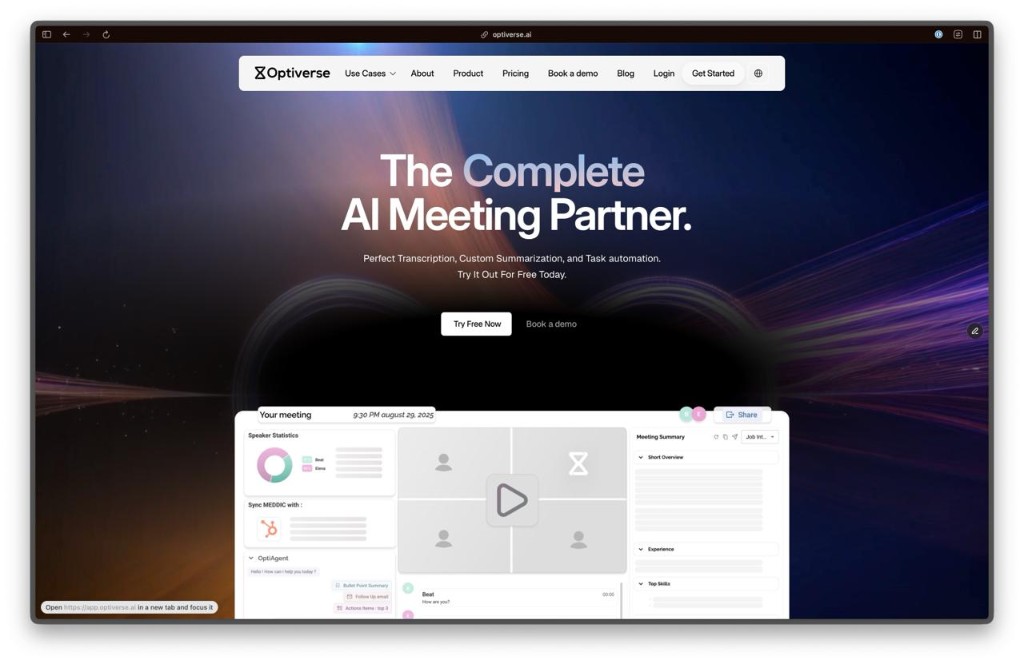
Go to optiverse.ai and click Get Started
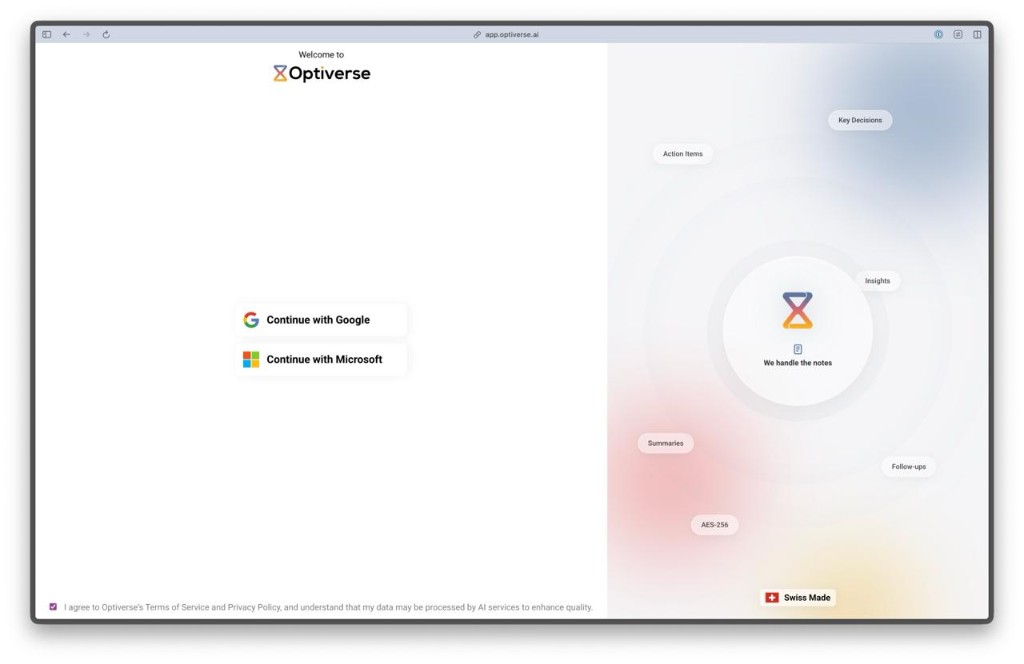
Choose Continue with Microsoft
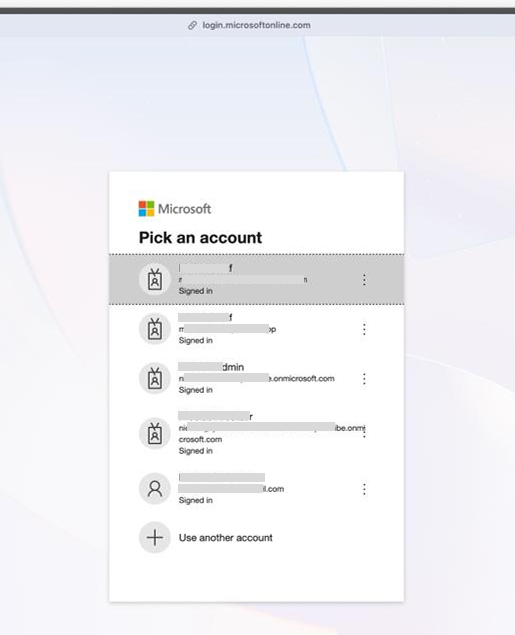
Choose an Admin Account
Select an account that has admin privileges in your Microsoft tenant.
Check "Consent on behalf of your organization"
This is the key step. Ticking this checkbox means all users in your organization will be able to sign in without being individually prompted for consent.
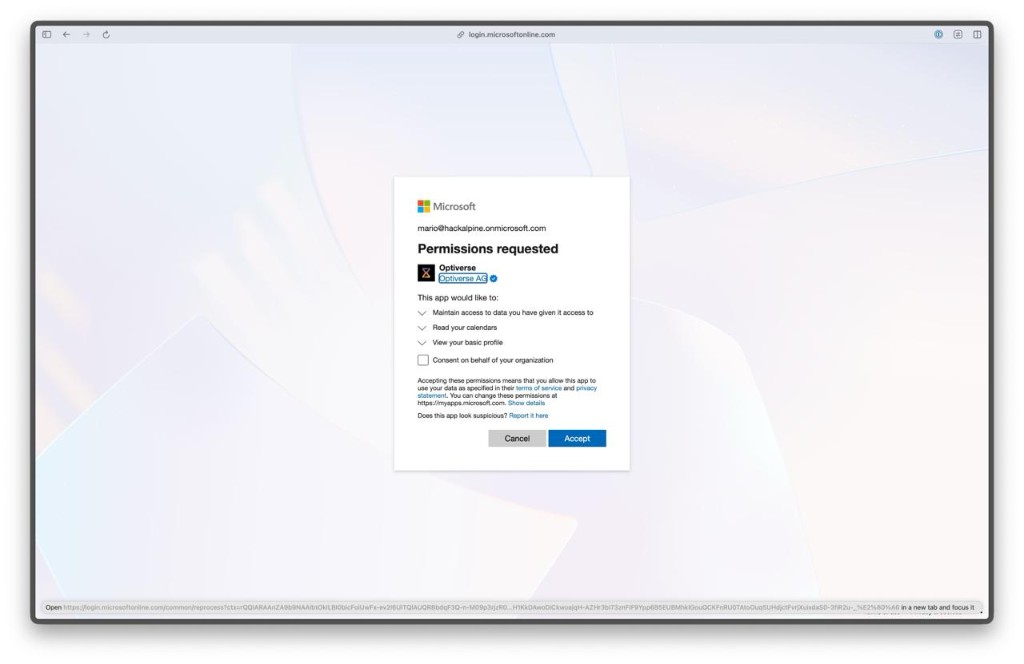
Click Accept
Once the checkbox is checked, click Accept. That's it. All users in your Microsoft tenant can now access Optiverse with their Microsoft credentials.
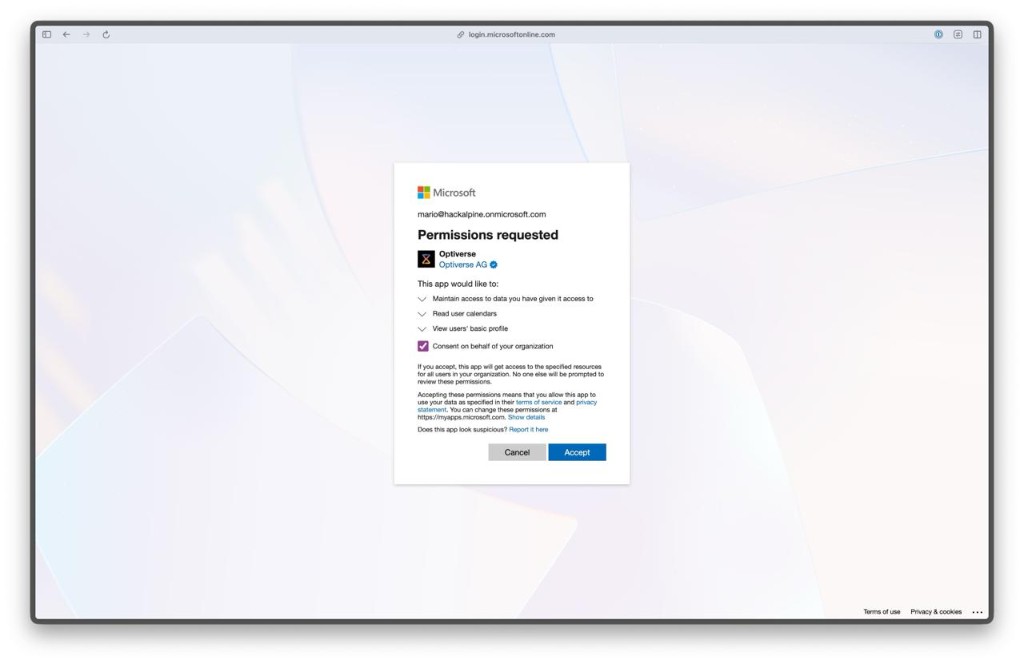
No further configuration is needed after this.
This approval covers signing in to Optiverse. Integrations like Dynamics 365, Microsoft Teams, and Microsoft Planner are separate Entra applications and need their own approval. Microsoft Integration Approval generates a direct approval link for each of them, including one for the Optiverse platform app if your admin prefers a link over the sign-in flow above.
Option B: Controlled Access via Entra ID
If you want to restrict access to specific users rather than the entire tenant:
- Go to Azure Portal > Entra ID > Enterprise Applications > Optiverse
- Create a security group (e.g., "Optiverse Users") in Entra ID
- Add the designated users to this group
- In the Optiverse enterprise app settings, assign this group access
- Enable "User assignment required" to restrict access to only assigned users/groups
This way, only members of your designated group can sign in to Optiverse using their Microsoft credentials.
To remove access later, simply remove the user from the security group or revoke the enterprise application assignment. Since all login goes through Microsoft SSO, there is no way to bypass this restriction.
Granting Access: Google Workspace
For Google Workspace organizations:
- Have a Google Workspace admin sign in to app.optiverse.ai with their Google account
- When Google prompts for consent, approve the requested scopes (calendar read access and user profile)
- Once approved, users in your Google Workspace can access Optiverse with their Google credentials
If your organization restricts third-party apps, the admin can also approve Optiverse from Google Admin Console > Security > API Controls > Third-party app access.
Both Microsoft and Google approval take less than 5 minutes to complete. If you need help, reach out to support@optiverse.ai and we'll guide you through it.
Still Stuck?
If you've tried the steps above and are still unable to sign up:
- Email us at support@optiverse.ai with your organization name and the error message you see
- Book a call with our team, and we can walk your IT admin through the approval process directly
- Most admin approvals are resolved within 24 to 48 hours once IT has reviewed the documentation
We're here to make that process as smooth as possible. Don't hesitate to reach out.