

Aircall Integration
Connect Aircall to Optiverse to automatically transcribe, summarize, and push phone call recordings to your CRM with custom protocol templates.
Optiverse connects to Aircall to bring the same AI transcription, structured summaries, and CRM automation to your phone calls that you already get for video meetings. Every call recorded through Aircall is automatically sent to Optiverse, transcribed, and processed with your chosen protocol template. The result is a fully structured summary following your custom format, ready to push to your CRM.
This turns every sales call, support conversation, and client check-in into searchable, structured data, even when there's no video involved.
How It Works
When you connect Aircall to Optiverse, the flow is fully automatic:
- A call is recorded on Aircall (inbound or outbound)
- The audio is sent to Optiverse automatically
- Optiverse transcribes the call and identifies speakers
- Your chosen protocol generates a structured summary
- The summary appears in Optiverse as a recording (audio only, no video)
- CRM automations fire just like they would for a video meeting
From this point, the recording behaves exactly like any other meeting in Optiverse: you can view the transcript, see the protocol summary, push notes to your CRM, ask OptiAgent questions about it, or include it in multi-meeting searches.
Connecting Aircall
- Go to Settings > Integrations
- Find Aircall under the VoIP category
- Click Connect
- Authenticate with your Aircall account
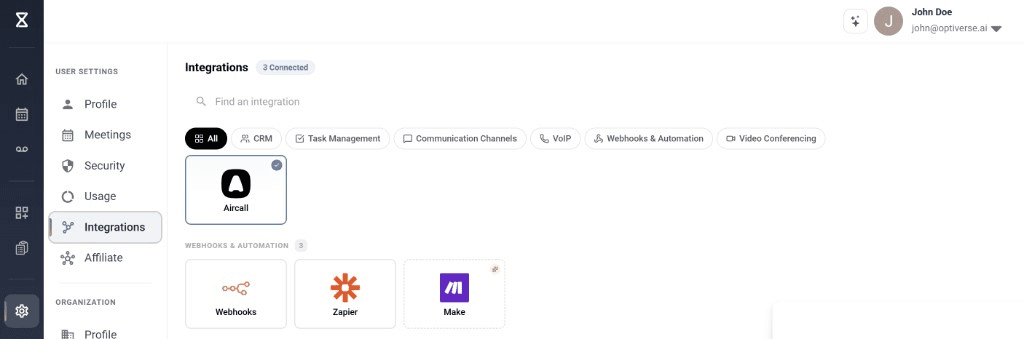
Integration Settings
After connecting, you configure three options:
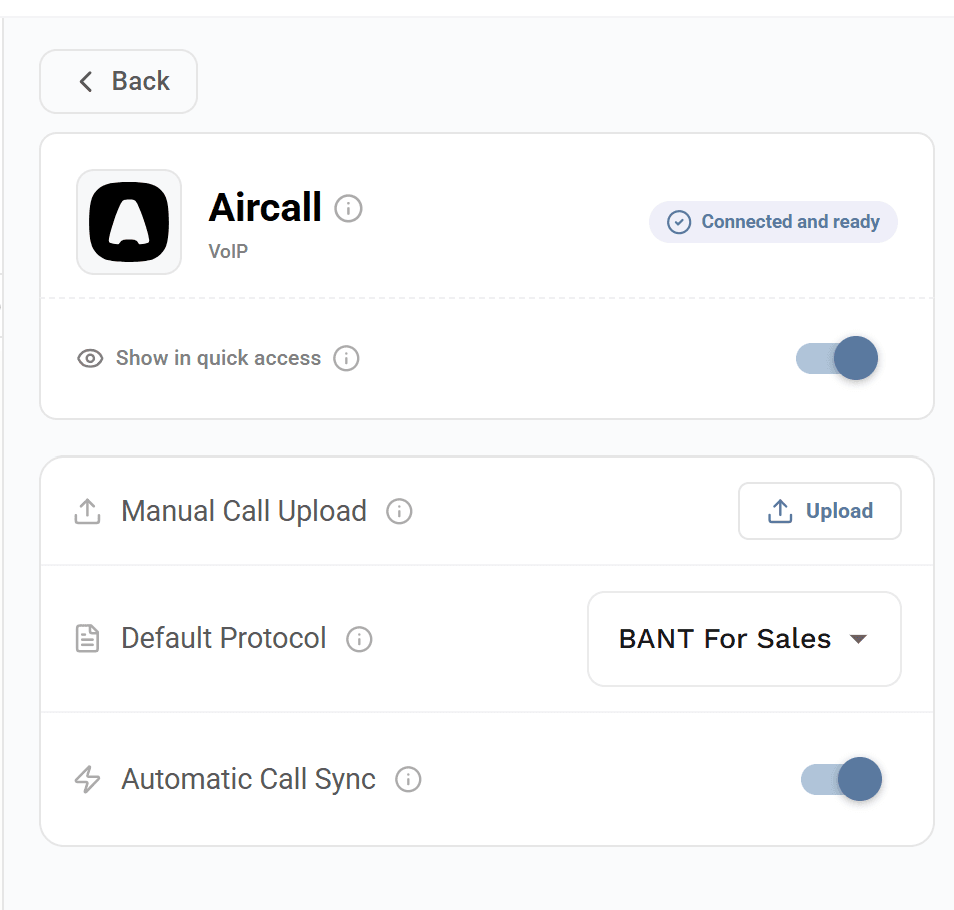
Show in Quick Access
Enables the Aircall icon on recording pages that originated from Aircall, giving you quick visual identification of which recordings came from phone calls versus video meetings.
Default Protocol
Choose which protocol template Optiverse should use when processing Aircall recordings. This is a dedicated protocol selector for calls coming from Aircall, independent from your general default protocol.
This means you can use a different summary structure for phone calls than for video meetings. For example:
- Video meetings might use a "Team Standup" or "Client Discovery" protocol
- Aircall recordings might use a "BANT for Sales" or "Call Outcome Summary" protocol tailored to short phone conversations
The protocol you select here is applied automatically to every call that comes in from Aircall. You can still switch protocols on individual recordings afterward if needed.
Automatic Call Sync
When enabled, every recorded call from Aircall is automatically pushed to Optiverse without any manual action. Turn this off if you only want to import specific calls manually.
Manual Call Upload
If automatic sync is disabled, or if you have older recordings you want to import, use the Upload button to manually send specific Aircall recordings to Optiverse for processing.
What You Get from Aircall Recordings
Aircall recordings are processed like any other meeting in Optiverse, with one difference: there's no video, only audio. Everything else works the same:
| Feature | Available |
|---|---|
| Full transcript with speaker labels | Yes |
| Protocol-based structured summary | Yes |
| OptiAgent Q&A on the recording | Yes |
| Push to CRM (HubSpot, Salesforce, Pipedrive, Attio) | Yes |
| Include in multi-meeting search | Yes |
| Export as PDF/Word | Yes |
| Share with teammates | Yes |
| Action items extraction | Yes |
| Speaker statistics | Yes |
Filtering Aircall Recordings
You can filter your meeting library to show only recordings that originated from Aircall. This is useful when you want to review phone call performance separately from video meetings, or when building reports specifically about your calling activity.
Aircall + CRM: The Dual Integration
The Aircall integration becomes especially powerful when paired with a CRM integration. This section explains how the combination works to solve a problem that most standalone tools cannot.
The Phone Number Challenge
With video meetings, Optiverse matches attendees to CRM records using email addresses from calendar invites. This works seamlessly because emails are the universal identifier across meeting platforms and CRMs.
Phone calls are different. Aircall provides a phone number, not an email address. Without a bridge, there's no way to automatically associate a call recording with the right CRM contact.
How Optiverse Solves It
Optiverse acts as the intelligent middle layer between Aircall and your CRM. When a call comes in from Aircall:
- Aircall sends the recording to Optiverse along with the associated phone number
- Optiverse looks up the phone number in your connected CRM (e.g., HubSpot)
- The matching contact is found, along with their associated deals and companies
- The structured summary (following your chosen protocol) is pushed to the right CRM records
This means your Aircall phone calls end up logged under the correct contacts, deals, and companies in your CRM, with a properly structured summary, not just a raw audio link.
Aircall + HubSpot
When both Aircall and HubSpot are connected to Optiverse:
- Phone calls are automatically transcribed and summarized with your Aircall protocol
- The phone number from the call is matched to HubSpot contacts
- The structured summary is pushed to the matched contact, their associated deals, and their companies
- All HubSpot automation settings apply (push to contacts, push to deals, push to companies)
- New contacts can be created if the phone number matches no existing record
This gives sales teams a complete CRM logging workflow for their phone activity. No more manually writing up call notes or copy-pasting into HubSpot after every dial.
The same principle applies to Salesforce, Pipedrive, and Attio. Any CRM integration you have connected will receive Aircall recording data through the same phone-number-to-CRM-record matching.
The phone number association works automatically. Optiverse searches your connected CRM for the phone number that Aircall provides. If a match is found, all your existing CRM automation preferences apply to the call recording.
Use Cases
Sales Teams Running Outbound Calls
Every outbound dial through Aircall gets transcribed, summarized with your sales protocol (BANT, MEDDPICC, or any custom template), and pushed to the right deal in your CRM. Reps never need to write up call notes manually.
Customer Success Check-ins
Short phone check-ins with customers get the same structured documentation as full meetings. Customer sentiment, open issues, and next steps are captured and logged to the account record automatically.
Support Escalations
When a support call needs to be escalated or reviewed, having a full transcript with a structured summary (issue, resolution steps, outcome) makes handoffs seamless. The summary lives in the CRM for full team visibility.
Inside Sales Qualifying Calls
High-volume dialing teams can process every call through a qualification protocol. Budget, authority, need, and timeline get extracted automatically and flow into CRM fields for reporting and pipeline management.
Account Executives Doing Discovery
Discovery calls often happen over the phone. With Aircall connected, every piece of qualification data discussed is captured, summarized per your protocol structure, and associated with the right opportunity.
Example Workflows
| Scenario | What happens automatically |
|---|---|
| Outbound cold call via Aircall | Call recorded > transcribed > BANT protocol applied > pushed to HubSpot lead |
| Inbound customer support call | Call recorded > transcribed > Support Summary protocol applied > logged under contact and company |
| Account check-in call | Call recorded > transcribed > default protocol applied > pushed to deal with latest updates |
| Discovery call with new prospect | Call recorded > transcribed > MEDDPICC protocol applied > new contact created in CRM > summary pushed to new deal |
Troubleshooting
| Issue | Solution |
|---|---|
| Calls not appearing in Optiverse | Check that Automatic Call Sync is enabled in the Aircall integration settings |
| Wrong protocol being applied | Verify the Default Protocol selector in the Aircall settings is set to your desired template |
| CRM not receiving call summaries | Ensure your CRM integration is connected and automation preferences are enabled |
| Phone number not matching CRM contacts | Verify the phone number format in your CRM matches what Aircall provides (including country code) |
| Older calls missing | Use the Manual Call Upload button to import historical Aircall recordings |
Phone number matching depends on consistent formatting. If your CRM stores numbers as "+41791234567" but Aircall provides "0791234567", the match may fail. Standardize phone number formats in your CRM for best results.