

HubSpot Integration
Connect Optiverse to HubSpot to automatically sync meeting notes, create contacts, update deals, and query your CRM with natural language.
Optiverse connects to HubSpot in two powerful ways: a native integration that automatically pushes meeting summaries to your CRM records, and an MCP integration that lets the AI assistant read, search, and update HubSpot data through natural conversation.
Together, they eliminate the manual data entry that drains sales teams and ensure every customer interaction is captured in HubSpot without lifting a finger.
Part 1: Native HubSpot Integration
The native integration handles the automatic flow of meeting data from Optiverse into HubSpot. Once connected, your meeting summaries, contacts, and activity logs push to HubSpot without any manual work.
Connecting HubSpot
- Go to Settings > Integrations
- Find HubSpot under the CRM category
- Click Connect
- Authenticate with your HubSpot account in the popup window
- Once connected, the status changes to Connected and ready
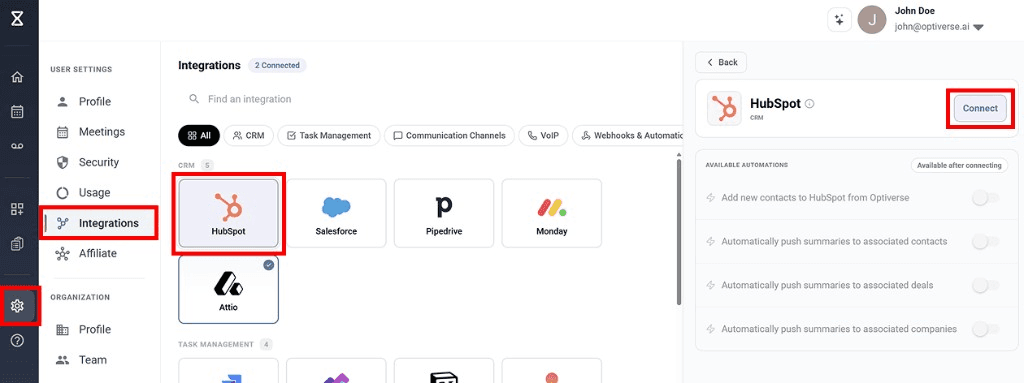
Any user in your workspace can connect their own HubSpot account. Each connection uses that user's HubSpot permissions, so the integration only accesses records they have permission to view and edit.
Automation Settings
After connecting, you can configure four automation preferences that control how Optiverse interacts with your HubSpot data.
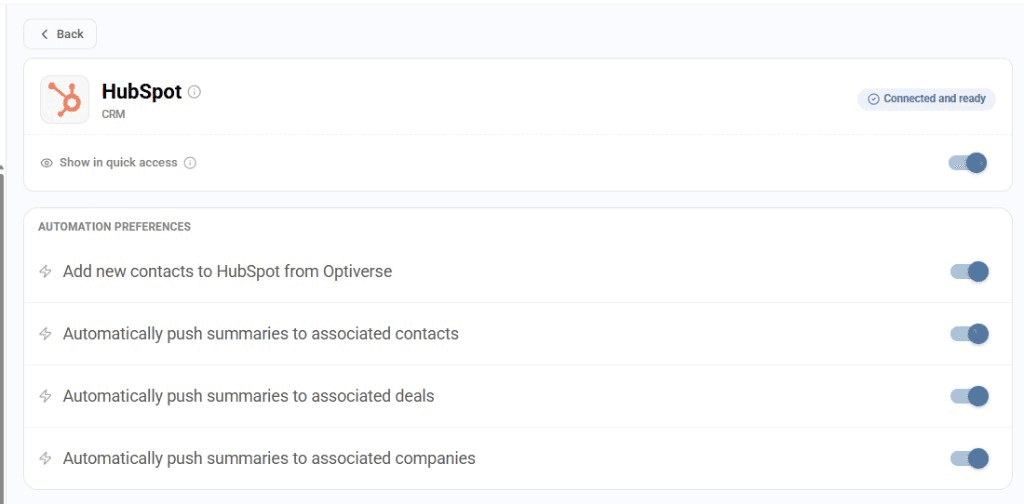
Show in Quick Access
Enables the HubSpot icon on every Meeting Recording page, next to the Share button. This lets you manually push the currently displayed meeting notes to HubSpot at any time, choosing exactly which deal, contact, or company to send them to.
Add New Contacts to HubSpot from Optiverse
Optiverse reads attendee email addresses from your calendar invites. When this setting is enabled, if a meeting attendee does not already exist as a contact in HubSpot, Optiverse automatically creates a new contact record for them.
Automatically Push Summaries to Associated Contacts
After every meeting, Optiverse pushes the meeting summary as a note under the matched contact records in HubSpot. The matching is based on attendee email addresses from the calendar invite.
Automatically Push Summaries to Associated Deals
Same as above, but the summary is also pushed to any open deals associated with the matched contacts. This keeps your deal timeline current with every customer conversation.
Automatically Push Summaries to Associated Companies
Pushes the meeting summary to the company records associated with the matched contacts. Useful for account level visibility across your entire organization.
Which Summary Gets Pushed?
The note that is automatically pushed to HubSpot is the output of your default protocol. Each user selects one protocol as their default on the Protocols page, and that protocol generates the meeting summary that flows into HubSpot after every call.
If you want a different protocol's output pushed to a specific record, use the manual push via the HubSpot Quick Access icon and switch to the desired protocol on the recording page first.
How Auto-Matching Works
The integration uses a straightforward matching process to connect meeting participants to HubSpot records:
- Optiverse reads attendee emails from your calendar invite
- Emails are matched against existing HubSpot contact records
- Associations are followed from contacts to their linked companies and deals
- Summaries are pushed as notes/activities to all matched records (contacts, deals, companies)
This means every meeting is logged in HubSpot under the right records without anyone on your team needing to open HubSpot manually.
For the best matching accuracy, ensure your HubSpot contacts have email addresses that match what attendees use in their calendar invitations.
Manually Pushing Notes from a Recording
When Show in Quick Access is enabled, a HubSpot icon appears at the top of every Meeting Recording page. This gives you manual control over what gets pushed and where.
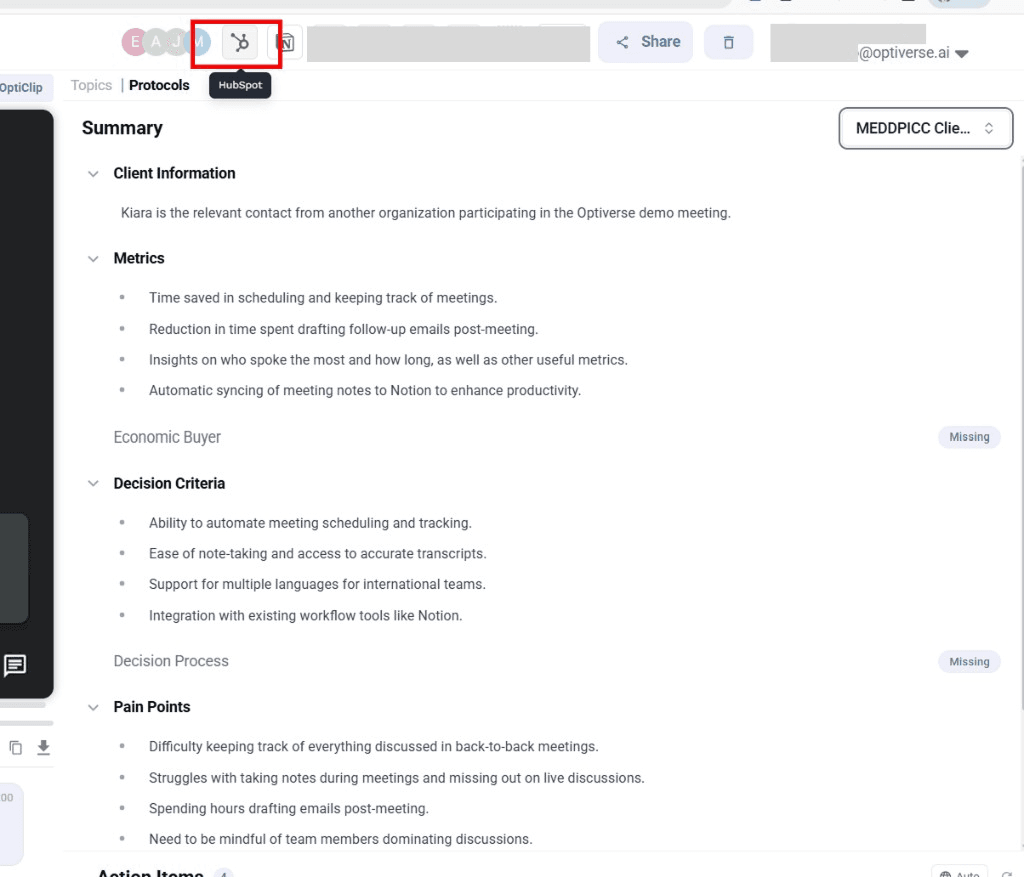
Click the HubSpot icon to open the push dialog:
- A summary preview shows the current meeting notes that will be pushed (in HTML format)
- A destination selector lets you choose which deal, contact, or company to push to
- Click Push to send the notes
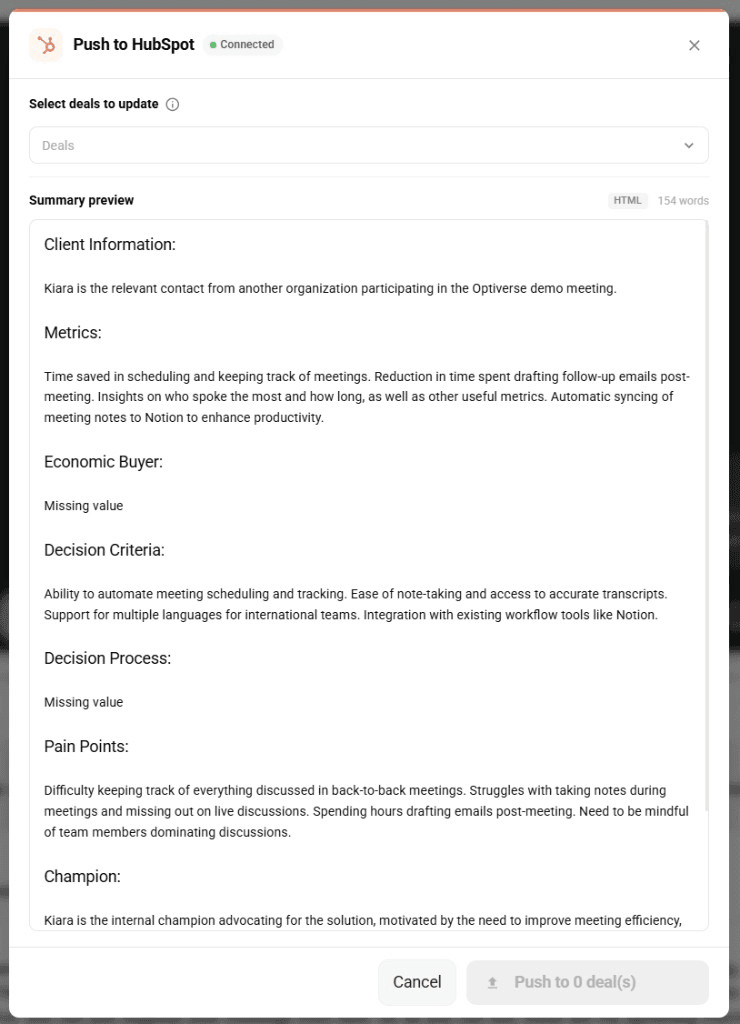
This is useful when you want to:
- Push notes to a specific deal that wasn't automatically matched
- Re-push updated notes after editing the summary
- Send a specific protocol's output to HubSpot (switch protocols first, then push)
- Log a dictation or voice memo recorded via the mobile app
Mobile Dictations and Recordings Without Attendees
When you record a note or voice memo through the Optiverse mobile app, there are no calendar attendees associated with the recording. This means automatic matching cannot work, since there are no email addresses to look up in HubSpot.
In these cases, you have two options:
- Manual push. Open the recording in Optiverse, click the HubSpot icon, and manually select the deal, contact, or company where the note should be logged.
- Ask the assistant. Go to the Optiverse homepage and tell the AI to push the recording for you. For example: "Push my latest voice memo to the Acme Corp deal in HubSpot." The MCP integration handles the rest, finding the right record and logging the note without you needing to navigate HubSpot at all.
The assistant approach is especially convenient for quick dictations captured on the go. Record your thoughts after a meeting, and let the AI file them in the right place.
Part 2: MCP Integration (Bilateral Access)
The native integration pushes data from Optiverse to HubSpot. The MCP integration adds the reverse direction: it gives the Optiverse AI assistant the ability to read, search, and update your HubSpot data directly.
This transforms Optiverse from a one-way sync tool into a bilateral CRM assistant that can query your pipeline, validate deal data, cross-reference meeting discussions with CRM records, and take actions in HubSpot on your behalf.
Connecting the MCP Integration
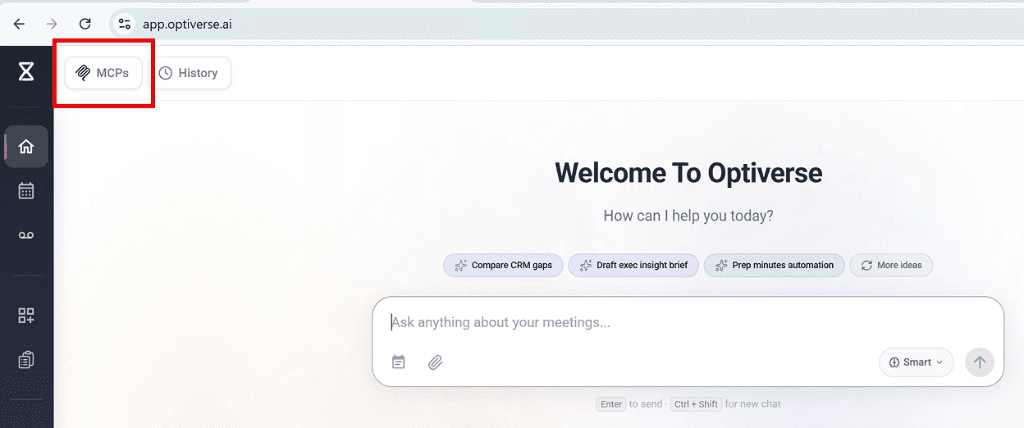
- On the Optiverse homepage, click the MCPs tab in the top left
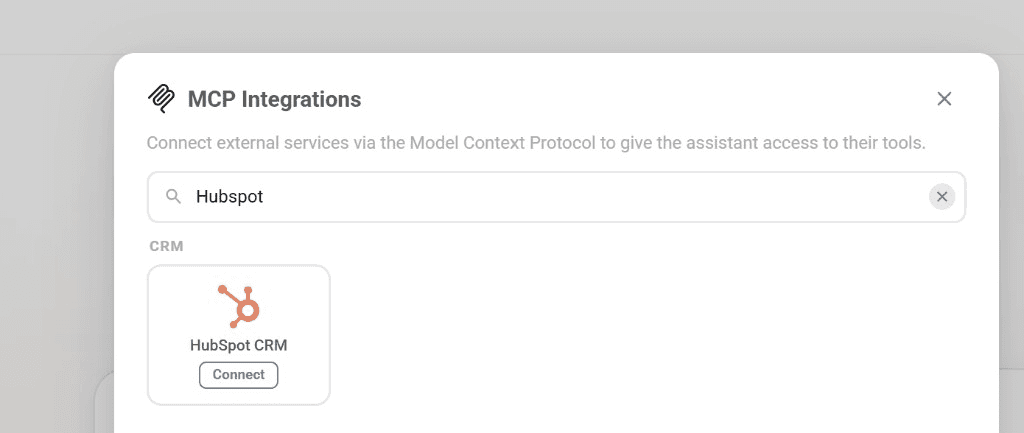
- In the MCP Integrations popup, search for HubSpot and click Connect
- The connection re-uses your OAuth tokens from the native integration (no separate authentication required)
- Once linked, you'll see all 21 available tools and permission controls
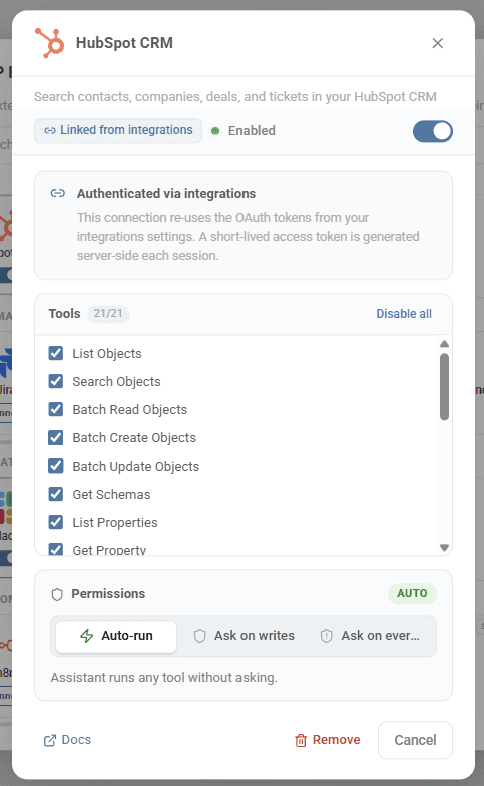
The MCP connection is authenticated via your existing integration settings. A short-lived access token is generated server-side each session for security.
Available Tools (21 Total)
The HubSpot MCP integration exposes a comprehensive set of tools to the AI assistant:
| Tool | What it does |
|---|---|
| List Objects | Browse contacts, deals, companies, tickets |
| Search Objects | Find specific records using filters and queries |
| Batch Read Objects | Retrieve multiple records at once |
| Batch Create Objects | Create multiple new records |
| Batch Update Objects | Update fields on multiple records |
| Get Schemas | Understand your HubSpot data structure |
| List Properties | See all available fields on an object type |
| Get Property | Retrieve details about a specific field |
| List Owners | See all HubSpot users/owners in your account |
| List Pipelines | View deal pipelines and their stages |
| Get Pipeline | Get details on a specific pipeline |
Permission Modes
You control how much autonomy the AI assistant has when interacting with HubSpot:
| Mode | Behavior |
|---|---|
| Auto-run | The assistant runs any tool without asking. Best for power users who trust the workflow. |
| Ask on writes | The assistant reads freely but asks permission before creating or updating records. Recommended for most users. |
| Ask on every action | The assistant requests consent at every step, including read operations. Most conservative. |
Use Cases for Sales Teams
The real power of the HubSpot integration emerges when you combine meeting intelligence with CRM data. Below are practical workflows that solve common pains for sales teams.
Keep Deals Updated Without Manual Entry
The number one complaint from sales leaders: reps don't update HubSpot. With Optiverse, every customer call automatically updates the relevant deal with what was discussed, decisions made, and next steps agreed upon.
What happens automatically:
- Meeting summary is logged under the deal as a timestamped note
- Key information from qualification frameworks (MEDDIC, BANT, SPIN) is captured via protocols
- Action items and commitments are visible on the deal timeline
Example prompt (MCP):
"Look at my last ten client meetings and validate that all deal information in HubSpot is up to date."
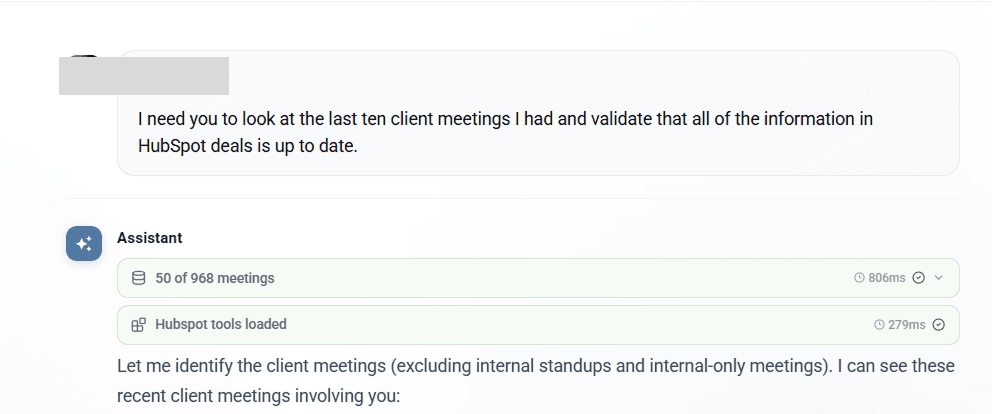
The assistant will search your recent meetings, cross-reference them with HubSpot deals, and flag any discrepancies: deals that should have moved stages, missing notes, or outdated information.
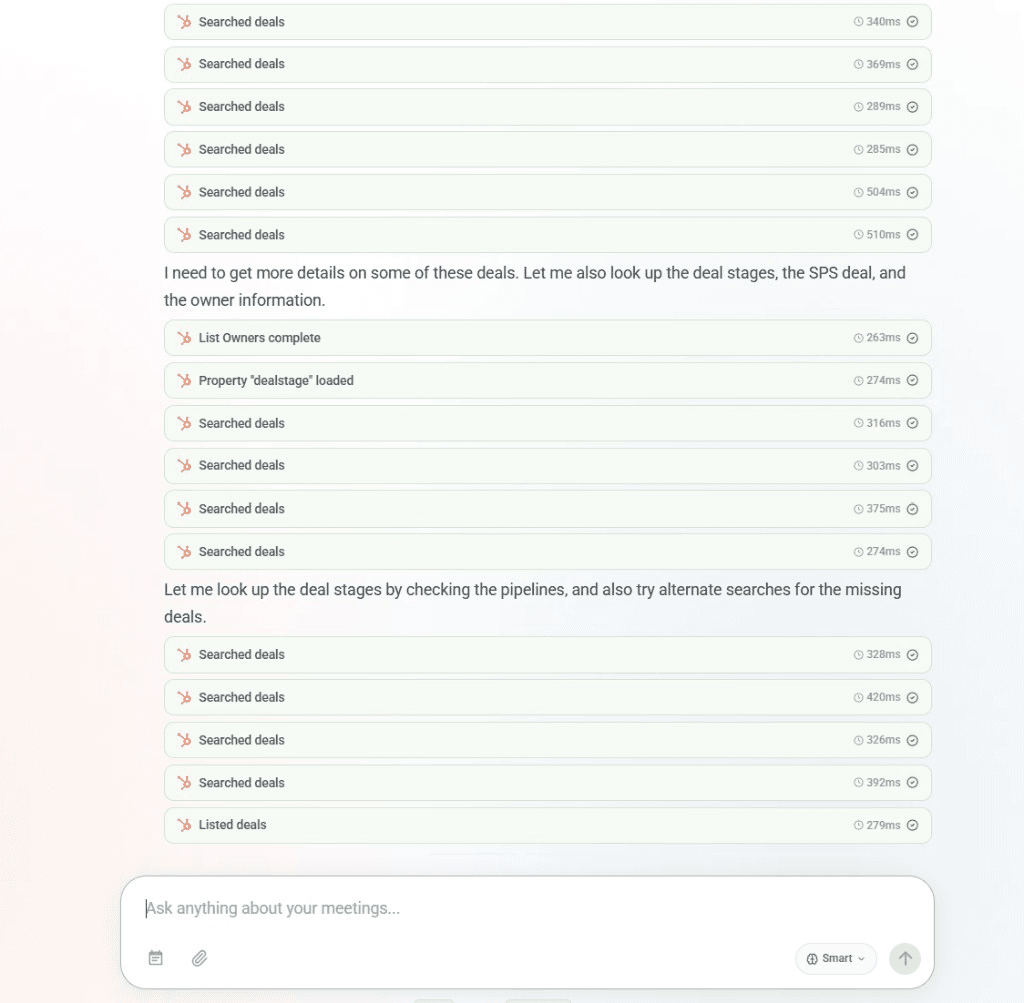
Audit Pipeline Health from Meeting Data
Sales leaders need to verify that pipeline data reflects reality, not just what reps entered weeks ago. Optiverse can compare what was actually said in meetings against what's recorded in HubSpot.
Example prompts:
- "Which deals in my pipeline haven't had a meeting in the last 30 days?"
- "Compare the deal stages in HubSpot with what was discussed in recent meetings. Are any deals stuck?"
- "List all deals where the decision maker hasn't been identified in any meeting yet."
Prepare for Calls with Full CRM Context
Before any customer call, drag and drop the upcoming meeting from your calendar directly into the Optiverse homepage chat. The assistant will automatically pull together everything you need: past meeting discussions with those attendees, current HubSpot deal status, open action items, contact history, and suggested talking points.
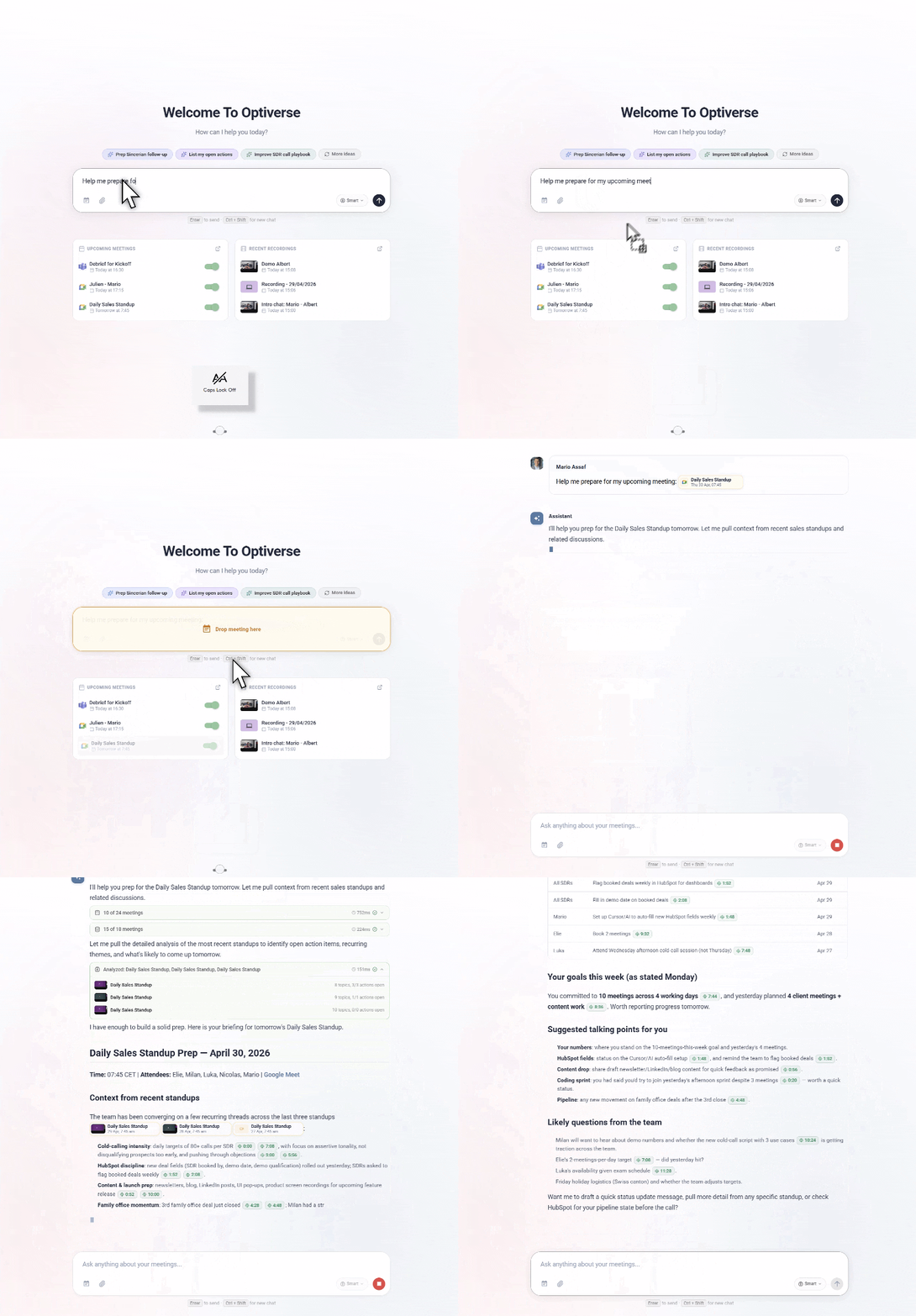
With the HubSpot MCP connected, the briefing automatically includes CRM data: deal stage, pipeline value, associated contacts, and recent activities logged in HubSpot. You get a complete picture in seconds.
Example prompts:
- "I have a call with Acme Corp in 10 minutes. Show me the HubSpot deal status, last three meeting summaries, and any open action items."
- "What's the current deal value and stage for the Acme opportunity? What did we discuss last time?"
- "Pull up all contacts associated with Acme and summarize our interaction history."
Auto-Create Contacts After Discovery Calls
When you take a first meeting with a new prospect, Optiverse detects attendee emails that don't exist in HubSpot and creates contact records automatically. No more losing leads because someone forgot to add them to the CRM after an intro call.
Cross-Reference Meeting Commitments with Deal Progress
One of the most painful gaps in sales: a rep promises something on a call, but it never gets logged or followed up. Optiverse captures every commitment from every meeting and can validate whether those commitments are reflected in HubSpot.
Example prompts:
- "In my last five sales calls, what next steps did I commit to? Have those been reflected in HubSpot?"
- "Show me all action items from client meetings this week that haven't been logged in a deal."
- "Which prospects mentioned a timeline or deadline in our conversations? Are those deadlines captured in the HubSpot deal properties?"
Generate Weekly Pipeline Reports from Meetings
Instead of manually reviewing calls and CRM entries separately, ask Optiverse to generate a unified pipeline report that combines both sources.
Example prompts:
- "Generate a pipeline review report combining meeting notes and HubSpot deal data for this week."
- "Summarize all deal progression this month based on what was discussed in meetings."
- "Create an exec summary of pipeline changes: deals that advanced, deals at risk, and new opportunities from this week's conversations."
Identify Deals at Risk Early
Catch at-risk deals before they slip by analyzing meeting sentiment, buyer engagement, and CRM data together.
Example prompts:
- "Which deals haven't moved stage in over two weeks despite having recent meetings?"
- "In my discovery calls this month, which prospects raised objections that haven't been addressed?"
- "Flag any deals where the meeting discussions suggest a lower likelihood of closing than the current HubSpot forecast."
Automate Post-Meeting CRM Hygiene
After every call, the combination of native push and MCP gives you complete CRM hygiene without manual work:
- Native integration automatically pushes the meeting summary to the right contact, deal, and company
- MCP integration lets you ask the AI to verify the data was pushed correctly, update deal stages, or add missing information
Example prompts:
- "After today's calls, check that all meeting notes were pushed to the right deals in HubSpot."
- "Update the deal stage for Acme Corp to 'Proposal Sent' based on today's conversation."
- "Create a new contact for the CFO I met today and associate them with the Acme deal."
Example Prompt Library
Here's a collection of high-value prompts for sales teams using the HubSpot MCP integration:
| Category | Prompt |
|---|---|
| Pipeline Review | "Give me a full pipeline review. For each deal in 'Negotiation' stage, show last meeting date, key discussion points, and next steps." |
| Deal Validation | "Look at my last ten client meetings and validate that all the information in HubSpot deals is up to date." |
| Meeting Prep | "I'm meeting with [company] tomorrow. Pull their HubSpot deal info, last three meeting summaries, and any open action items." |
| Contact Enrichment | "Which meeting attendees from this month don't have a contact record in HubSpot? List them with their email and company." |
| Forecast Support | "Based on my meetings this quarter, which deals are likely to close and which are at risk? Cross-reference with HubSpot stages." |
| Activity Gaps | "Which deals in my pipeline haven't had a logged meeting in over three weeks?" |
| Competitive Intel | "In all my sales meetings this month, which competitors were mentioned? Map them to the relevant HubSpot deals." |
| Stakeholder Mapping | "For the [company] deal, list all people I've met with, their roles, and what each cares about most based on our conversations." |
| Follow-up Drafting | "Draft a follow-up email to [person] at [company] summarizing our last meeting and confirming the next steps we agreed on." |
| Quarterly Review | "Summarize all client meetings from Q1 and compare the outcomes against HubSpot deal stages. Where are the gaps?" |
Troubleshooting
| Issue | Solution |
|---|---|
| Integration not syncing | Click Reconnect in Settings > Integrations > HubSpot to refresh authentication |
| Contacts not matching | Verify that attendee emails in calendar invites match the email field in HubSpot contacts |
| Notes not appearing on deals | Ensure the contact is properly associated with the deal in HubSpot |
| MCP not finding records | Check that your HubSpot user has read access to the objects you're querying |
| Permission errors on writes | Switch MCP permission mode to "Ask on writes" to see which action is being blocked |
If you disconnect and reconnect the integration, your automation preferences will reset to defaults. Reconfigure them after reconnecting.