

How Sales Teams Automate Meeting Prep and Follow-Ups with the Optiverse Assistant
How sales teams use the Optiverse AI assistant to prepare for calls in seconds, send follow-up emails instantly, track deal conversations over time, and keep CRM data accurate without manual logging.
Sales reps spend hours every week on meeting prep, follow-up emails, and CRM updates. Optiverse eliminates that busywork. Every call is recorded, transcribed, and searchable. The AI assistant turns those conversations into instant prep briefs, ready-to-send emails, deal intelligence, and pipeline reports.
This guide covers the specific workflows that make Optiverse indispensable for sales teams.
Prepare for Every Call in Seconds
Before a call, you need context: what was discussed last time, what was promised, where the deal stands, and what to bring up next. Normally this means digging through CRM notes, old emails, and your own memory. With Optiverse, it takes seconds.
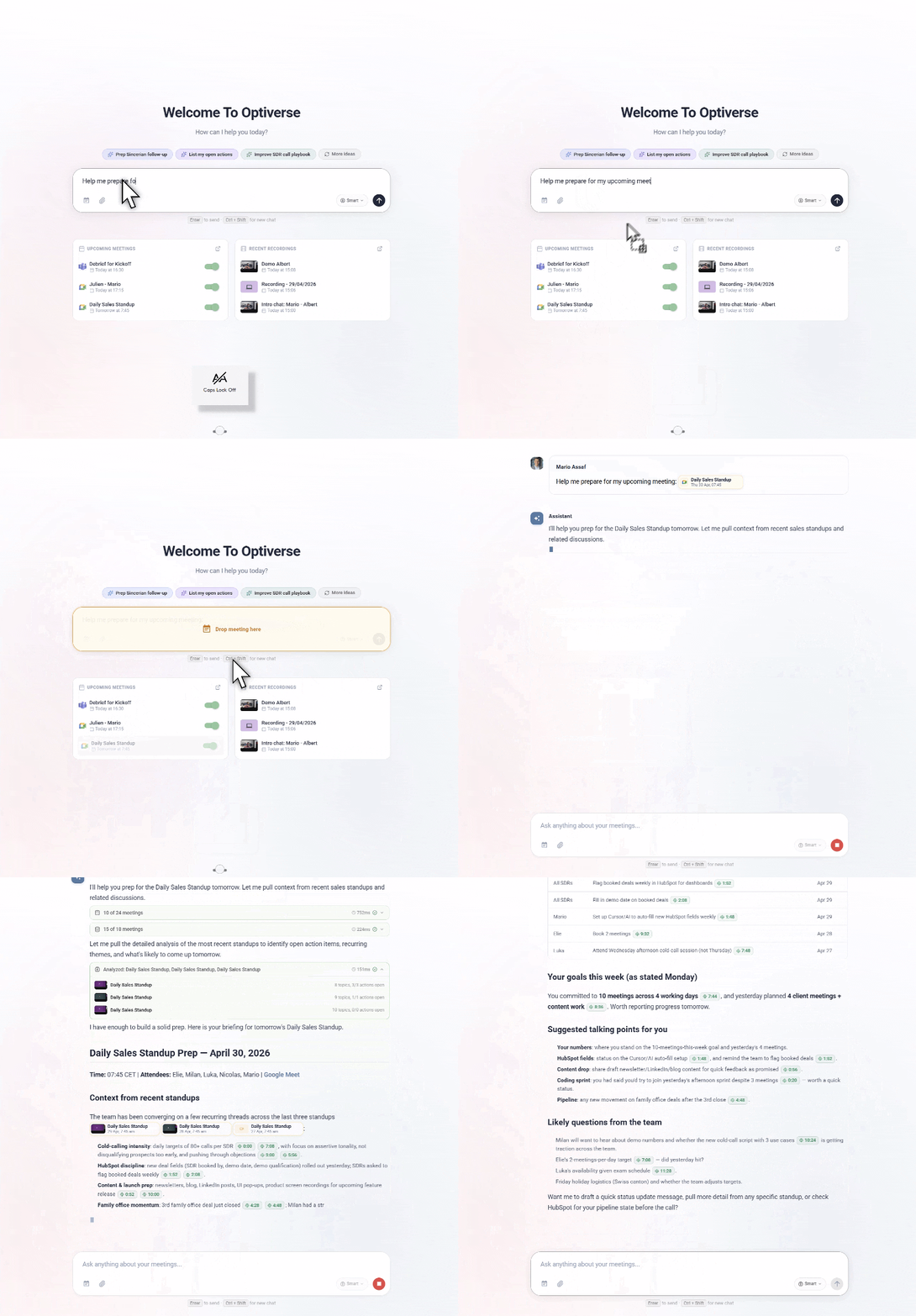
How it works:
- Open the Optiverse homepage (Multi-Meeting Search)
- Drag an upcoming calendar event into the search bar
- The AI automatically pulls all previous meetings with that person or company, open action items, CRM deal stage, and relevant context
- You receive a structured briefing with suggested talking points
The assistant searches your full meeting history with that contact. It surfaces commitments you made, questions they asked, pricing discussed, objections raised, and anything left unresolved. If your CRM is connected, it also pulls the current deal stage and pipeline value.
What you get:
- Summary of all previous interactions with this contact
- Open action items from past meetings
- CRM deal stage and last activity date
- Key topics and decisions from prior calls
- Suggested talking points for the upcoming meeting
This replaces 15 to 30 minutes of manual prep with a 10-second drag and drop. You walk into every call fully briefed, even if you haven't spoken to this prospect in months.
Send Follow-Up Emails Directly from the Recording
After a sales call, the follow-up email matters. It confirms next steps, reinforces value, and keeps the deal moving. With Optiverse, you draft and send that email in under a minute.
How it works:
- Open the recording page after your call
- Ask OptiAgent to draft a follow-up email
- The AI writes a complete email grounded in what was actually discussed
- Click Send via Gmail to send it directly (recipient, subject, and body are pre-filled)
The email isn't a generic template. It references specific topics, pricing points, next steps, and commitments from the conversation. The prospect sees a personalized, accurate follow-up within minutes of hanging up.
Example prompts:
- "Draft a follow-up to Sarah confirming the pricing we discussed and the next steps we agreed on"
- "Write an email to the prospect summarizing our demo and proposing a timeline for the pilot"
- "Send a thank-you email to the buying committee with the key points we covered today"
- "Draft a follow-up confirming the contract terms we agreed to on this call"
Why this matters: Speed-to-follow-up correlates directly with win rates. When your follow-up arrives while the conversation is still fresh, it reinforces your professionalism and keeps momentum alive.
Track Deal Conversations Over Time
Complex B2B deals span months and dozens of meetings. Details get lost. Optiverse gives you a complete, searchable history of every conversation with any account.
How it works:
Open Multi-Meeting Search on the homepage and ask questions that span your full meeting history with a prospect or customer. The AI searches across all recorded calls and synthesizes the answer.
Example prompts:
- "How has the pricing discussion with Acme evolved over the last 3 months?"
- "What objections has the buyer raised across all our calls, and how did we address them?"
- "What did we commit to delivering before the next meeting with Globex?"
- "When did we first discuss the enterprise tier with this account?"
- "List every decision maker mentioned in our meetings with this company"
What this unlocks:
- Deal reviews: See the full arc of a deal in one query instead of reading ten call notes
- Handoffs: When a deal changes owners, the new rep gets instant context on everything discussed
- Negotiation prep: Know exactly what was said about pricing, timelines, and terms before entering final negotiations
- Accountability: Verify what was actually committed versus what was assumed
Keep Your CRM Accurate Without Manual Logging
CRM data decays fast. Reps forget to log calls, update deal stages, or note next steps. When Optiverse is connected to HubSpot or Salesforce via MCP integrations, the AI bridges the gap between what was discussed and what's in the CRM.
How it works:
The assistant combines your meeting transcripts with your CRM data. It can identify mismatches, missing updates, and stale records by comparing what was said in recent calls against what's currently logged.
Example prompts:
- "Which deals discussed this quarter haven't been updated in the CRM?"
- "Compare what was discussed in my last call with Acme to what's in their HubSpot deal record"
- "What next steps did I commit to this week that aren't logged anywhere?"
- "List all meetings from this month where a deal stage change was discussed but not updated"
Practical use: Run these queries at the end of every week. In two minutes, you catch CRM gaps that would otherwise go unnoticed until a pipeline review surfaces them.
CRM queries require a connected HubSpot or Salesforce integration via MCP. See MCP Connections for setup instructions.
Discovery Call Intelligence
Individual discovery calls reveal buyer pain points. But patterns across many discovery calls reveal market insights. Optiverse makes those patterns visible.
How it works:
After running multiple discovery calls, use Multi-Meeting Search to analyze them collectively. The AI identifies recurring themes, common objections, and frequently mentioned pain points across all your conversations.
Example prompts:
- "Summarize all discovery calls from last month"
- "What are the top 3 pain points prospects mentioned this quarter?"
- "Which competitors were mentioned most frequently in discovery calls?"
- "What's the most common reason prospects give for evaluating a new solution?"
- "Compare the objections from enterprise prospects vs. mid-market prospects"
Who benefits:
- Reps refine their pitch based on what actually resonates
- Sales managers identify coaching opportunities and adjust messaging
- Product teams hear unfiltered market feedback without attending calls
- Marketing gets real language from buyers to use in content and ads
Weekly Pipeline Reports from Conversations
Instead of manually compiling status updates, ask the Optiverse assistant to generate pipeline reports from your actual conversations.
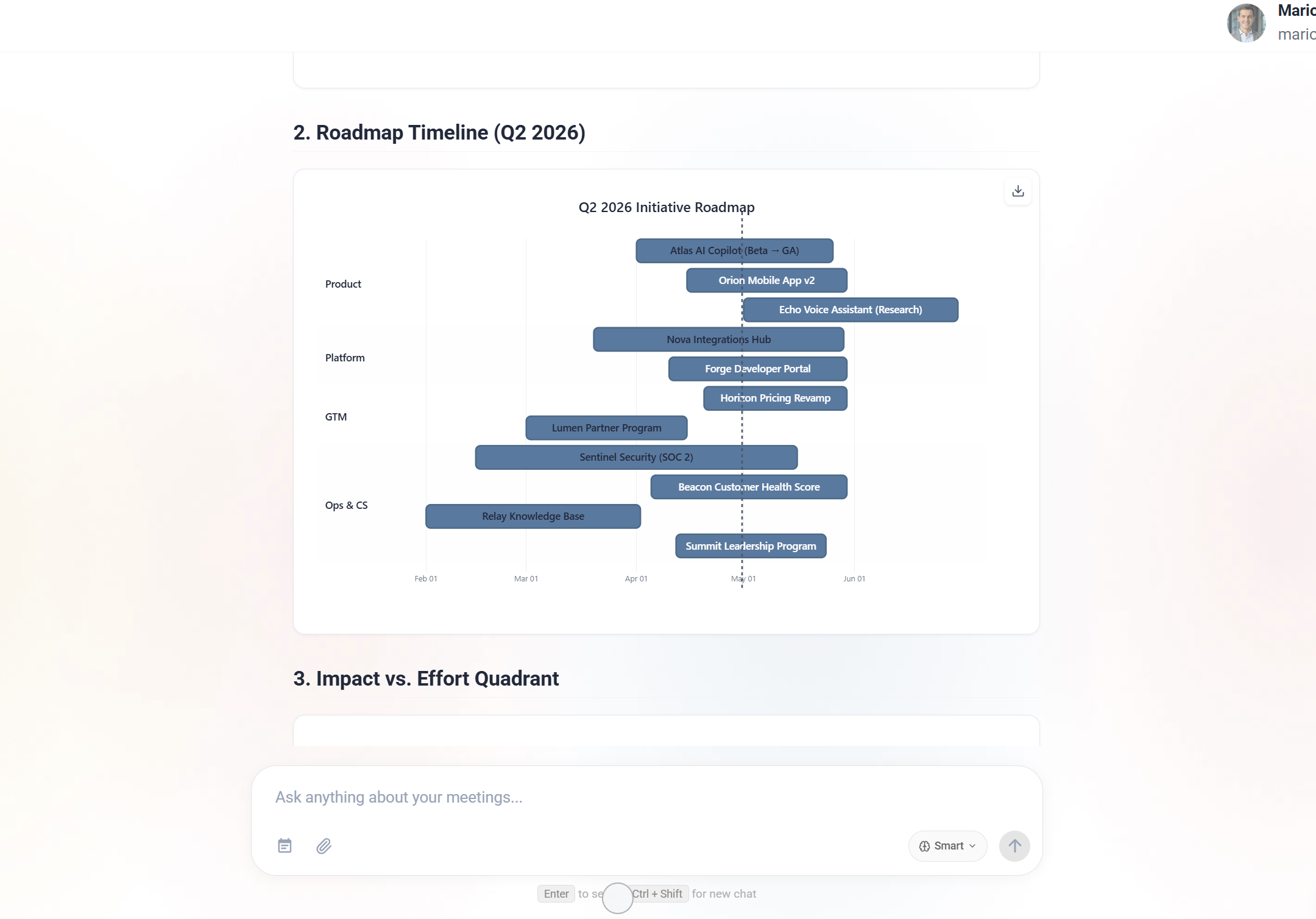
How it works:
- Open Multi-Meeting Search on the homepage
- Ask for a report covering the time period you need
- The AI searches all relevant meetings, extracts progress, and compiles a structured report
- Export as PDF or Word document if needed
Example prompts:
- "Make a progress report on all active deals"
- "Summarize every client meeting from this week with next steps for each"
- "Generate a pipeline update covering all calls from the past two weeks"
- "Create a weekly sales report with deal status, blockers, and committed next steps"
Use cases:
- Monday team meetings: Share a single report covering all deal activity from the prior week
- Manager 1:1s: Show up with an automatically generated summary of your week
- End-of-quarter reviews: Generate a comprehensive account history without digging through notes
- CRM hygiene: Cross-reference the report with your CRM to catch gaps
Reports can be downloaded as PDF or Word documents, making them easy to share with stakeholders who aren't on Optiverse.
Example Prompts for Sales Teams
| What you need | What to ask the assistant |
|---|---|
| Prepare for an upcoming call | "I have a meeting with [name] in 5 minutes. Give me everything I need to know." |
| Send a follow-up email | "Draft a follow-up email to [name] confirming the pricing and next steps from this call." |
| Track pricing discussions | "How has the pricing conversation with [company] evolved over the last 3 months?" |
| Identify CRM gaps | "Which deals discussed this quarter haven't been updated in HubSpot?" |
| Analyze discovery calls | "What are the top pain points prospects mentioned in discovery calls this month?" |
| Generate a pipeline report | "Summarize all client meetings from this week with next steps and deal status." |
| Prepare for negotiations | "What has [company] said about budget, timeline, and decision process across all our calls?" |
| Handle objections | "What objections has [prospect] raised and how did we address them?" |
| Coach a rep | "Summarize [rep name]'s last 5 discovery calls and identify patterns in how they handle pricing questions." |
| Draft a proposal recap | "Write an email summarizing the proposal we walked through today, with the 3 options and their pricing." |
Get Started
Setting up Optiverse takes under 5 minutes. Sign up, connect your calendar, and the assistant joins your next meeting automatically. After that first call, everything described on this page becomes available to you.
- Create your free account (Google or Microsoft sign-in)
- Connect your calendar and choose your join preferences
- Let the assistant join your next sales call
- Open the recording page after the call and start asking questions
Your first follow-up email, meeting prep briefing, or pipeline report is one conversation away.
Want to see how Optiverse fits your team's workflow? Book a short call and we'll walk you through it live.
Use Case Guides
How different roles and teams use the Optiverse AI assistant to turn meeting conversations into actions, insights, and results.
How Customer Success Teams Monitor Client Health and Prepare Renewals with the Optiverse Assistant
How customer success teams use the Optiverse AI assistant to monitor client sentiment across meetings, prepare for renewals with full conversation history, handle account handoffs, and write outreach emails grounded in what was actually discussed.