

n8n Integration
Complete step-by-step guide to connecting Optiverse meetings to n8n for automated workflows.
Connect your Optiverse meetings to n8n to automate everything that happens after a call. Push summaries to your CRM, draft follow-up emails, create tasks, sync with Slack, or anything else n8n can reach. This guide walks you through every screen on both sides.
What You'll Build
By the end of this guide you'll have:
- A webhook trigger workflow in n8n that's ready to receive meeting data
- A connected webhook in Optiverse that fires automatically after every meeting (or manually, on demand)
- A secure handshake between the two so only your Optiverse instance can trigger your workflow
- The n8n quick-access shortcut pinned to every meeting view so you can push to any workflow in one click
Before You Start
You'll need three things:
- An Optiverse account with permission to manage integrations (Settings → Integrations)
- An n8n instance, either n8n Cloud (sign up in two minutes) or a self-hosted instance. The setup is identical for both.
- About 10 minutes
Part 1: Set Up the Webhook in n8n
We start on the n8n side because Optiverse needs a destination URL to send meeting data to. You'll create a workflow that listens for that data.
Step 1.1: Create a new workflow
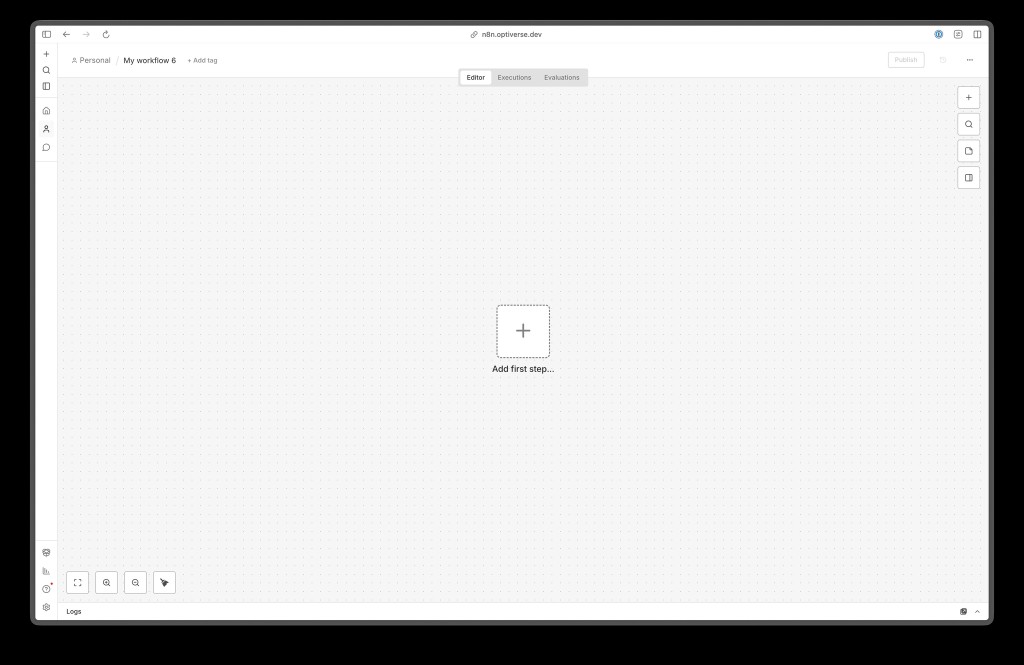
Open your n8n instance and create a new workflow. You'll see an empty canvas with an Add first step... button in the middle.
Step 1.2: Add a Webhook trigger
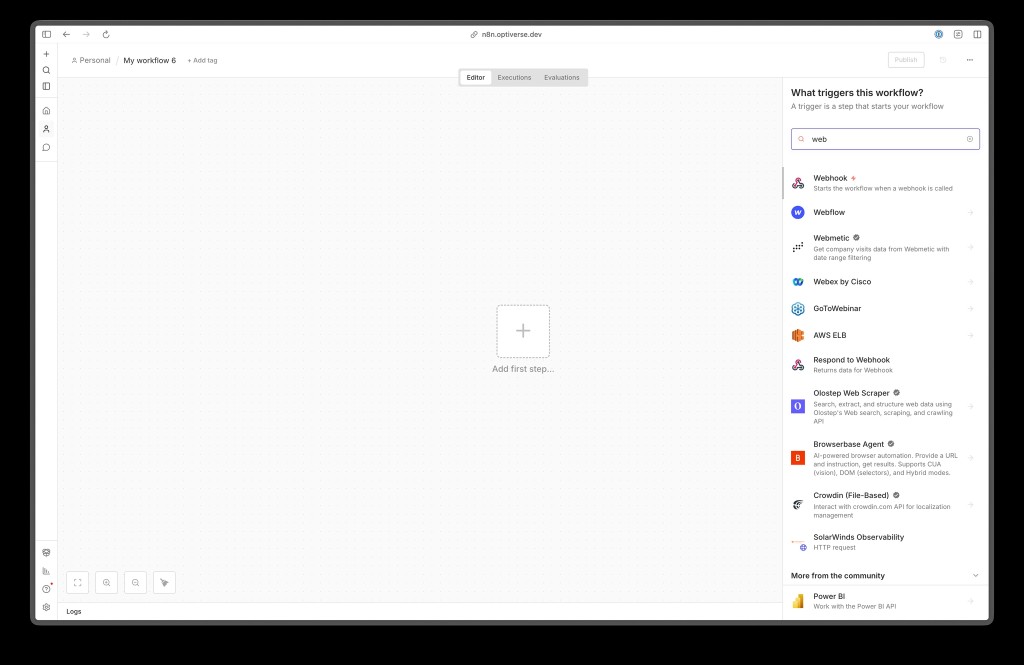
Click Add first step... and search for "webhook" in the trigger picker. Pick the very first result: Webhook ("Starts the workflow when a webhook is called").
Don't pick Webflow, Webmetic, or Respond to Webhook. They look similar but do different things. You want the plain Webhook trigger.
Step 1.3: Configure the webhook node
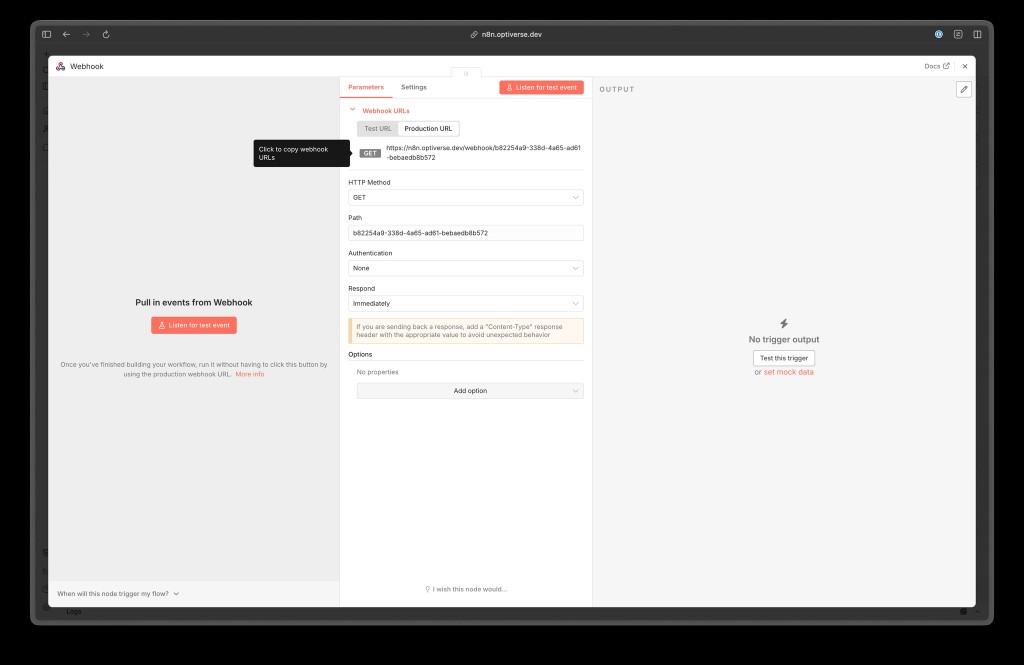
The Webhook node opens with two tabs at the top: Test URL and Production URL. Switch to Production URL. This is the one you'll paste into Optiverse.
A few things to notice on this screen:
| Setting | What to do |
|---|---|
| HTTP Method | Leave as POST for Optiverse (Optiverse always sends POST) |
| Path | n8n auto-generates a 32-character random path. Keep it as-is. We'll explain why in the security section below. |
| Authentication | Leave as None. We'll add a custom-property check from the Optiverse side instead, which is simpler and works the same way. |
| Respond | Immediately is fine. Optiverse doesn't wait for a response. |
Copy the Production URL at the top. You'll paste it into Optiverse in Part 2.
Make sure you copy the Production URL, not the Test URL. The Production URL only works once the workflow is published.
Step 1.4: Publish the workflow
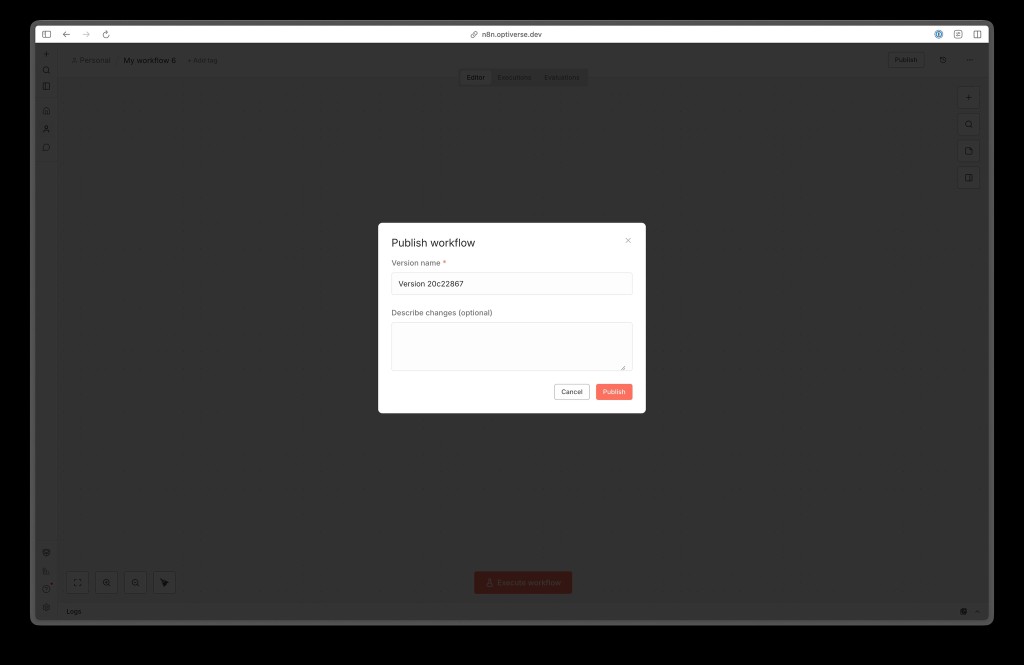
Click Publish in the top-right corner. n8n auto-fills a version name (e.g., Version 20c22867). You can leave it as-is or add a description like "Initial Optiverse webhook listener."
The Production URL only receives traffic once the workflow is published. If you skip this step, Optiverse will send data to a URL that nothing's listening on.
That's it for the n8n side. You now have a live endpoint waiting for meeting data. Time to point Optiverse at it.
Part 2: Connect Optiverse to n8n
Step 2.1: Navigate to Integrations
- Go to app.optiverse.ai and log in
- In the left sidebar, click Settings (the gear icon)
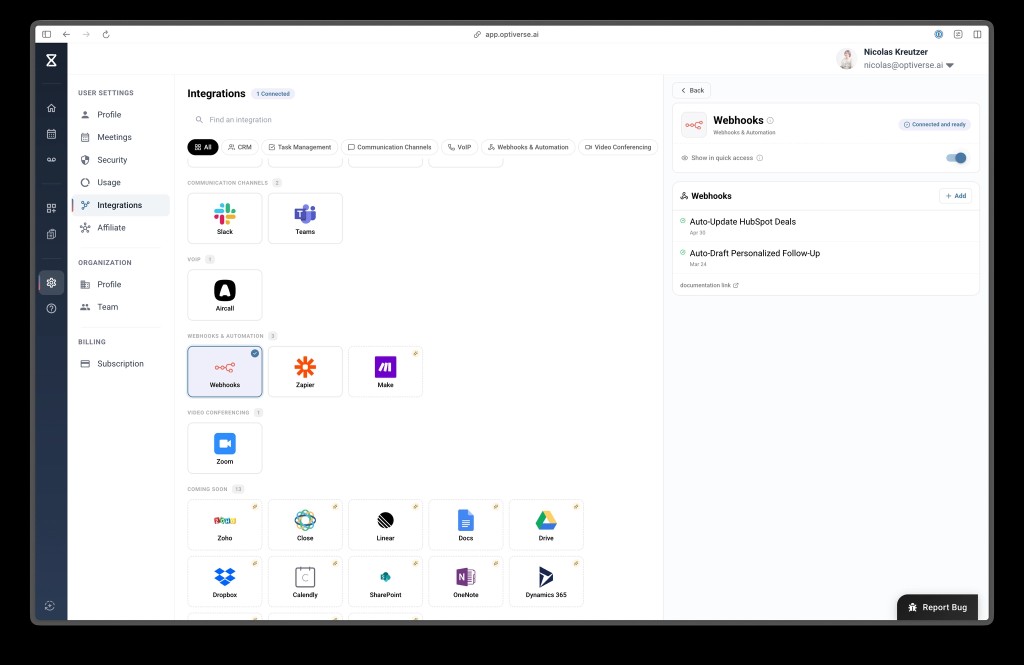
- Under User Settings, click Integrations
- Scroll down to the Webhooks & Automation section
- Click the Webhooks card
A panel slides in from the right showing the current Webhooks status, any existing webhooks you've created, and an + Add button.
Step 2.2: Enable the meeting quick-access shortcut (recommended)
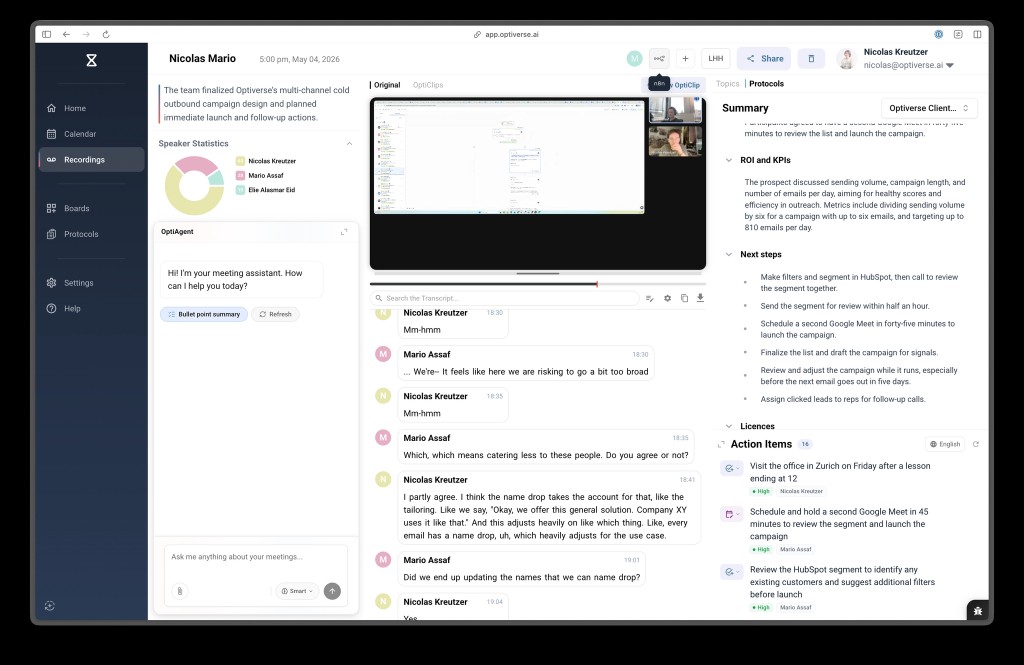
At the top of the Webhooks panel you'll see a toggle: Show in quick access. This puts a small n8n icon at the top of every meeting recording, so you can fire any of your webhook workflows on demand without leaving the meeting view.
Here's what that looks like inside a meeting once enabled. Notice the small n8n icon near the top-right of the meeting toolbar:
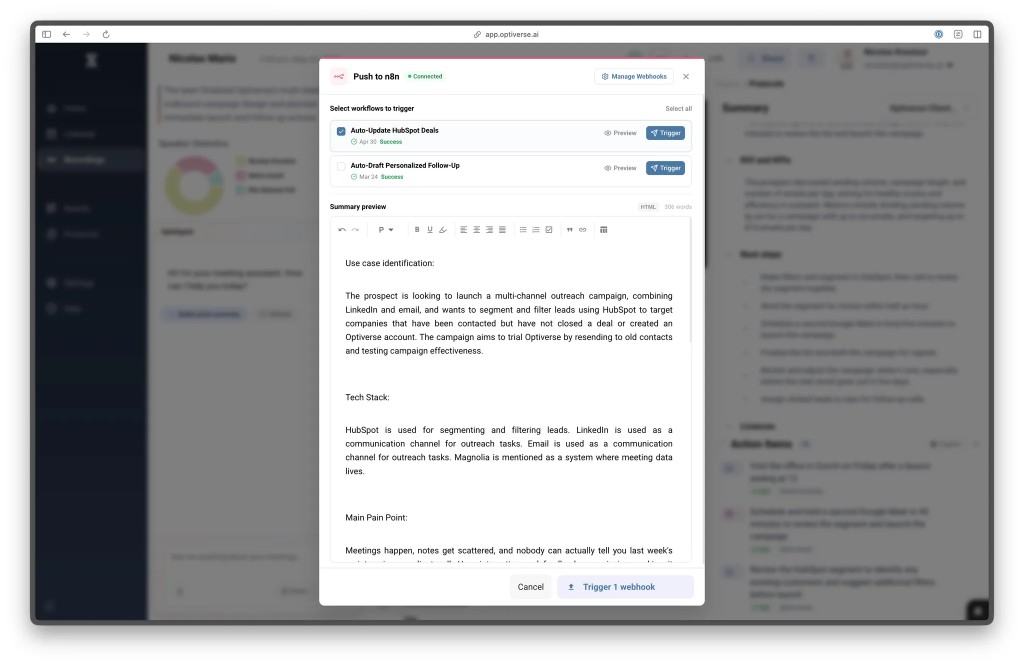
Clicking that icon opens the Push to n8n modal, where you can pick which workflow(s) to trigger and preview the exact summary that will be sent:
Step 2.3: Add a new webhook
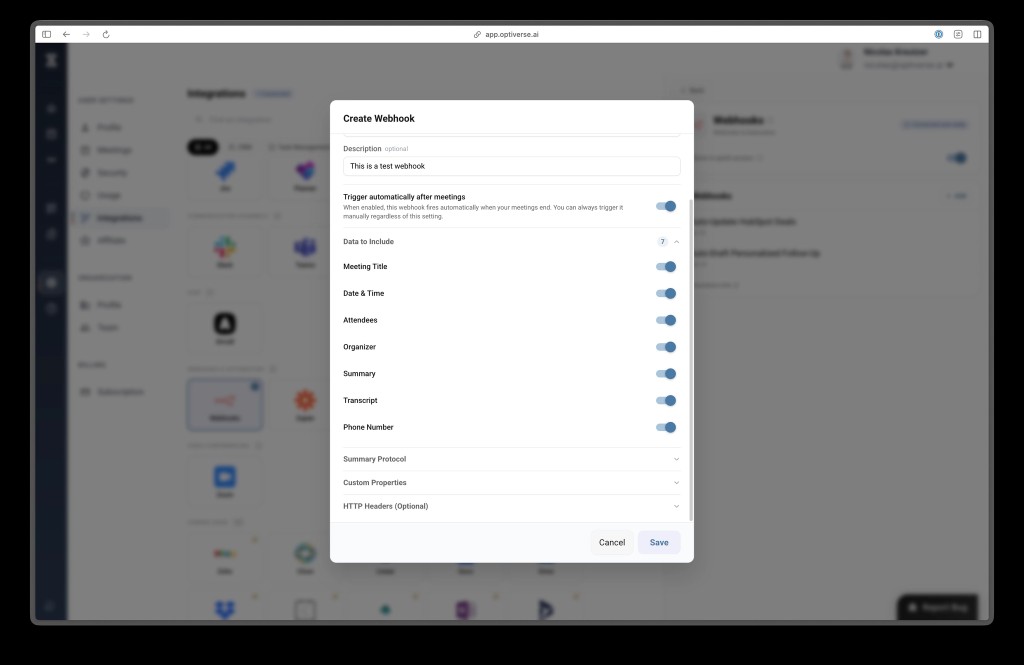
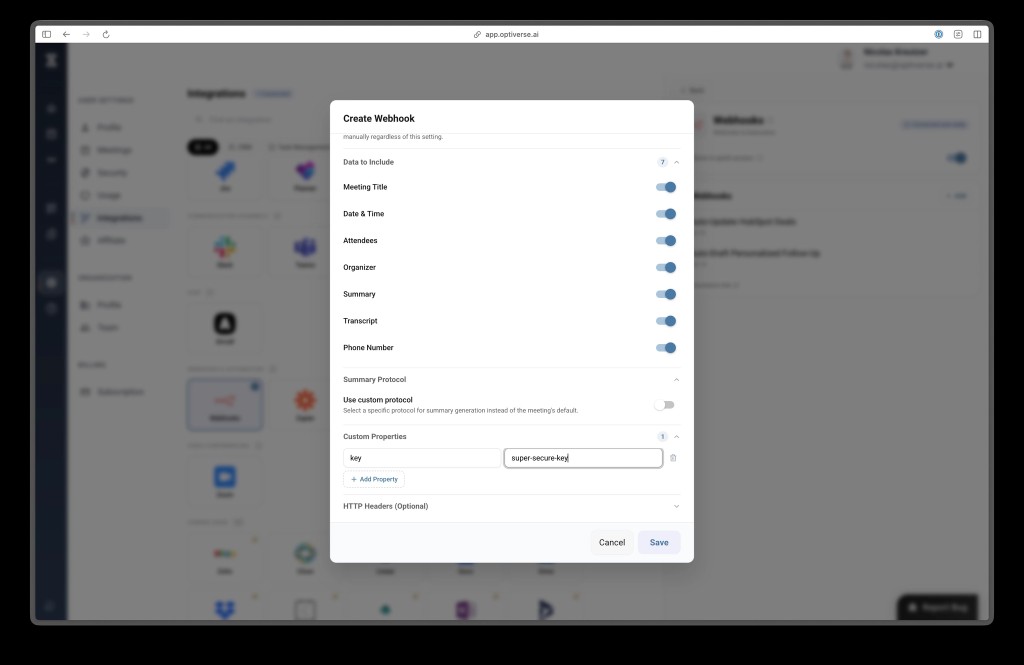
In the Webhooks panel, click + Add. The Create Webhook dialog opens.
Webhook URL
Paste the Production URL you copied from n8n in Step 1.3. It'll look something like:
https://your-instance.n8n.cloud/webhook/b82254a9-338d-4a65-ad61-bebaedb8b572Keep n8n's default 32-character random path. Do not replace it with something readable like /webhook/meeting-summarizer. The random path acts as a shared secret. Anything readable is easy to guess, exposed to the internet, and can be abused.
Trigger automatically after meetings
A toggle that controls when Optiverse fires this webhook:
| Setting | Behavior |
|---|---|
| On | Fires automatically every time a meeting ends. Use for "always-on" automations like syncing every meeting to your CRM. |
| Off | Fires only when you click the n8n icon from inside a meeting (the quick-access flow). Use for selective actions where you want to review first. |
You can always fire an auto-trigger webhook manually from the quick-access menu too. The toggle only controls the automatic side.
Data to Include
Seven toggles control what's in the payload sent to n8n:
| Field | Description |
|---|---|
| Meeting Title | The name of the meeting |
| Date & Time | When the meeting occurred |
| Attendees | List of participants |
| Organizer | Who organized the meeting |
| Summary | The AI-generated meeting summary |
| Transcript | The full conversation transcript |
| Phone Number | Phone numbers detected in the meeting |
All seven are on by default. Disable any you don't need to keep payloads small (e.g., turn off Transcript if your workflow only uses the summary).
Summary Protocol
By default, the webhook ships the meeting's default summary. If you have custom summary protocols defined in Optiverse, toggle Use custom protocol and pick the specific one you want for this webhook. Useful when one workflow wants a sales-style summary and another wants a support-style one.
Custom Properties (recommended for security)
This is where you add a shared secret so your n8n workflow can verify that requests really came from Optiverse.
- Click + Add Property
- Set the Key to something like
key,secret, orx-optiverse-token - Set the Value to a long random string. Generate one however you like (1Password, a CLI, or
openssl rand -hex 32). Treat this exactly like a password.
Then, in your n8n workflow, add an IF node right after the Webhook trigger that checks whether {{$json.body.key}} matches your secret. Reject anything that doesn't match.
HTTP Headers (optional, advanced)
Same idea as Custom Properties, but the values go in the HTTP request headers instead of the body. Useful if your n8n instance is behind a reverse proxy that filters by header. Most users can skip this.
Save
Click Save at the bottom. The webhook is now live.
Part 3: Test It End-to-End
From a meeting (quick-access flow)
- Open any meeting recording
- Click the small n8n icon in the top action bar
- In the Push to n8n modal, check the webhook(s) you want to fire
- (Optional) Edit the summary preview before sending
- Click Trigger N webhook(s)
The modal also shows the last time each webhook was triggered, so you can see at a glance whether your automation is healthy.
From an automatic trigger
If you left Trigger automatically after meetings on, just end a meeting. The webhook fires within a few seconds. Open your n8n workflow's Executions tab to confirm the payload arrived and inspect what was sent.
Security Best Practices
| Practice | Why |
|---|---|
| Keep n8n's default 32-character path | Don't simplify it to something memorable. It acts as a first layer of security. |
| Add a Custom Property as a shared secret | Verify it with an IF node in n8n. This is the single most important step. |
| Rotate the secret if you suspect it leaked | Update both sides (Optiverse and n8n) in lockstep. |
| Disable unused webhooks rather than deleting | You'll keep the execution history for debugging. |
| Don't put secrets in the URL itself | URLs end up in n8n logs, browser histories, and proxy access logs. |
Troubleshooting
Nothing happens when I end a meeting
Make sure the workflow is published in n8n (Step 1.4) and that Trigger automatically after meetings is on in Optiverse. Check the Executions tab in n8n. If there's nothing there, Optiverse isn't reaching n8n (double-check the URL).
n8n receives the request but my IF node rejects it
The key name in your Custom Property must match exactly what your IF node checks. Custom Properties land in $json.body.<your-key>. Open the execution in n8n and inspect the actual payload to confirm the path.
The summary is missing fields I expected
Go back to Settings → Integrations → Webhooks → your webhook and check the Data to Include toggles. Save again after changing them. Existing meetings won't backfill, but new meetings will use the new config.
My self-hosted n8n isn't receiving anything
Optiverse needs a publicly reachable URL. If you're running n8n on localhost or a private network, you'll need a tunnel (Cloudflare Tunnel, ngrok, Tailscale Funnel) or a proper public deployment.
What to Build Next
A few starter workflows that use the same webhook trigger you just built:
- Auto-update CRM deals: Push meeting summary, action items, and next steps onto the matching deal record
- Auto-draft personalized follow-up: Generate a tailored follow-up email in Gmail or Outlook, ready for you to review and send
- Slack digest: Post a structured summary to a team channel after every external meeting
- Task creator: Turn action items into Asana, Linear, or Jira tickets assigned to the right person
Each of these only requires different downstream nodes in n8n. The webhook trigger stays the same.